Image Render
High resolution image rendering allows a screen capture of the view window.
-
Click
 Image Render in the view window toolbar.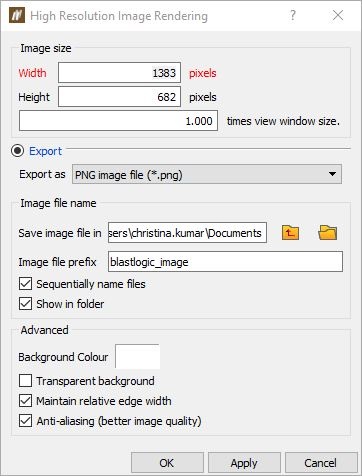
-
Select PNG, JPEG or BMP for the image type.
-
Select the location where the image should be saved. The folder is selected in the Save image file in field.
-
Give the file an Image file name or Image file prefix. If Sequentially name files is selected, the images will automatically be named sequentially. In this case, an Image file prefix must be specified. If it is not selected, a unique Image file name must be specified.
- Set the Width and Height of the outputted image. To increase the size of the captured image, enter a number greater than 1 in the times view window size field.
- The more advanced settings include toggle on and off the Transparent background and the Anti-aliasing. In most cases, these checkboxes can be left as their defaults.
- Click OK or Apply. The view window will be rendered to the specified file.
