Profile View
To use the Profile View tool, follow these steps:
-
Select the
 Profile View tool in the view window toolbar. The Profile View Tool side panel will appear and the view window will display a side view of a row of holes in the blast.
 Note: BlastLogic marks the current depth and charge depth of the hole with red arrows on the ruler in the view window.
 -
Optionally, alter the visualisation of the holes. Select the Visualisation tool from the view window toolbar and click the desired visualisation mode from the drop-down menu.
 Note:
Note:Only Charge decks and Intervals allow for direct manipulation.
-
Select to view the holes by row or echelon in the View method drop-down.
-
Select the desired row or echelon from the Row or Echelon drop-down. The Row drop-down appears if you selected Row from the View method drop-down and the Echelon drop-down appears if the selected Echelon from the View method drop-down.
-
Modify the hole display using the following options:
-
Wet sides display. To view the wet sides, you can select the Flags or Labels radio buttons. If you wish to turn off this view, select the Off radio button.
-
Intervals display. To view the intervals, you can select the Flags or Labels radio buttons. If you wish to turn off this view, select the Off radio button.
-
-
Select the
 and
and  buttons to navigate to the holes you wish to edit. The Current hole field displays the hole currently selected.
 -
View or edit charge decks and intervals using the following two tabs:
-
Charge plan
The Charge plan > Primers sub-tab displays the primers associated with the selected holes.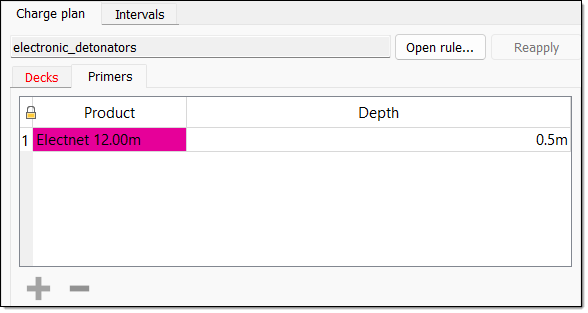
The Charge plan > Decks sub-tab displays planned charge products in the selected holes.
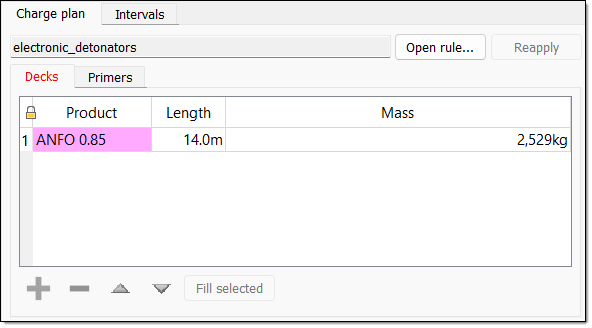
You can view the charge rule used to create this charge plan by clicking Open rule.... If any changes to the hole or charge rule are made, you can reapply the charge rule by clicking Reapply.
To modify the charge products in the Decks sub-tab, use the following operations.
-
To move a primer, middle mouse click the round paddle representing the primer. Hold the middle mouse button and drag the primer to its new location.
-
To modify a charge deck, middle mouse button click the square paddle representing the top or bottom of the deck. Hold the middle mouse button and drag the paddle to adjust the length of the deck.
-
To add a charge deck, press the
 button, and select the correct product from the drop down list.
 -
To remove a charge deck, select that deck in the table and press the
 button. Alternatively, drag one of the paddles all the way to the top or bottom of the deck, effectively creating a deck length of zero. This will delete that deck from the charge plan.
 -
To modify a deck so that it adjusts its length to suit the current length of the hole, select that deck and click Fill selected. This will ensure that the selected deck is modified such that the total deck length is the same as the current hole length.
-
To move an entire deck, first change the selection mode to edge selection . Then drag a box to select the deck you wish to move. A new triangular paddle will appear. Use the middle mouse button to drag this deck to its new location.
-
-
Intervals
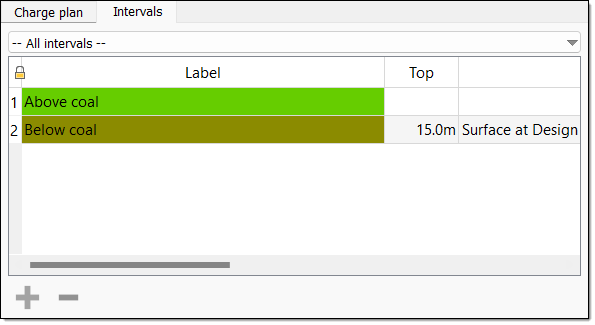
When viewing in the Intervals visualisation mode, the view will show a series of square paddles to enable direct manipulation of each interval on the hole.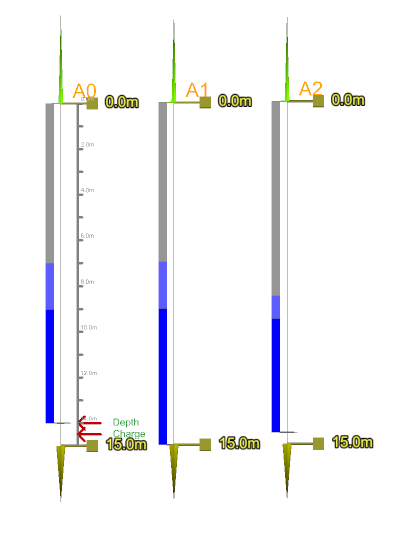
Tip: Add any surfaces used to create the intervals to the view to aid with accurate manipulation of the intervals.
To modify the length of an interval, middle mouse click the paddle representing the top or bottom of the interval. Hold the middle mouse button and drag the paddle to its new location.
Other operations
-
To automatically save any changes, select the Save holes automatically checkbox.
-
To undo any changes made to the current holes since they were last saved, select Revert.
-
To return the view to its default orientation, select Reset view.
-
