Selection Toolbar
The selection toolbar, located in the data explorer, contains tools to modify how you select objects and data in BlastLogic. You can select data at the object level or the primitive level (points, edges, facets and cells). When you select an object, BlastLogic highlights the object name in the data explorer. When you select primitives, BlastLogic highlights them in the view window. A view window that contains the selected objects or primitives will be gain a blue outline.
The table below summarises the tools in the selection toolbar:
| Icon | Label | Description |

|
Hands free manipulation | Used to alter the size of the View window without using the ALT key. |

|
Object selection | Used to select a collection of primitives in the View window. |

|
Vertex (point) selection | |

|
Edge selection | |

|
Facet (triangle) selection | |

|
Cell selection | |

|
Suspend highlighting | Temporarily suspend highlighting of the selection. This option temporarily stops showing objects that are not selected as dimmed. View windows containing selected objects or primitives will be shown with a blue border instead of a red border to signify that this option is selected. (PAUSE) |

|
Selection mode |
These options change the Selection mode. Rectangle: Click and drag to create a selection bounding box. Polygonal lasso: Click and drag to start the lasso, then click around the area to be selected. Right click, hit Space or ENTER to complete the selection. Freehand: Click and hole the mouse button while drawing around the area to be selected. Release the mouse button to complete the selection. Note: Use SHIFT+~ to toggle between these selection modes. |
|
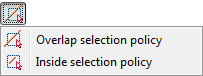
Selection policy |
These options change the Selection policy. Overlap: Objects or primitives which overlap with the selection area will be selected. Inside: Only objects which are completely contained within the selection area will be selected. |
Selecting data
- Select the required selection mode icon.
- Click the object or primitive. Multiple selections can be made by clicking with the left mouse button and dragging.
- A bounding box or polygon will be displayed. Once the mouse button is released, the appropriate objects or primitives will be selected.
- Hold down the SHIFT key to add more objects or primitives to the current selection.
- Hold down the CTRL key to remove objects or primitives from the current selection.
- To cancel a selection, click the background of the view window or at the bottom of the Explorer window, or press CTRL+SPACE.
