Getting Started
To use the BlastLogic Extend package, you must have the following essential components available:
BlastLogic Server 2024 or later
The BlastLogic Extend API was first introduced in BlastLogic 2024 to integrate third party systems, custom software, scripts and tools with the BlastLogic ecosystem.
Be licensed for BlastLogic Extend.
Contact Maptek for licensing enquiries.
A Python interpreter.
The Wheel (package) for BlastLogic Extend
It is available from PyPi <https://pypi.org/project/maptekblastlogic/> - the Python package index which is an online service that provides the ability to find and install Python packages.
A code editor to edit Python Scripts.
You can use any text editor to write Python, but we highly recommend using Visual Studio Code.
A basic understand of Python is expected:
Functions
Classes
Imports
Installation
It is recommended that you create a virtual environment for this project. The key benefit of this is it ensures the dependencies of this project don’t interfere with other projects and they don’t interfere with this one. See Create and Use Virtual Environments in the Python packaging user Guide for details. This is especially important if you are working on Linux as distributions often manage their own packages for Python and a virtual environment prevents the two sources of Packages from conflicting.
If you are working in a virtual environment:
python -m pip install maptekblastlogic
Configuration
In order to be able to use the BlastLogic Extend API, an API key needs to be generated for the BlastLogic server that you want the script to connect to.
The API key is like a username and password which authenticates your requests with the BlastLogic server.
Log into the web interface for BlastLogic Server and click on “User Keys”. On this page click the “New” button to generate a key.
When creating the key, provide a useful description so you know what the key is for, such as saying “Python Blast Truck Integration”. If you are not sure, consider “Python Experiment”.
Copy the key to your password manager. The server will only display the key once. If the key is lost, you will need to delete it and create a new one.
WARNING Do not store the API key within the Python script itself.
Doing this means anyone you share the script with will be able to interact with the BlastLogic Server as you. Read it from another file or from a password storage service.
Example Script
The following can be used to test that the package was installed and the API key is set-up. It can also be used as a starting point for your script.
The script uses Python’s built in getpass library to provide a prompt on the command line where the user can enter their token. It is more robust to use the 3rd party keyring package to securely store your key.
Once you have generated the key, you will need to create an AuthenticatedClient object to connect the Python Script to the server:
"""Prints sites on a BlastLogic server."""
import getpass
from maptekblastlogic import AuthenticatedClient
from maptekblastlogic.models import ErrorModel

token = getpass.getpass("Token for BlastLogic server:")
with AuthenticatedClient(
   base_url="http://blastlogic/50/api",
   raise_on_unexpected_status=True,
   token=token,
) as client:
   sites = get_sites.sync(client=client)
   if isinstance(sites, ErrorModel):
      raise RuntimeError(
            "Error when reading sites:",
            sites.title,
            "\n",
            sites.details,
      )
   if not sites:
      raise RuntimeError("No sites found on server.")

   for site in sites or []:
      if not site.is_active:
            print(f"Skipping. Site '{site.name}' is not active.")
            continue
      print(site.name, site.site_code)
The first lines import packages (libraries) to be used in the script. This is common for Python scripts.
The
getpass.getpass()line causes the script to ask for an API token.The client is set-up with the token and the URL to the BlastLogic server to connect to. This needs to be replaced with the URL of the server that you have access to.
Next the list of sites is requested.
If there was an error it is raised as a
RuntimeError.
If there are no sites, it raises an error to inform the user.
Otherwise, for each site, it prints out the name and site code if it is active.
Navigating between OpenAPI and Python
The learning outcome of this section is to provide the reader with the ability to navigate between the OpenAPI documentation for the service and the Python package.
Visit the Swagger page on your BlastLogic Server which will show you the BlastLogic Extend API, this is the HTTP-based API that forms the Extend functionality.
<your server address>/api/swagger
The page should look similar to the following image:
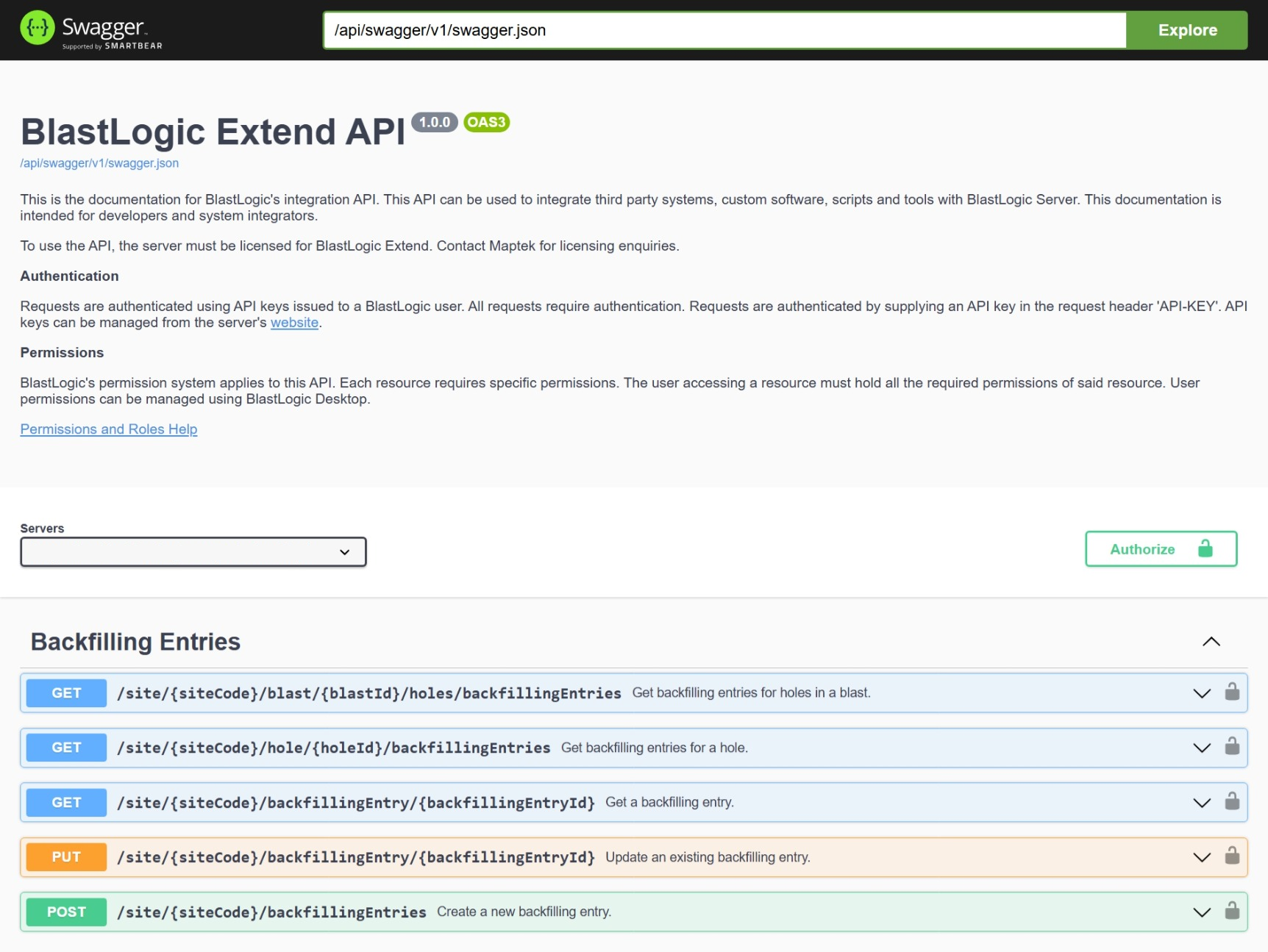
This lists the different resources (backfilling and dipping entries) and the operations that can be performed on them (get, update, create).
The resources map to a package in the Python SDK as a sub-package of maptekblastlogic.api and operation maps to a module in the sub-package.
Resource Examples
Resource |
Package |
|---|---|
Backfilling Entries |
maptekblastlogic.api.backfilling_entries |
Blasts |
maptekblastlogic.api.blasts |
Dipping Entries |
maptekblastlogic.api.dipping_entries |
Charge Plans |
maptekblastlogic.api.charge_plans |
Loading Trucks |
maptekblastlogic.api.charge_plans |
This is not a complete list of resources available.
Operation Examples
This example looks at the operations for backfilling entries.
Operation |
Module |
|---|---|
Get backfilling entries for a blast |
maptekblastlogic.api.get_backfilling_entries_by_blast_id |
Get backfilling entries for a hole |
maptekblastlogic.api.get_backfilling_entries_by_hole_id |
Get backfilling entry |
maptekblastlogic.api.get_backfilling_entry_by_id |
Update an existing backfilling entry |
maptekblastlogic.api.update_backfilling_entry |
Create backfilling entry |
maptekblastlogic.api.backfilling_entries.create_backfilling_entry |
Within each module there are four functions for performing the operation.
sync()sync_detailed()asyncio_detailed()asyncio()
For getting started you should favour the sync() function.
The sync() function
Most simple scripts which use BlastLogic extend will prefer to use the sync function. This sends the request to the server. The script will then wait for the response to arrive.
This will return either the response type for the API or an error model detailing the error reported by the server. It is up to the caller to handle the potential of an error response being returned. The most common way to handle this is to convert the error response into an error.
For example:
sites = get_sites.sync(client=client)
if isinstance(sites, ErrorModel):
   raise RuntimeError(
      "Error when reading sites:",
      sites.title,
      "\n",
      sites.details,
   )
The sync_detailed() function
This functions almost identically to the sync() function, except it returns
additional metadata about the HTTP request which was sent. This metadata
includes:
The HTTP status code of the response.
The content of the HTTP response in bytes.
The headers in the HTTP response.
The parsed response, if the request was successful.
For most scripts, this additional metadata is not necessary so usage of the sync function should be preferred.
The asyncio() function
This functions similarly to the sync() function, except that the HTTP
request is performed “asynchronously”. It sends the request to the server,
but the script doesn`t wait for the response.
Because the asyncio() function does not wait for the response, this allows
for the script to perform other processing while waiting for the response to
arrive. If a script performs multiple requests which are independent of each
other, sending all of the requests at once asynchronously can significantly
improve the performance of the script.
This is built on Python`s built-in asyncio library. It is recommended to not use this function if you are not familiar with that library or its premise.
import asyncio
import getpass


from maptekblastlogic import AuthenticatedClient
from maptekblastlogic.api.sites import get_sites
from maptekblastlogic.models import ErrorModel


async def main():
   site_url = input("Enter server URL: ")
   site_pass_key = getpass.getpass("Enter Access Token: ")
   await async_get_sites(site_url, site_pass_key)


async def async_get_sites(url: str, pass_key: str):
   with AuthenticatedClient(
      base_url=url,
      raise_on_unexpected_status=True,
      token=pass_key,
   ) as client:
      sites_coroutine = get_sites.asyncio(client=client)


      print("Do something else while waiting to query sites...")


      sites = await sites_coroutine
      if isinstance(sites, ErrorModel):
            raise RuntimeError(
               "Error when reading sites:",
               sites.title,
               "\n",
               sites.details,
            )
      if not sites:
            raise RuntimeError("No sites found on server.")


      for site in sites:
            print(site.name)
            print("Site Code:", site.site_code)
            print("Is active", site.is_active)
            print("=~" * 10)

if __name__ == "__main__":
   asyncio.run(main())
Warning
If multiple requests are sent at the same time:
The requests may arrive at the server in a different order than they were sent.
The responses may arrive at the client (the script) in a different order than they arrived at the server.
It is only safe to send multiple requests simultaneously if the script`s result will be the same regardless of the order in which those requests arrive at the server.
The asyncio_detailed() function
This returns additional metadata about the response to the request, similar
to the sync_detailed() function, but it executes asynchronously similar
to the asyncio() function. For most scripts, the additional metadata is
not necessary and usage of the asyncio() function should be preferable.