Interface Overview
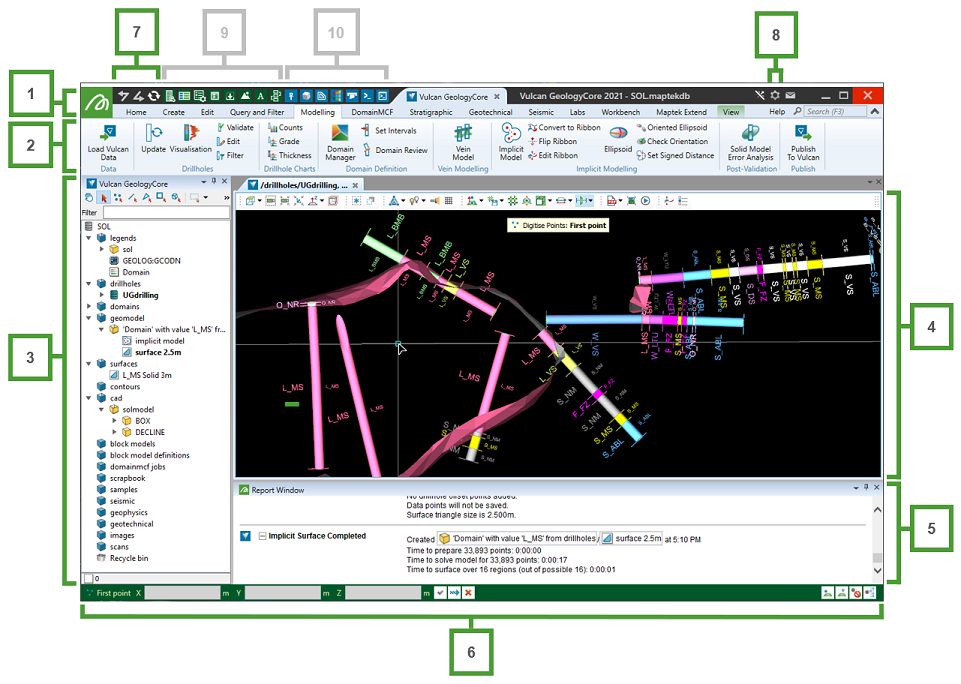
Maptek Vulcan GeologyCore is hosted within Maptek Workbench. You can switch between other Maptek applications and Workbench tools, all within a single window.
|
|
-
Launch Button
The Workbench Launch Button
 is a general menu containing a few relevant options. From here you can launch Vulcan GeologyCore, the application preferences panel, and various other tools and utilities.
 -
Ribbon Menus
Ribbon menus organise groups of related tools together. These groupings either relate to a type of operation, or a workflow. Some ribbon menus (such as View) are context-sensitive, meaning they only appear when that category of tools is relevant. Some ribbon menus are only shown if you have the relevant licence entitlement. Click on a ribbon menu tab to show the tools in that menu.
-
Home — Provides access to the most common and general operations such as data import and export, object appearance, and selection management.
-
Create — Create new objects such as points, lines, polygons, text annotations, surfaces and more.
-
Edit — Perform fundamental object transformations, such as translation, scale, and rotation.
-
Query and Filter — Interrogate object properties and attributes, search for objects spatially, or show/hide object points by various criteria.
-
Modelling — Create vein and implicit models.
- DomainMCF — Create block models using advanced cloud-based machine-learning techniques via Maptek DomainMCF. Requires add-on licence.
-
Stratigraphic — Create stratigraphic models from correlated drillhole data.
-
Geotechnical — Perform geotechnical analysis on surfaces. Requires add-on licence.
-
Seismic — Visualise and analyse seismic data. Requires add-on licence.
-
View — Configure view window behaviour and control the action plane, including sections. Context sensitive.
-
-
Project Explorer
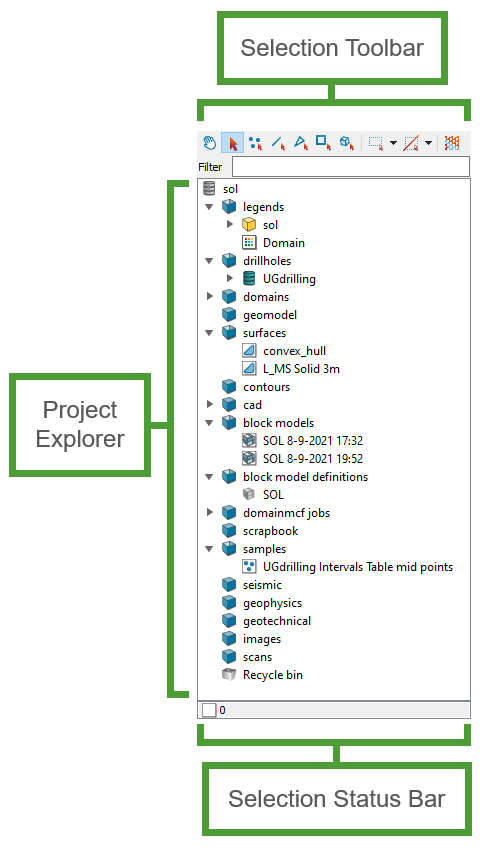
The project explorer allows you to browse, organise, and select your project data.
Selection Toolbar
At the top of the explorer window is the selection toolbar, which allows you to alter the way selections are made in views.
Project Explorer
The middle part of the explorer window is a listing of the objects in your project. Objects are organised in a hierarchy of containers. Standard containers
 are the default location for any objects you import or create. These cannot be deleted.
You can organise objects as you like within the project.
-
Drag and drop objects within the project explorer to move them.
-
To create your own custom container
 , right-click anywhere in the project explorer list and select New Container from the context menu.
Selection Status Bar
The selection status bar at the bottom of the project explorer summarises how many objects you currently have selected, and, if there is a primitive selection, how many primitives are selected.

Object Filter
The Filter field at the top of the project explorer allows you to display only objects matching the given string. The pale green background reminds you that you’ve filtered out some objects. Click
 to clear the filter.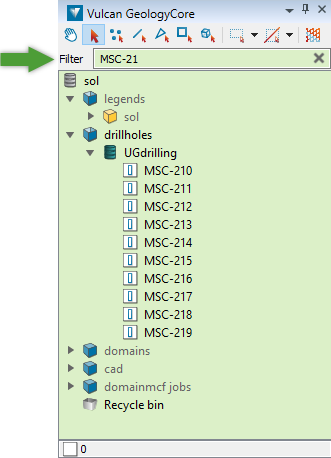
Filter Expression
A new filter can be created by parsing expression to build up a syntax, which is then used in the matches below, to determine what attributes are being filtered.
The filter expression is firstly split into tokens by spaces, open brackets, and closed brackets, with brackets intact and empty/space tokens ignored. A leading hyphen (-) is considered a separate token. The tokens are then examined accordingly:
-
if it is an opening bracket (, it's the start of an expression.
-
if it is a closing bracket ), it's the end of an expression (note that the bracket must be first opened to be closed).
-
if it is a hyphen -, it inverts the function of the succeeding expression or leaf filter.
-
if it is AND and there is a previous node, the previous and the next nodes both must match for the AND node to return a match. If there is no previous node, then the AND is a no-op.
-
if it is OR and there is a previous node, either the previous node or the next node must match for the OR node to return a match. If there is no previous node, then the OR is a no-op.
-
if it starts with created or changed, this token is the system 'creation date or modification date filter'. To be a valid filter, it must be followed by either < or > and then either a date (in YYYY-MM-DD or DD-MM-YYYY format) or a duration (number followed by s, m, h, d, w, mon or y). This filter will then match objects whose creation/modification date is before/after the specified date, or when the duration between current time and its creation/modification date is less/greater than the specified duration.
-
if it starts with has: (or the translation of that phrase), this token is a system 'object attribute filter', and the string after the colon is examined:
-
if it contains =, the object must have an attribute whose name (case insensitive) matches the substring before the = and whose value equals the substring after =
-
if it contains !=, it's 'not equal to' i.e. it acts like = except that the match result is inverted
-
if it contains <, <=, > or >=, the object must have an attribute whose name (case insensitive) matches the substring before the = and whose value is less than, less than or equal to, greater than, or greater than or equal to the substring after =, using a 'natural' string comparison, i.e. one which compares '6' to be less than '55'
-
-
if it starts with in: (or the translation of that phrase), this token is a system 'container filter', and to match, an object must have a parent whose name exactly matches the string after the colon.
-
if it starts with is: (or the translation of that phrase), this token is a system 'type filter', and the string after the colon is assumed to be a system type name, or a common alias.
Note: All other tokens are considered to match part of the item's primary name (case insensitive). If the expression could not be parsed as a valid filter, it throws an error, e.g. if it has unclosed brackets.
-
-
View Window
A key area of the user interface is the 3D view window—this is where your data is visualised.
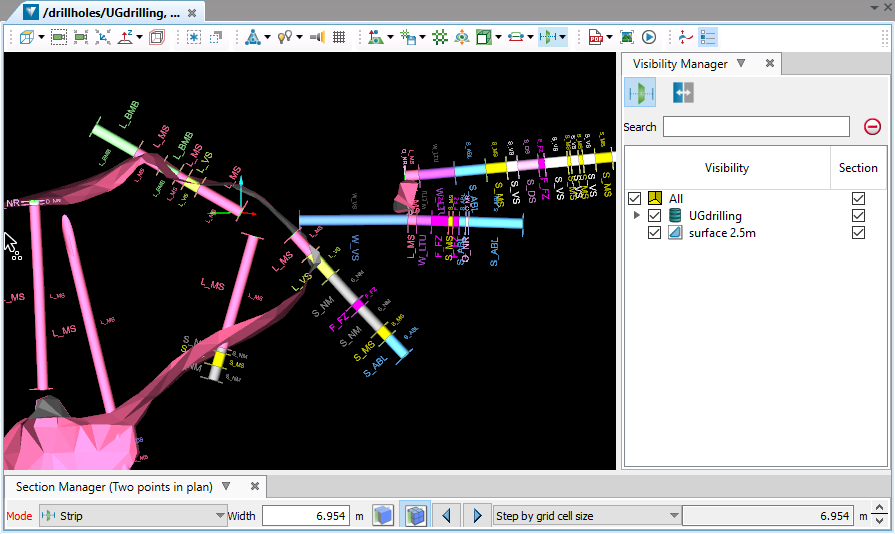
The view toolbar contains options and tools that affect how the data appears in the view. Some tools are docked within the view window when they are shown, such as the Visibility Manager (V) and the Section Manager (Shift + /).
Learn the basics of view windows in the next topic.
-
Report Window
The report window displays summaries of operations that have been performed, including warnings and errors. The reports are interactive—objects referenced in the report window can be selected by clicking on them, similar to the project explorer. Files referenced can also be clicked on to show them in a Windows file explorer, or double-clicked to open them inside the application.
-
Status Bar
The status bar displays input requests (usually point requests) for certain operations. The pick mode tool buttons appear on the right-hand side of the status bar when point pick requests are made.
