Surface Imagery
GeoSpatial Manager has built-in support for colouring the surface using satellite imagery from Bing Maps. For higher-resolution or more up-to-date imagery, you can supply your own images (such as aerial photography) uploaded as GeoTIFF files. This feature requires a Mapbox or ArcGIS account to host the imagery. Once uploaded, custom imagery is available to all users.
-
Up to 15 Mapbox images can be displayed at a time. If your Mapbox account contains more than 15 images, the most recent 15 images that are older than the selected date will be displayed.
-
Geospatial Manager will display all images hosted in the ArcGIS service.
Viewing surface imagery
To view surface imagery, open the  Colouring tool on the
  Home page and select Imagery. The surface will display Mapbox or ArcGIS images if available; otherwise, Bing Maps images will be used.
|
|
|
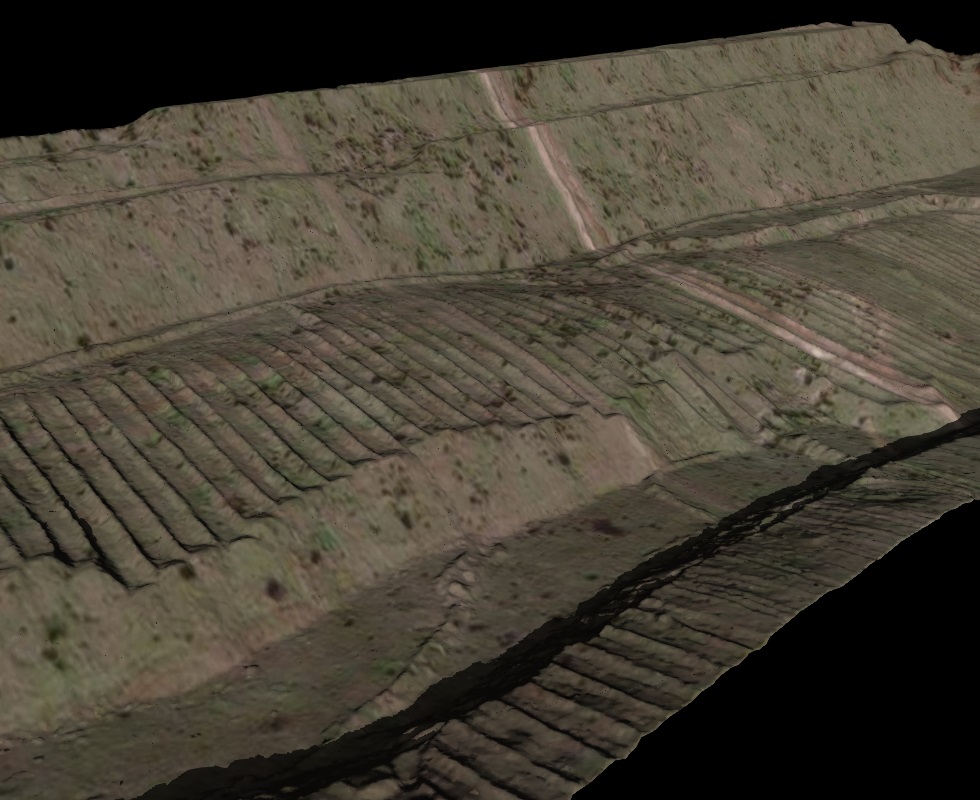
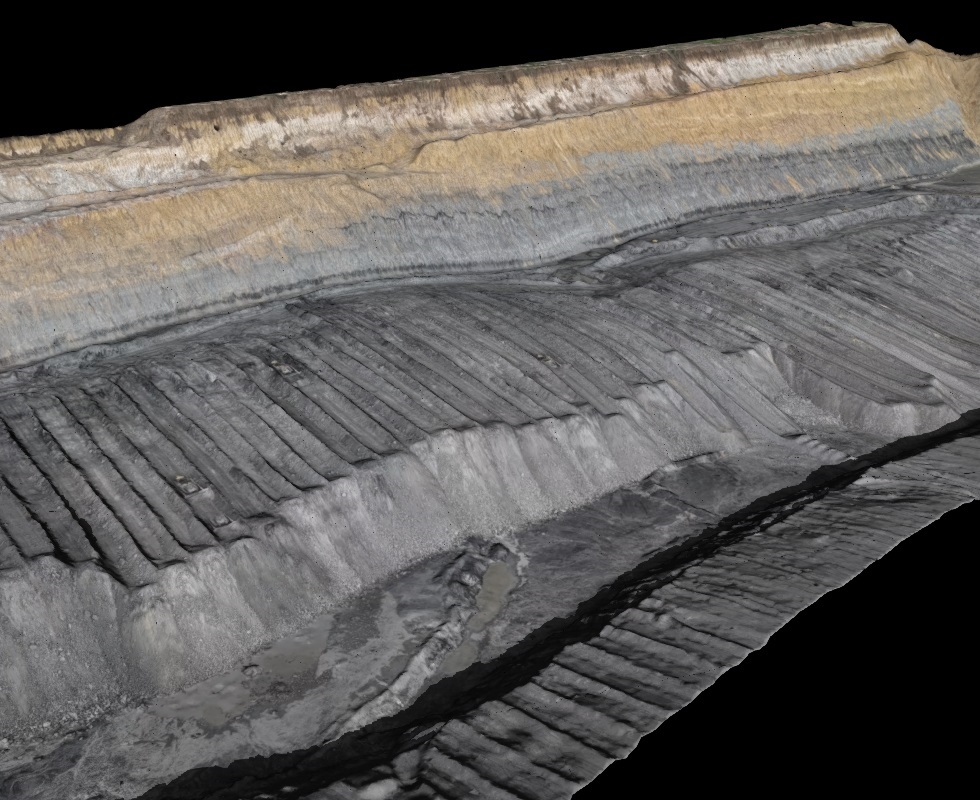
A terrain surface displaying Bing Maps imagery (left) and more up-to-date drone aerial photography uploaded to Mapbox (right). |
|
Configuring GeoSpatial Manager for use with Mapbox or ArcGIS
Note: Your role must have the Edit Settings permission enabled to configure GeoSpatial Manager for use with Mapbox or ArcGIS. See Site Settings > Roles for more information.
 Expand for instructions on configuring for Mapbox
GeoSpatial Manager must be connected to a Mapbox account with a correctly configured API access token before images can be uploaded.
To configure GeoSpatial Manager for use with Mapbox, follow these steps:
-
Set up and configure your Mapbox account.
-
If you do not already have a Mapbox account, sign up at mapbox.com.
-
Log in to your account.
-
Create an API access token. The token must have at least the following scopes included:
-
SCOPES:LIST
-
UPLOADS:READ
-
UPLOADS:LIST
-
UPLOADS:WRITE
-
TOKENS:READ
-
TOKENS:WRITE
-
TILESETS:LIST
-
TILESETS:READ
-
TILESETS:WRITE
-
-
After creating the token, copy the token to the clipboard. It will need to be pasted into GeoSpatial Manager in the next step.
-
-
Enter your Mapbox credentials in GeoSpatial Manager.
-
In GeoSpatial Manager, go to
 > Site Settings .
 -
Expand
 Imagery Settings.
 -
Under Imagery Provider, select Mapbox, then fill out the following fields:
-
Username: Enter your username. You can find this under Account in your Mapbox account.
-
API Token: Paste the API token copied in step 1d above.
-
-
Click OK.
-
Expand for instructions on configuring for ArcGIS
GeoSpatial Manager must be connected to an ArcGIS account with correctly configured credentials before images can be uploaded. If necessary, consult your ArcGIS administrator for assistance.
To configure GeoSpatial Manager for use with ArcGIS, follow these steps:
-
Set up and configure your ArcGIS account.
-
Enter your ArcGIS credentials in GeoSpatial Manager.
-
In GeoSpatial Manager, go to
> Site Settings . -
Expand
Imagery Settings. -
Under Imagery Provider, select ArcGIS, then fill out the following fields:
-
Server URL: Enter the URL of the ArcGIS service where the images are stored.
-
Portal URL: The root URL used to access the ArcGIS REST API. Usually in the form:
https://www.arcgis.comfor ArcGIS Online orhttps://machine.domain.com/webadaptor/sharing/restfor ArcGIS Enterprise.
-
-
Under Authentication, select the appropriate authentication method and fill out the fields accordingly.
-
Click OK.
-
If the credentials are correct, you will now be able to view image files.
Displaying images stored in Mapbox
If GeoSpatial Manager has been configured for Mapbox, as described above, you can import hosted images as below.
Note: Images must be GeoTIFF files (.tif, .tiff) that correctly georeference the surface model. As with surfaces, imported images must have a date and time specified on import to ensure a correct chronological association with the surface model.
Tip: You do not need to import existing Mapbox images. GeoSpatial Manager will display any images stored in your Mapbox account.
For more detailed information on importing image files, see Importing Data.
Once imported, images will appear in the Surface Items list and corresponding markers will appear on the timeline. When you mouse over an image in the list, the boundary of the area it covers will be highlighted on the surface.
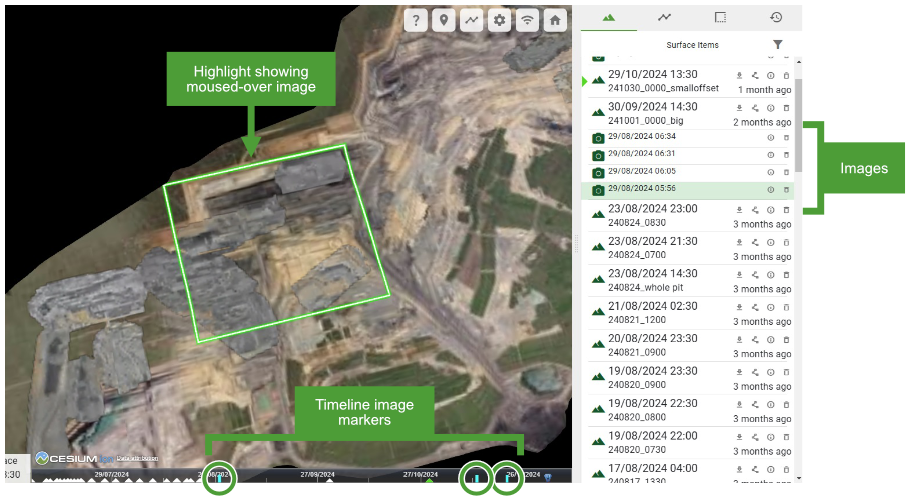
The following operations are available on images in the Surface Items list:
|
|
View and edit image details View details about the image including name, size, and capture time. The capture time can be modified to change the position of the image in the surface chronology. |
|
|
Delete image |


