2D Line
Source file: 2d-line.htm
Use the 2D line tool to draw lines on the action plane,
consisting of one or more straight line segments between selected points. The action plane assists in determining the line's placement in 3D
space. The resultant line is saved in the cad  container. To create lines in 3D, see Line.
Creating a 2D line
Create a 2D line as follows:
-
Set up the action plane where you want to draw a line.
-
On the Create ribbon tab, go to the Draw group. From the Line drop-down list select
 2D Line.
 -
Click in the view window to select the first point or enter values manually in the X, and Y input fields and press Enter. Click
 to clear the input fields.
Note: The Z field is disabled because the line is drawn in 2D.
The Next point drop-down will be enabled, from which you can select the coordinate entry mode as follows:
-
 Point - enter the next point's coordinates.
 -
 Length and angle - enter the length and compass direction of the next line segment.
 -
 Plane relative offset - enter the next point's distance from the last point in the X and Y directions.
-
-
Enter as many points as required to build a line using the preferred coordinate entry mode, or by clicking on the action plane.
The point coordinates, length and angle, or plane relative offset will be displayed as the line is being created.
-
Right-click to complete the line.
-
Repeat the above steps to create another line.
-
Press Esc or click
 to exit the function,
or continue creating new lines.
to exit the function,
or continue creating new lines.
The
panel will open, allowing manual input of coordinates for points. You can also select points in the view
window.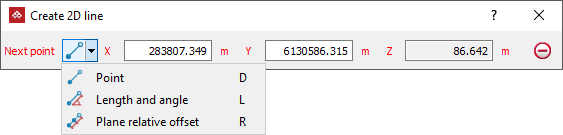
Note: Once the line is completed and the function exited, the line is no longer attached to the action plane. You can move it as required.
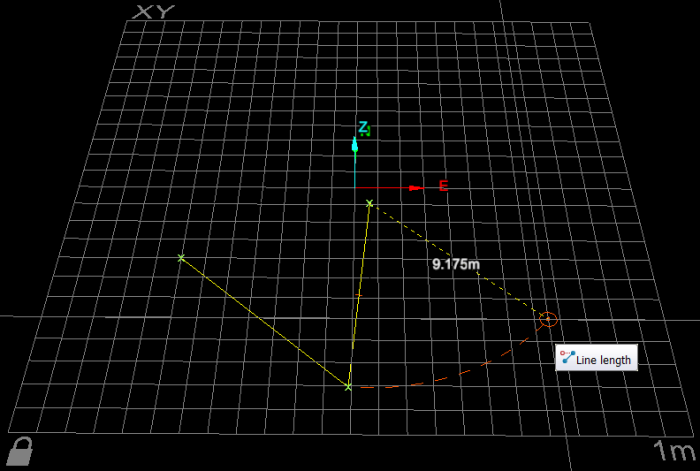
2D line creation. The next line segment's length is displayed according to the mouse's position.
Helpful shortcuts:
Use the following keyboard shortcuts for controlling the tool panel:
-
D to switch to Point entry mode
-
X to highlight the X field
-
Y to highlight the Y field
-
Z to highlight the Z field
-
-
L to switch to Length and angle mode, then:
-
L to highlight Length field
-
A to highlight Angle field
-
-
R switch to plane Relative offset mode (Action plane), then:
-
X to highlight Relative X field
-
Y to highlight Y field
-
-
Tab to step through the fields.
