Grade
Source file: grade-annotation.htm
The grade
(or slope) can be indicated at selected regions in the view
window.
-
On the Query ribbon tab, go to the Geometry group and select
 Grade.
Alternatively, from the Create ribbon tab, go to the Create group and from the Annotation drop-down list select
Grade.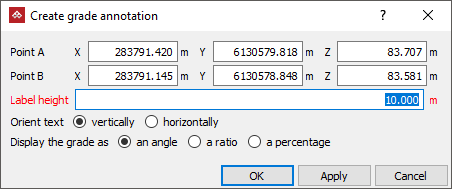
-
Enter appropriate values into Point A and Point B data fields, or snap to points along where the grade is to be measured and displayed in the view window.
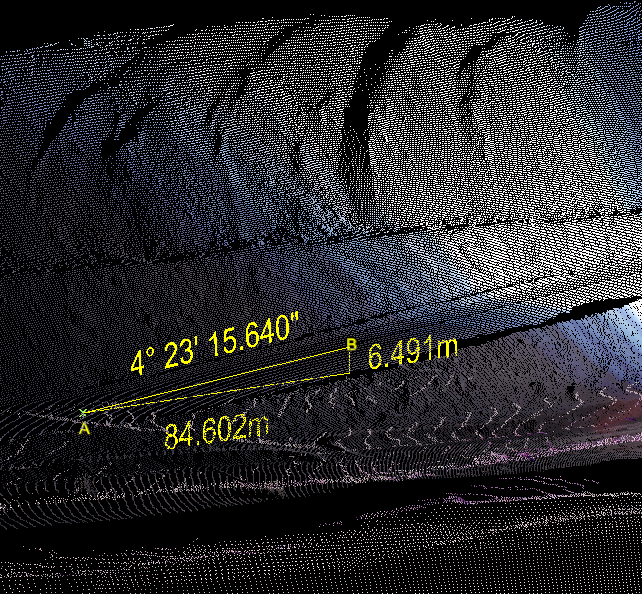
The grade will be displayed as text and an accompanying triangle displaying the vertical and horizontal distances between the points specified.
- Set
up and adjust various aspects of the grade annotation display,
as follows:
- Label height: Input a value appropriate for the overall display.
- Orient text: Select either vertically or horizontally, depending on which suits the main view angle being used.
- Display the grade as: Select from an angle, a ratio, or a percentage according to your requirements.
-
Select OK or Apply to complete the process.
The grade annotation is saved in the cad
 container by default and is displayed in the active view window.
