Project to Surface
Source file: project-to-surface.htm
Use the project to surface tool to project lines and polygons (in the 2D plane) onto a
topographic surface. This can be useful if, for example, you are creating
a topographic surface
and want to use the Split surface
along edge constraints
option.
-
On the Edit ribbon tab, go to the Project group and select
 Project to Surface.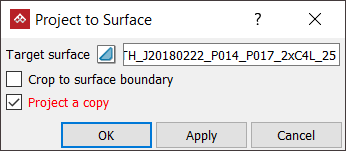
-
Select the Target surface for the lines and or polygons.
-
Select the lines and/or polygons to project.
-
Select the Crop to surface boundary to trim the lines at the surface's boundary or scale polygons to fit the outer edge of the surface.
-
Select Project a copy to leave the original points in place, and create copies projected to the edge. Clear this option if the points are to be moved.
-
Click OK or Apply. The line or polygon will be draped to the selected surface.
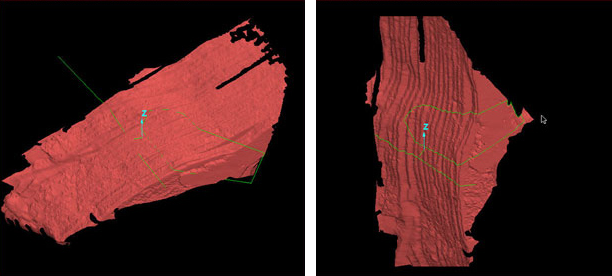
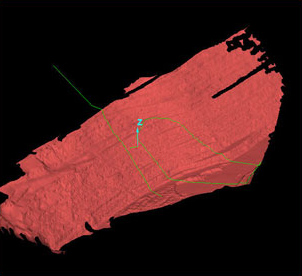
A projection applied to a polygon outside the surface boundary. Before (left). After - cropped to surface boundary (centre). After - not cropped (right).
