Split and Merge
Source file: split-and-merge.htm
With the merge tool you can merge multiple objects into a single object.
Note: Any objects and scans can be merged into one object.
With the split tool you can split the primitive selection to create two separate objects.
Note: Any object can be split into two.
 Merging objects
In the following example a stockpile is made up of multiple scans, however the selection of interest highlights only the relevant scans.
General procedure:
-
Select all the objects to merge into one.
-
On the Edit ribbon tab, go to the Object group and select
 Merge. The highlighted points are merged and combined into one object and saved in the cad container, labelled as merge.
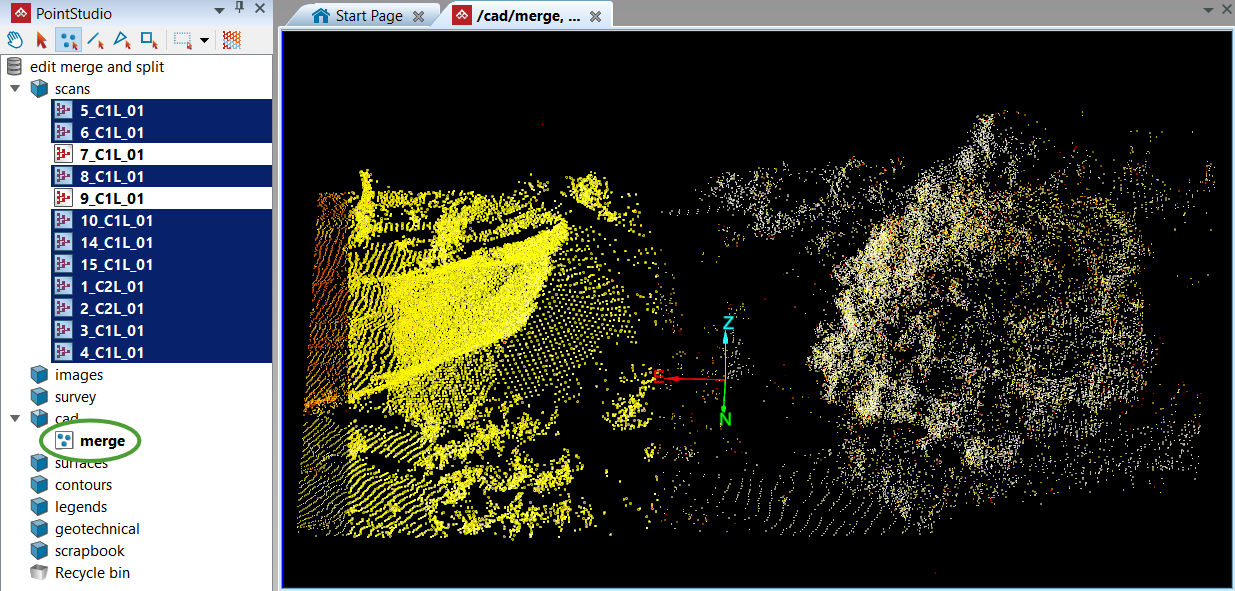
All the selected points subject to merger.
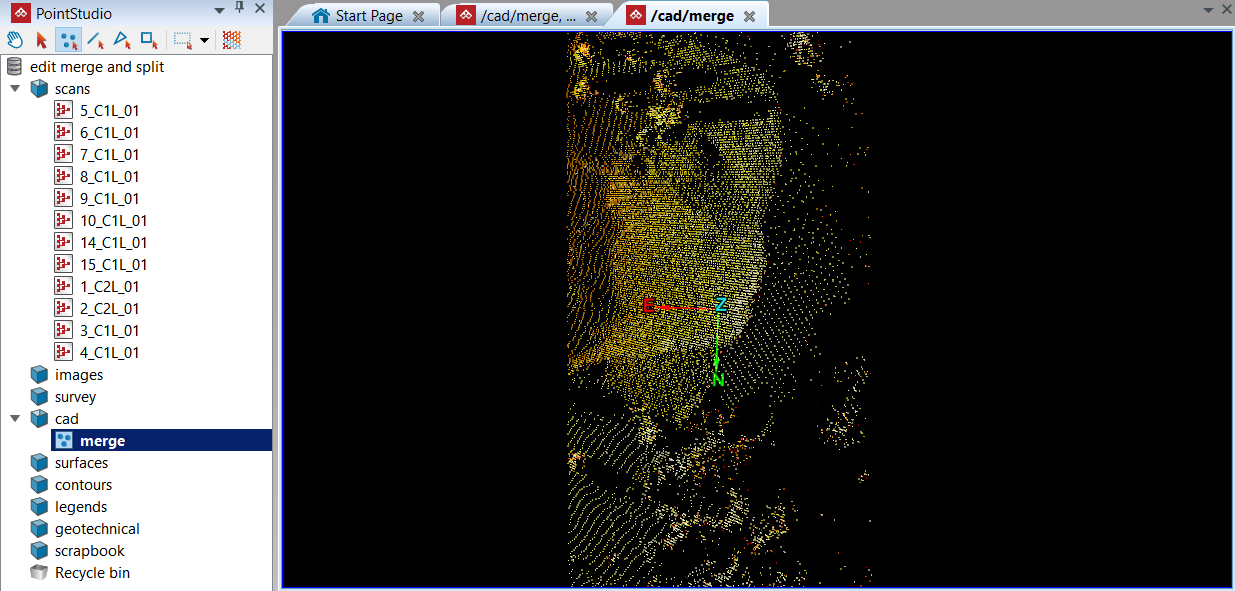
The merged object in a new view window.
Splitting objects
In the following example a selection was made from the merge stock pile object to demonstrate the split tool.
General procedure:
-
Select the portion of the object to split off.
-
On the Edit ribbon tab, go to the Object group and select
 Split.
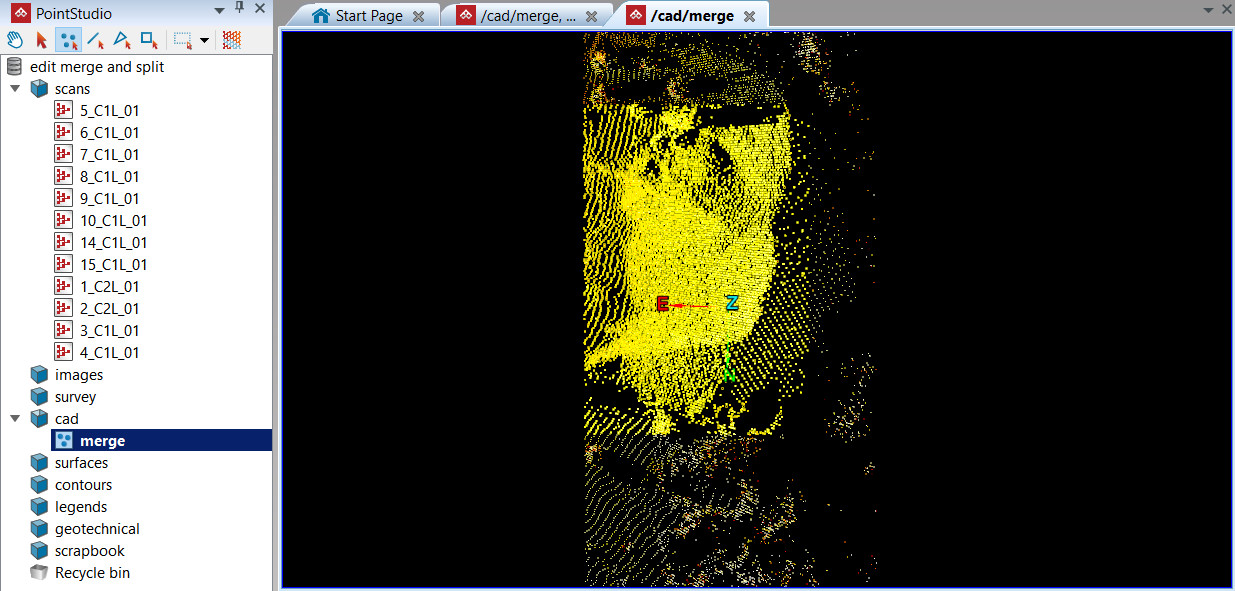
The split tool has created two new objects out of one: merge and points of merge.
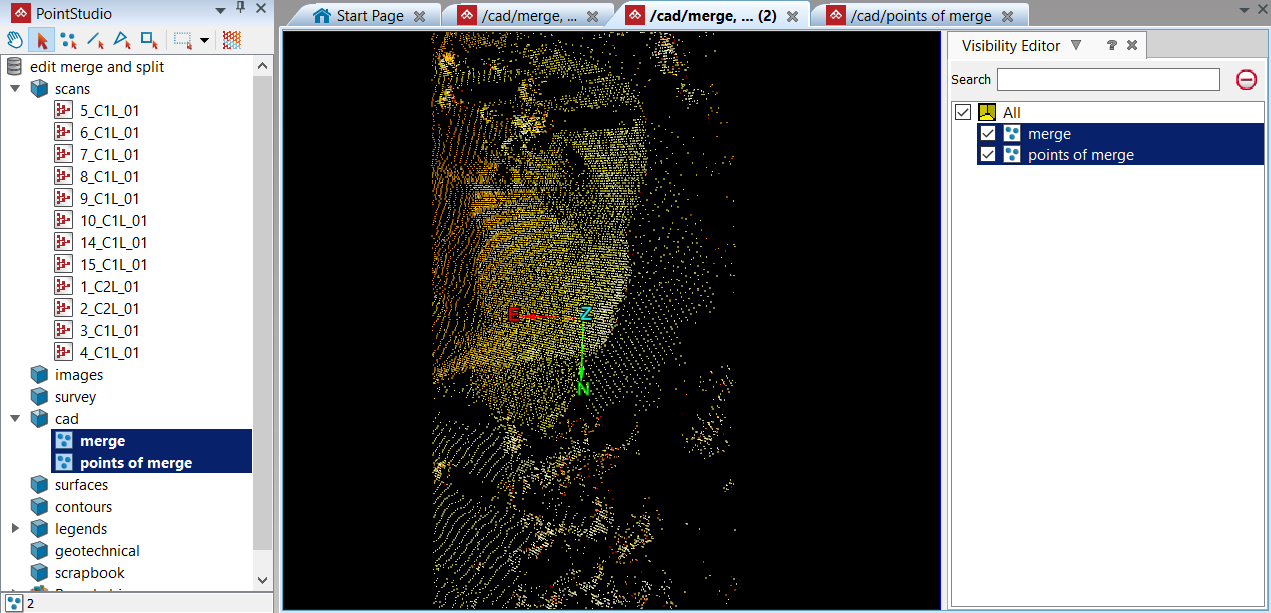
The newly created objects merge and points of merge are placed in the cad container and shown together in the same view window.
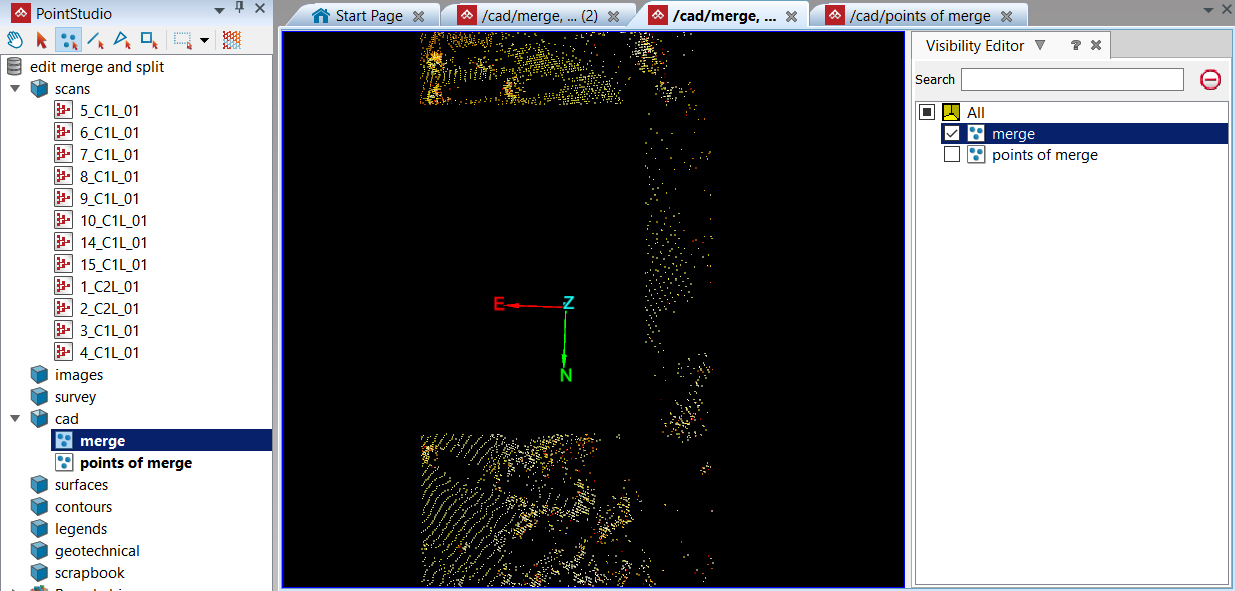
The points of merge object is hidden using the visibility editor.
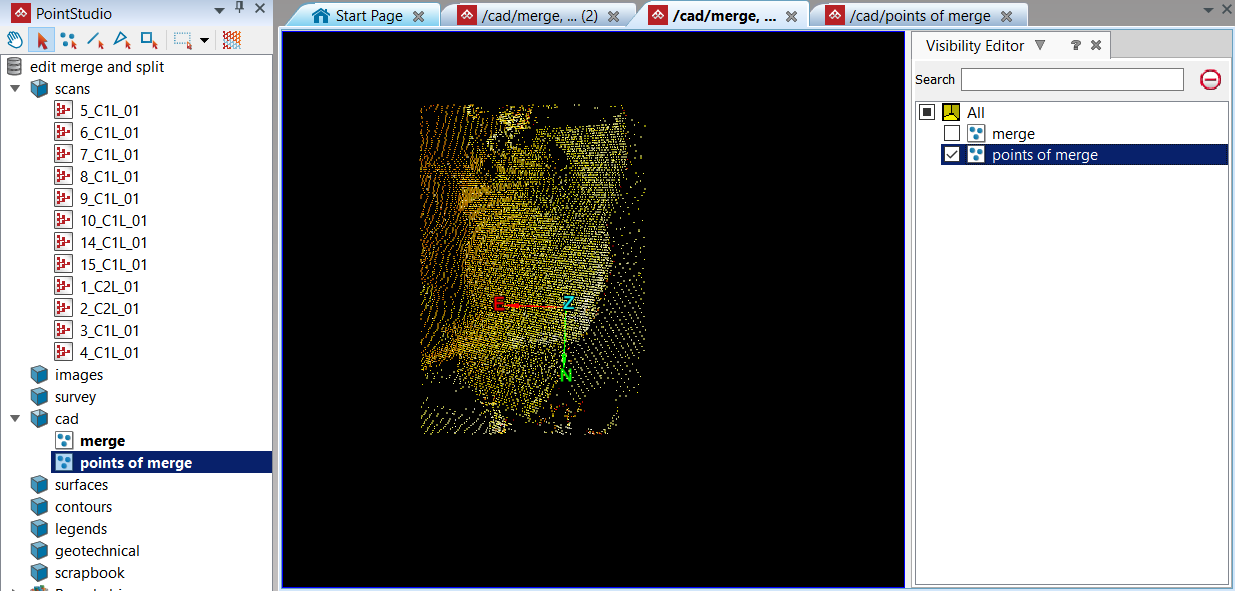
The merge object is hidden using the visibility editor.
