Add Facets
Source file: add-facets.htm
Use Add facets to add extra facets to a surface. Each facet is made up of three corners (points). The new facets can be directly attached (sharing a side) or not attached to the existing surface.
-
Right-click the surface and select
 View then select Wireframe to see the facets of a surface more clearly.
 -
On the Edit ribbon tab, go to the Primitives group and select
 Add Facets.
 -
Select surface to add extra facets to.
-
Click on a desired point to start defining the new facet, then click two more points to complete the facet.
Tip: Use snap modes to aid with point selection.
-
Repeat step 4 to make more facets.
-
Complete and exit by right-clicking, or clicking
 in the status bar.
Press Esc or click
 in the status bar to exit the function and discard changes.
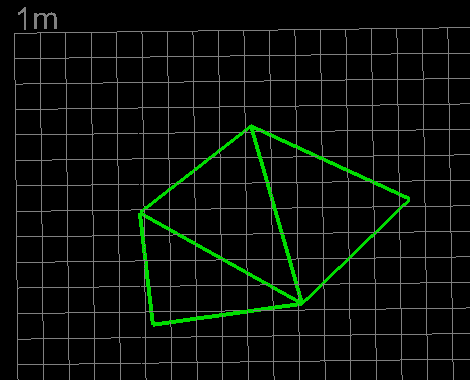
Select wireframe mode to view facets clearly.
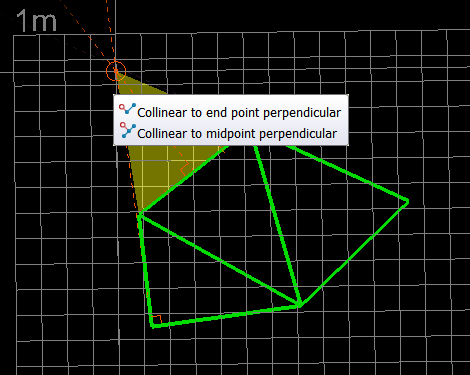
Select surface and add facet.
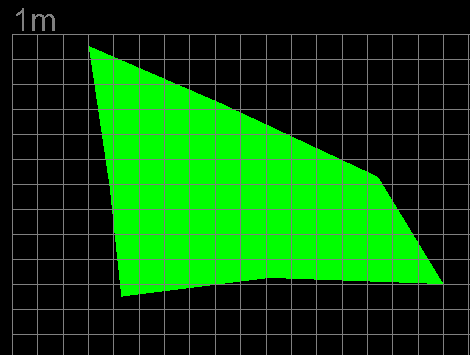
Finished surface example with two extra facets and displayed in smooth shaded surface mode.
