Mirror
Source file: mirror-data.htm
Use the mirror tool to create a mirror image of, or reverse the original data.
-
On the Edit ribbon tab, go to the Transform group and select
 Mirror.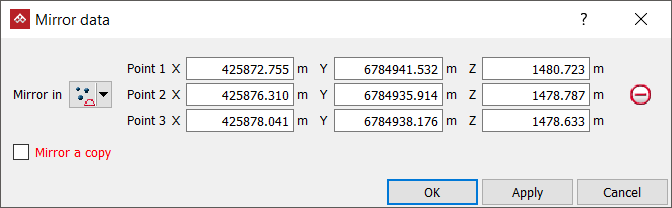
-
Select the method of defining the mirror plane from the Mirror in drop-down list. The panel will change to request additional inputs according to the selected Mirror in type.
The mirror plane options are:
 Three points: Define the plane by specifying three points.
 Point and normal: Define the plane by specifying one point and defining its normal direction.
 Point and orientation: Define the plane by specifying one point and orienting the plane so the current view is its normal.
 Facet and offset: Pick a triangle to define the plane's orientation, and then specify how far above or below that facet the plane should be.
 Point, strike and dip: Define the plane by specifying a point and then providing dip/strike angles to specify the orientation of the plane through that point.
 Axis aligned: Define the plane by selecting an axis pair then picking a point to define the offset along the third axis.
 Action plane: Use the action plane of the current view.
-
Select the Mirror a copy checkbox to create a copy of the original data reversed in the mirror plane.
Clear the Mirror a copy checkbox to reverse the original data in the plane of the mirror.
-
Select the object to be mirrored in the project explorer and make sure that no other objects are highlighted.
-
Click OK or Apply.
Tip: Right-clicking on the input fields will display a context menu with additional basic options.
Note: If you clicked Apply, close the tool with the Cancel button. If you click OK, the function will run again, undoing the mirroring.
The mirror vector guide
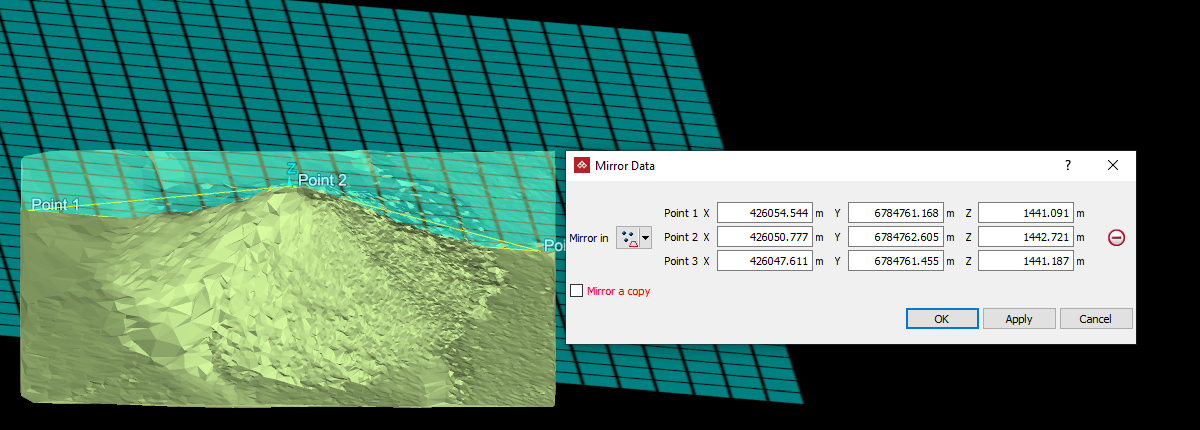
The translucent cyan grid on the data illustrates the position of the mirror surface.
