Rotate
Source file: rotate-data.htm
Data can be rotated around the three axes (X, Y, Z) or around a user-defined axis.
-
On the Edit ribbon tab, go to the Transform group and select
 Rotate
or in the Position and Filter ribbon tab, go to the Transform group and select
Rotate.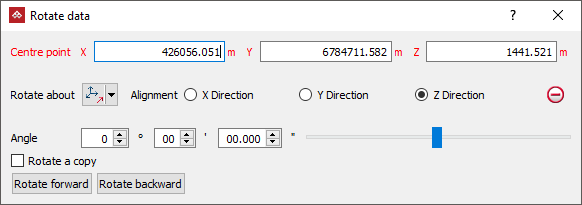
- Select a Centre point of rotation. The centre of rotation can be selected in the view window or entered in the panel.
Tip: Right-clicking on Centre point fields will display a context menu with additional basic options.
-
Select the method of defining the rotation axis from the Rotate about drop-down list.
-
 Two points: Rotate around an axis
defined by two points.
Two points: Rotate around an axis
defined by two points. -
 Facet: Rotate around an axis perpendicular
to a facet.
Facet: Rotate around an axis perpendicular
to a facet. -
 Axis aligned: Rotate about X, Y
or Z.
Axis aligned: Rotate about X, Y
or Z. -
 Bearing and inclination: Rotate
about an axis defined by a bearing and inclination angles.
Bearing and inclination: Rotate
about an axis defined by a bearing and inclination angles. -
 Action plane axis: Rotate about the action plane of active view.
The panel will change to request additional inputs according to the selected Rotate about type. The Rotate about options are:
-
Select the object to be rotated in the project explorer and make sure that no other objects are highlighted.
-
Enter a rotation Angle and use the Rotate forward and Rotate backward buttons to rotate clockwise and anti-clockwise.
-
Select Rotate a copy to rotate a duplicate of the original object each time Rotate forward or Rotate backward is selected.
Note: With Rotate a copy selected, select the new copy of the object to create another copy rotated further around the axis.
The rotation vector guide
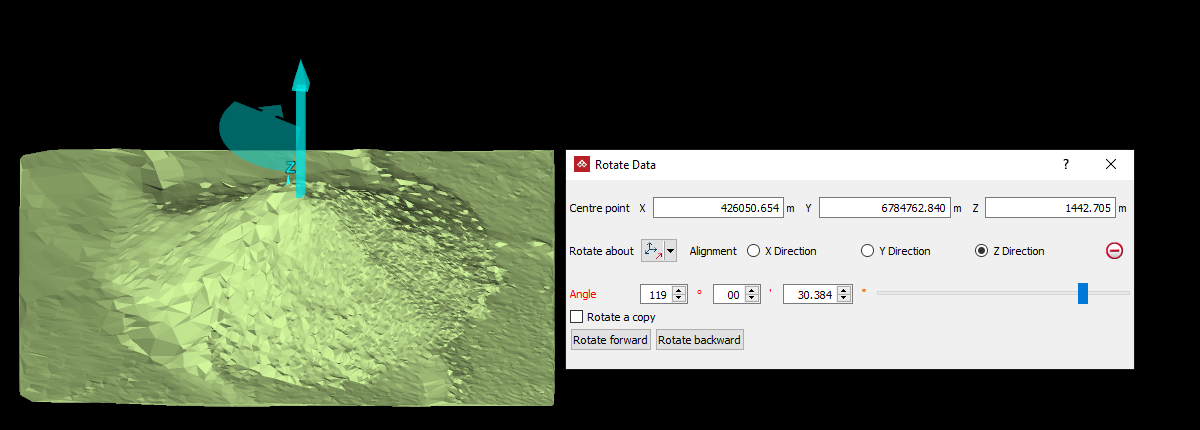
The effect of the rotating on the data is illustrated via the translucent circular arrow, illustrating the direction of rotation. The vertical arrow is the axis of rotation.
