Scale
Source file: scale-data.htm
The scaling
tool allows data to be scaled in axial directions.
-
On the Edit ribbon tab, go to the Transform group and select
 Scale.
or in the Position and Filter ribbon tab, go to the Transform group and select
Scale.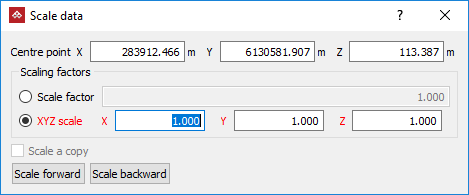
- Select a Centre point about which the object is scaled.
Tip: Right-clicking on Centre point field will display a context menu with additional basic options.
- Enter a Scale factor to scale the object equally in all directions.
Or
Select XYZ scale and enter factors for each of the X, Y and Z directions to scale the object disproportionately.
Tip: To scale scans horizontally, enter the scaling factor for X and Y, and set Z = 1.0.
-
Select Scale a copy to duplicate the original object and scale the new copy each time Scale forward or Scale backward is selected.
-
Select the object to be scaled in the project explorer and make sure that no other objects are highlighted.
- Click Scale forward to increase the object size by the scale factor, or click Scale backward to decrease the object size.
Note: Scaling removes photographic data from scans.
The scaling vector guide
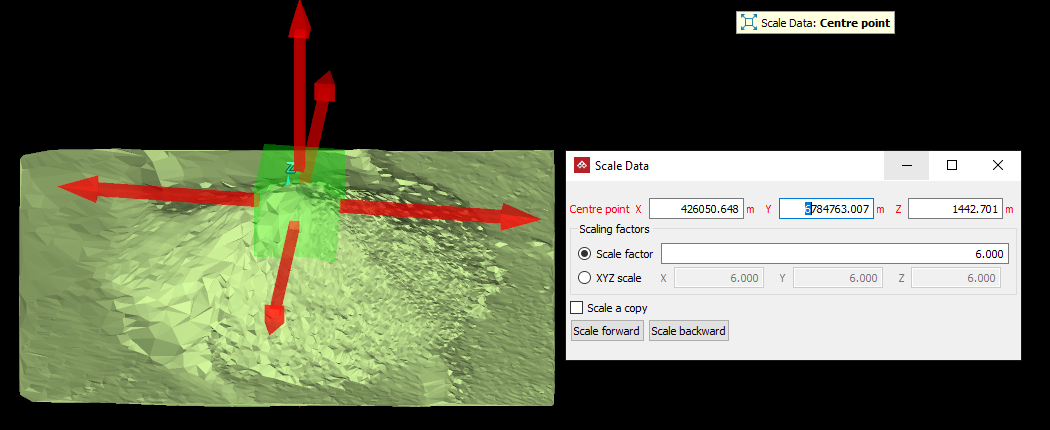
The effect of the scaling on the data is illustrated via the translucent green cube, with the attached red arrows demonstrating the relative size the box (the data) will be scaled.
