Filter by Attributes
Source file: filter-by-attributes.htm
Filter by attributes allows you to change point visibility based on the value of an attribute. For example, when you colour by distance from objects, each point receives an attribute recording its distance from the base object. You could then use Filter by Attributes to hide all points more than, say, 3 m from the base objects.
Tip: For assistance with creating attributes see Creating Attributes.
To filter by attributes, do the following:
-
On the Position and Filter ribbon tab, go to the Filter group and select
 Filter by Attributes.
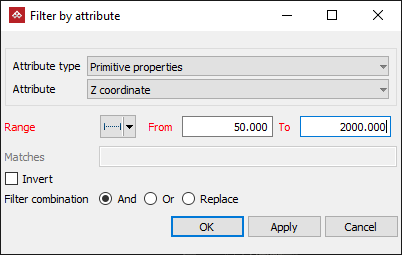
The Filter by Attributes panel will appear.
-
Select the object to be filtered from the project explorer.
-
Choose an Attribute type from:
- Primitive properties: Different object types’ primitives will have different properties that can be used as attributes. For example, with scans you can select from the following attributes:
- Intensity
- Range
- Z coordinate
If you have previously coloured an object by distance (see Distance from Objects), the Attribute list will also include Distance from objects.
If the object has a user-defined attribute with integer-type tags, this will also be available on the Attribute list.
Note - Primitive tags: Primitives can be given tags that can then be used as attributes.
Tip: You can also combine the selection with previously applied filters. See Filter Combinations for a detailed explanation.
- Primitive properties: Different object types’ primitives will have different properties that can be used as attributes. For example, with scans you can select from the following attributes:
-
Select the required Attribute from the drop-down list.
-
Select the required Range criteria from the drop-down list:
-
Range: Enter From and To values.
-
Less than or equal: Enter the upper range limit required.
-
Greater than or equal: Enter the lower range limit required.
-
All finite values: Filters out attributes that have an NaN or any other error values.
-
-
If available, enter text to search for in the Matches field. For example, to filter objects with an attribute called Water, type
Water. -
Select Use wild-card matching to filter key words in attributes, with * as the wild-card. For example, to filter all attributes containing
Water, type*Water*in the Matches field. -
Select Case-sensitive to include only results that match the case of the search item. With the previous example, a case-sensitive search will exclude results containing
water. -
Select the Invert checkbox to exclude objects identified by the Range and Matches criteria. With the previous example, results exclude objects with the attribute
Water. -
Click OK or Apply.
Note: The typical intensity range using a Maptek Gen3 mkI or mkII scanner varies between 350-1400.
Note: The typical range captured by a Maptek Gen3 mkI or mkII scanner is from 2.5 to 2400 m.
Filtering of the object will be applied based on the parameter settings.
Tip: You can redisplay the points
hidden by the filter using the  Show All option. See Show All.
