Fit Plane
Source file: fitted-plane.htm
Use the Fitted Plane tool to create a plane of best fit to a selection of points. This can be useful for querying
the dip and strike of rock faces.
-
Using either the object
 or point
  selection type,
select the points to have a plane fitted.
selection type,
select the points to have a plane fitted.Tip: Use point selection type for a more precise fit to a specific area.
-
On the Create ribbon tab, go to the Create group. From the Fit drop-down list select
 Fit Plane.
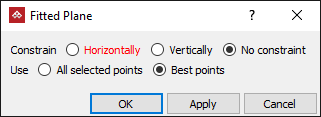
The Fitted Plane panel will appear.
-
Select whether the plane should be constrained Horizontally or Vertically, or select No constraint, which will use the best fit for the plane.
-
Select All selected points to use all the points in the selection to fit the plane, or select Best points to discard the outlying points.
-
Click OK or Apply.
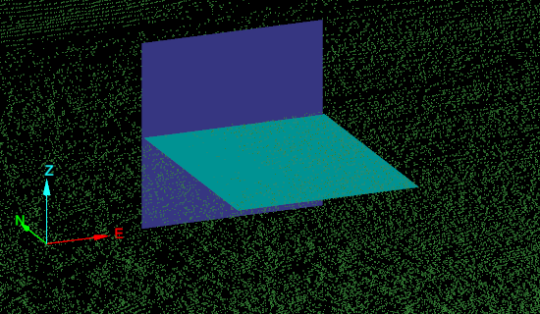
The plane is saved as a surface in the cad container and is displayed in the view window, coloured the average colour of the selected points.
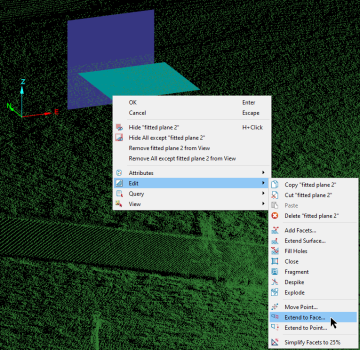
Tip: To edit the fitted plane, right-click on the plane to open its context menu, hover over Edit select Extend to point then select the point to extend the plane to. Alternatively, select Extend to face then select the face to extend the plane to.