View Selection
Source file: view-selection.htm
The View Selection tool allows a combination of objects to be selected from the project explorer or from within the view window or from both to be viewed together in the same window.
This is handy if there are multiple objects displayed in the same view window, and instead of looking for the objects in the project explorer, you can quickly visually identify and select the objects that require further independent work in the new view window.
Some further independent work on the selected objects could be that:
- You need to run through different scenarios or rehabilitation derived by using a different set of tools and to be able to compare the end results.
- You have been working on a set of objects and now you need to use a tool from a different Maptek application like Vulcan, or Vulcan GeologyCore educ. in a new window.
- You have multiple view windows open displaying different domains of the mine site and you would like to view them all together in the one window.
Follow these steps to make your selections and to view them:
-
Identify the objects in the view window and or in the project explorer that you would like to view together in a new window.
- Select the identified objects.Tip
Use the
 Select objects mode for selections.
To make multiple selections from the view window press and hold the Shift key while making your selections.
To add selections from the project explorer release the Shift key and press and hold the Ctrl key while making your selections.
-
On the Home ribbon tab, go to the View group and select
 View Selection.
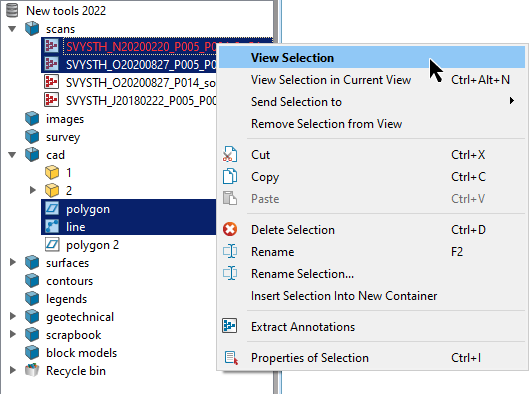
Alternatively select View Selection from the context menu.
The selected objects are displayed in a new view window.
