Installing licences
Adding or removing a floating server licence
Maptek software requires a valid licence file. Licences can be paired
with a dongle, run from a network server (floating licence), host-locked
or TPM-locked to a single computer. You will need to set up a licence
with a new installation of Maptek software. You can also request and add
multiple new or different licences using the procedures that follow.
When using a dongle licence, you might need to restart the installation process in order to update the dongle first, before continuing with software updates.
New installation
A new installation is performed from Maptek Workbench. Maptek Workbench is a single platform to license and access Maptek applications and services, streamlining workflows and technical support. Follow these steps to start a new installation:
-
Start from the Workbench start page.
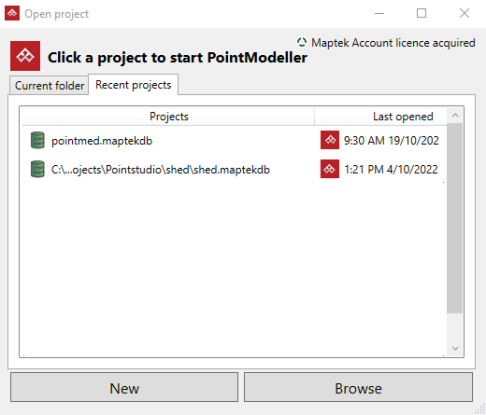
If a valid licence is found, the installation setup will load the Open project selection dialog box.
-
Click the Sign in to Maptek Account button on the far right in the Workbench start page.
The application will guide you through the rest of the process and you will be able to start PointModeller.
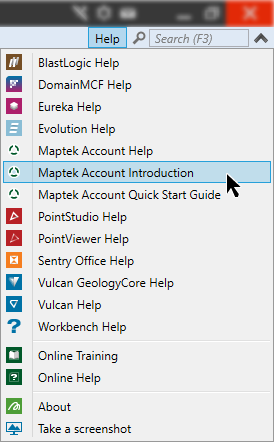
Note: Information on Maptek Account, creating your Maptek Account or signing in to Maptek Account can be found from the Help menu in the Workbench application.
Adding a licence file
-
Access the Maptek licence tool by performing a new installation, or if the software is already installed, navigate to and click the
 button.
 -
Click
 Dongle
and Floating Licence from the drop
down panel.
Dongle
and Floating Licence from the drop
down panel. -
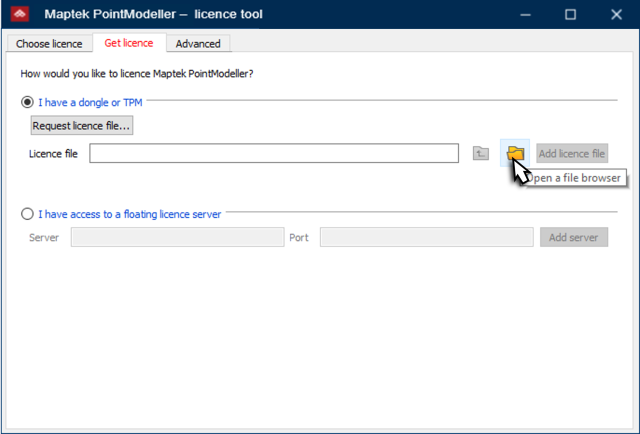
When the Maptek licence tool panel is open, if not already displayed, select the Get Licence tab.
-
Click the
 file browser folder button
in the Maptek licence tool panel to open an external
browser to navigate to your downloaded license.mlf file.
file browser folder button
in the Maptek licence tool panel to open an external
browser to navigate to your downloaded license.mlf file. -
Select the license.mlf file and click Open.
-
Click Add licence file.
-
The updated licence details will be displayed in the Advanced window in the Maptek licence tool panel when the action has been successfully completed. Select Choose licence tab again and click Use licence to finish and exit to the MaptekWorkbench start page.
Note: If the licence contains more than one product, you will need to go to the Choose licence tab and select the appropriate product.
If this is performed during a new installation, it will now load the Open Project splash screen and displays already created projects.
Adding or removing a floating server licence
-
Access the Maptek licence tool by performing a new installation or if the software is already installed, navigate to and click the
icon.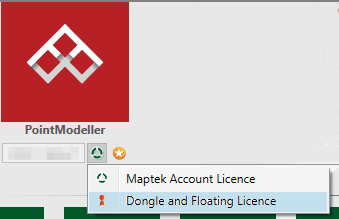
-
Click
Dongle
and Floating Licence from the drop down panel. -
Select the Get Licence tab and select the I have access to a floating licence server radio button.
-
To add a new floating licence server, manually enter the licence server name into the Licence server text entry field on the Maptek licence tool panel.
-
To remove a floating licence server, select the server name from the Licence sources window in the Maptek licence tool panel and click the Remove button.
-
The updated licence details will be displayed in the Licence sources window in the Maptek licence tool panel when the action has been successfully completed.
-
Click OK to finish and exit the Maptek licence tool.
If this is performed during a new installation, it will now load the Maptek software splash screen and display the project selection dialog box.
The image below shows the software name and type of licence used.
Borrowing licences
When travelling or doing remote area work, internet connection is not required. Prior to an extended period without internet connectivity, Maptek recommends borrowing a licence. Borrowed licences do not require the internet to be used for the duration of the borrowing period.
A Maptek Account Licence cannot be borrowed to a floating licence on a server. The Borrow function allows you to either borrow to your computer (borrow to host) or borrow to a HASP licence dongle plugged into your computer (with the relevant drivers installed).
Using the borrow licence function
-
Access the Maptek licence tool by performing a new installation or if the software is already installed, navigate to and click the
icon. -
Click
 Maptek Account Licence from the drop down panel.
The Maptek Account Licence Tool will open.
-
Click the Borrow button.
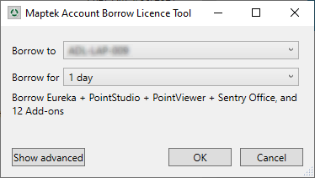
The Maptek Account Borrow Licence Tool will open.
-
Access the dropdown menu beside “Borrow to” to nominate either a dongle or your host computer, if more than one option is available.
-
Access the dropdown menu beside “Borrow for” to nominate the duration of borrowing.
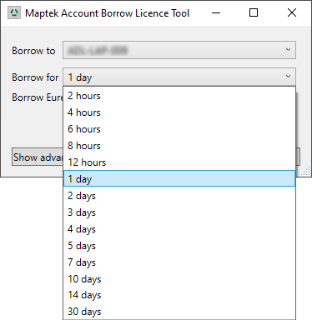
Your organisation can nominate the maximum borrow period allowed under their Maptek Licences, up to a maximum of 6 months.
-
Clicking the Show advanced button will display available licences and borrowed licences in greater detail and gives you more control over managing your available licences .
-
When finished click OK.
Successfully borrowed licences will display the borrowed icon indicating which licences are borrowed.
Licence file location
Once loaded
into the software, the licence files are stored in the system area or
the user configuration directory, depending on factors such as access
permissions during installation. The licence file location can help troubleshoot licensing issues encountered under various
user scenarios.
Find your licence in the system directory:
C:\ProgramData\Maptek
The licence is named: license.mlf.
If you do not have permission to write to the system directory (i.e. they don't have administrator privileges), the licence files will be stored in their user directory.
If the licence files are to be used by more than one user, the licence files need to be installed by an Administrator to the correct locations.