Create 3D Text
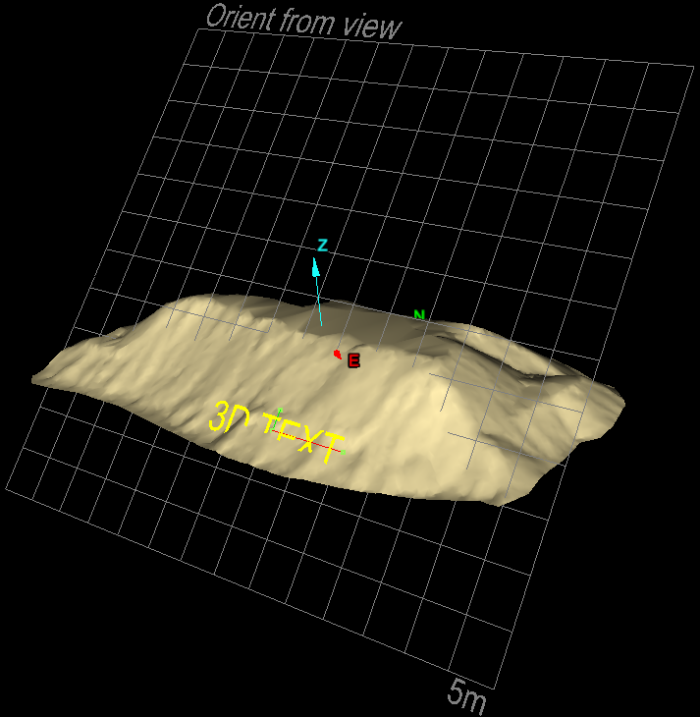
3D text can be used to label data in a view window. Unlike the Text option, 3D text can be aligned to the action plane and rotate/zoom like any other 3D object in the scene.
-
On the Create ribbon tab navigate to the Create group. From the Annotation drop-down list select
 3D Text.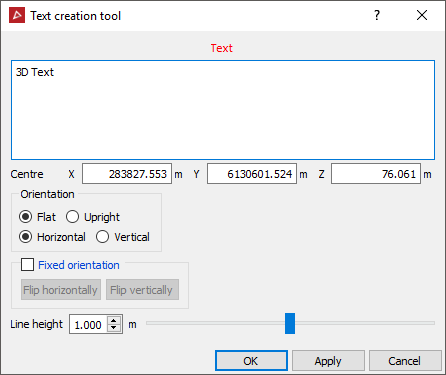
-
Type in the required text.
-
Click in a location field and enter the information or click in the view window at the desired location for the Centre of the text.
-
Select Orientation - the action plane is the reference when determining orientation.
- Choose between Flat or Upright.
- Choose between Horizontal or Vertical.
- Choose fixed orientation if you want the
text to remain unchanged while moving around. Otherwise the text will
flip automatically to maintain readability.
- If limited by fixed orientation, you can select to flip horizontally and/or flip vertically to obtain the desired orientation to be set as fixed.
-
Enter the required Line height for the text, or use the slider bar to specify the value.
-
Click OK or Apply to complete.
The created
3D text is stored in the cad container.
To edit the 3D text properties
-
Highlight the 3D text in the project explorer.
-
On the Edit ribbon tab navigate to the Properties group and select
 Properties.
The 3D Text tab will be automatically selected and ready for editing.