Select by Solid
The Select by solid allows you to select all objects associated in some way with a particular solid surface object. There are selection policies which provide options for choosing how the spatial relationships are to be compared. For example, you can select all objects inside a particular solid shape, or all those that are either outside or intersecting the particular solid.
-
Select all objects that are to be tested by the selection policy - to see which will remain selected on successful processing.
-
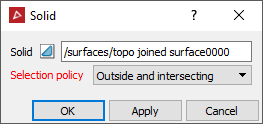
On the Home ribbon tab navigate to the Selection group. From the Select By drop-down list select
 Solid.
 -
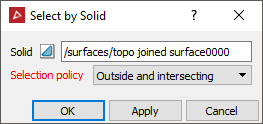
Click on the particular solid surface to reference, and it should auto-populate the solid field of the panel.
-
Ensure the correct selection policy is selected from the drop-down menu. Options are:
- Inside
- Inside and intersecting
- Intersecting
- Outside and intersecting
- Outside
-
Click OK or Apply to process.
-
The objects meeting the criteria of the selection policy will remain selected. Any others will be de-selected.
-
Where two criteria are used in the selection policy, an object only has to satisfy at least one criterion, to be selected.
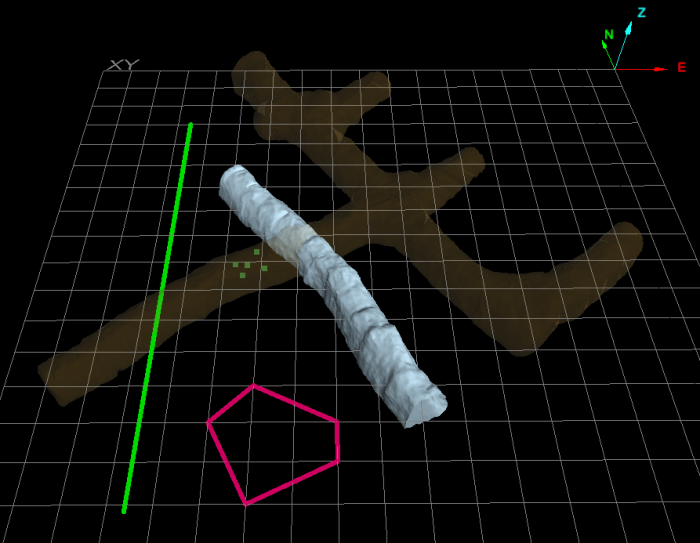
An example of objects, some intersecting, some inside, others outside the main orange (translucent) complex solid surface - which will be used as the reference solid.
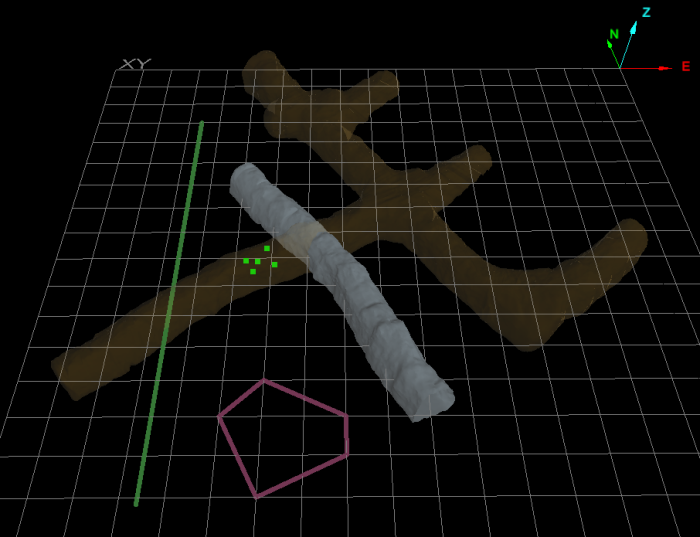
Select by solid which looks for objects either outside the reference solid or intersecting it.
The successful objects meeting the criteria of the selection policy - the line and the tunnel are intersecting the main complex solid, the pink polygon lies outside the complex surface. The points are inside the complex solid and therefore are not selected.