Simplify a Surface by Facet Count
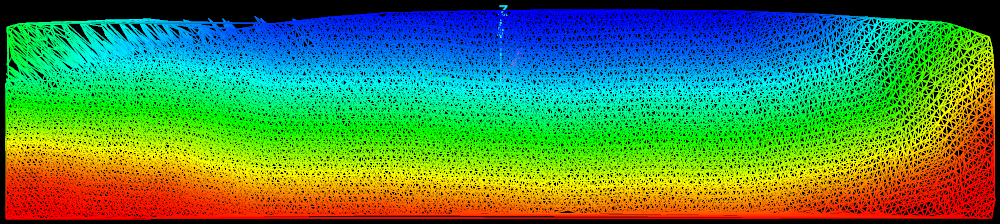
The Simplify tools allows surfaces to have their facet count reduced, while retaining the overall shape. This option works on a selection of facets that can be an entire surface, a group of surfaces or a selection of facet primitives on a surface. Surfaces may also require simplification in order to export them to packages that are unable to import or display surfaces with a large file size.
Simplify a surface by minimising the facet count by the following:
-
Select the surface in the project explorer.
-
On the Edit ribbon tab navigate to the Surface group. From the Simplify drop-down list select
 Simplify
by Facet Count.
Simplify
by Facet Count.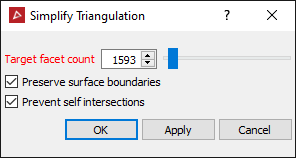
-
Set the Target facet count either by the slider or entering the desired number of facets the simplified surface will contain.
The slider can be adjusted from one to the total number of triangles in the selection. If the slider is set to halfway, it will reduce the facet count by half. This can be applied repeatedly to further reduce the facet count by half each time this function is applied.
-
Select Preserve surface boundaries to leave the boundary unchanged.
-
Select Prevent self intersection to disallow line intersections, however the analysis to guarantee the intersections don't occur will slow the simplification down.
-
Click OK or Apply.
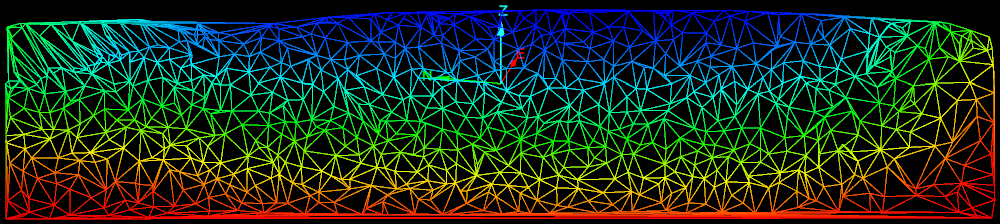
The simplification process will amalgamate the triangles in flat regions first, preserving edges and other curved areas. It will also simplify triangles around the boundary of the triangle selection.
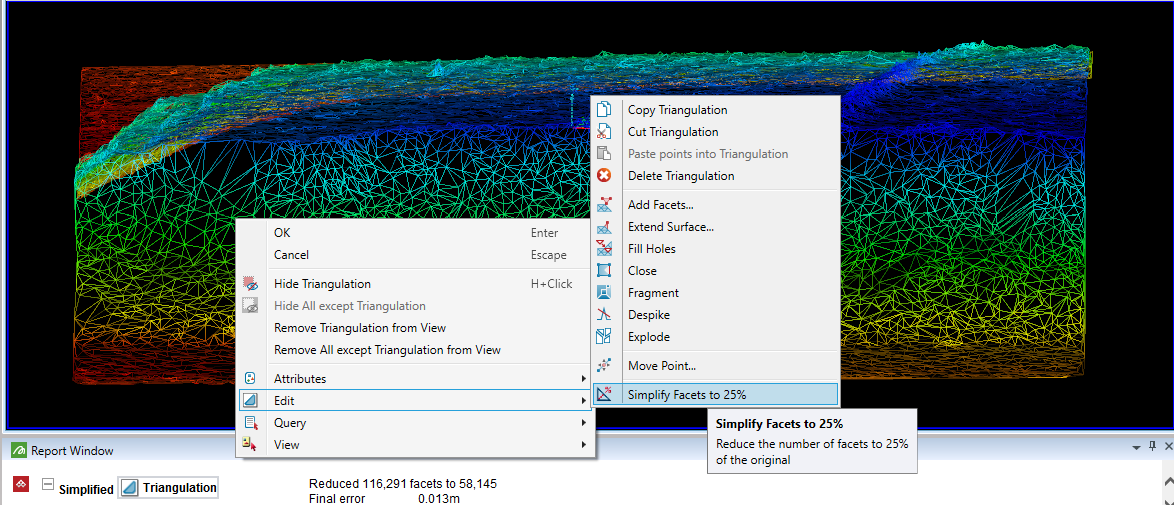
Follow these steps to check for inconsistencies:
-
On the Query ribbon tab navigate to the Surface group and select
 Surface Validity.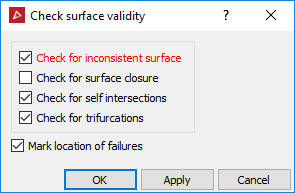
-
Clear the Check for surface closure checkbox.
This option is only used for closed solids.
-
Select Mark location of failures to create objects in the cad container that highlight the locations of the errors.
-
Click OK.
-
Drag and drop the object (s) created in the cad container onto the surface view window to display any errors found.
-
To repair any errors found, zoom into the error and select surface render mode in wireframe
 .
.
Example of an error
-
Using
 Select points mode, select a corner point on the triangle and click
Delete on the keyboard.
Select points mode, select a corner point on the triangle and click
Delete on the keyboard. -
To fill the hole created, on the Edit ribbon tab navigate to the Fix group and select
 Fill
Holes.
Fill
Holes. -
Repeat this procedure for all errors found.