Creating a Fitted Plane
Used to fit
a best fit plane to a selection of points. This can be useful to query
the dip and strike of rock faces.
-
Using the point selection tool
 ,
select the group of points to have a plane fitted.
,
select the group of points to have a plane fitted. -
On the Create ribbon tab navigate to the Create group. From the Fit drop-down list select
 Fit Plane.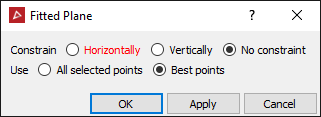
-
Select whether the plane should be constrained Horizontally, Vertically or No constraint which will use the best fit for the plane.
-
Select All selected points to use all the points in the selection to fit the plane or select Best points to discard the outlying points.
-
Click OK or Apply.
The plane is saved as a surface in the cad container and is coloured the average colour of the selected points.
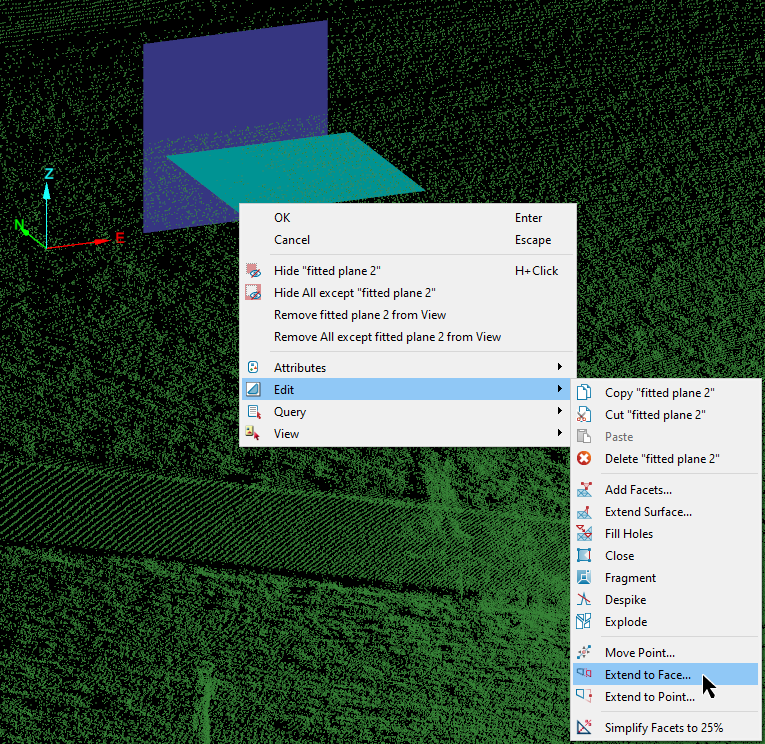
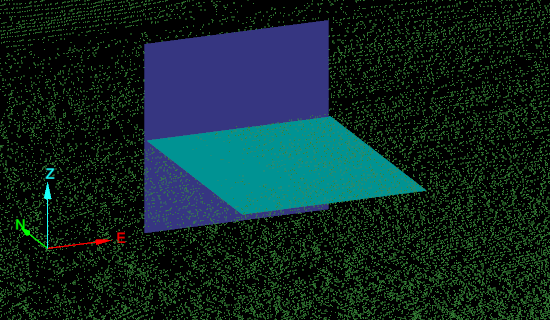
Alternatively, right-click on the plane, hover over Edit and select Extend to face followed by selecting the face to extend the plane to.
|
|