Querying the Distance Between Points
Distance
query measures the distance between selected points.
-
On the Query ribbon tab navigate to the Geometry group and select
 Distance.
OR
Ctrl + Alt + D keyboard combination.
This will launch the query distance dialog in the Status bar.

-
Manually enter the first point to be measured from, or click in the desired location in the view window.
-
Manually enter the next point to be measured, or click in the desired location in the view window.


The distance is displayed on the screen as points are measured and a summary of the measurement is displayed in the Report Window.
-
Continue entering points to be measured.
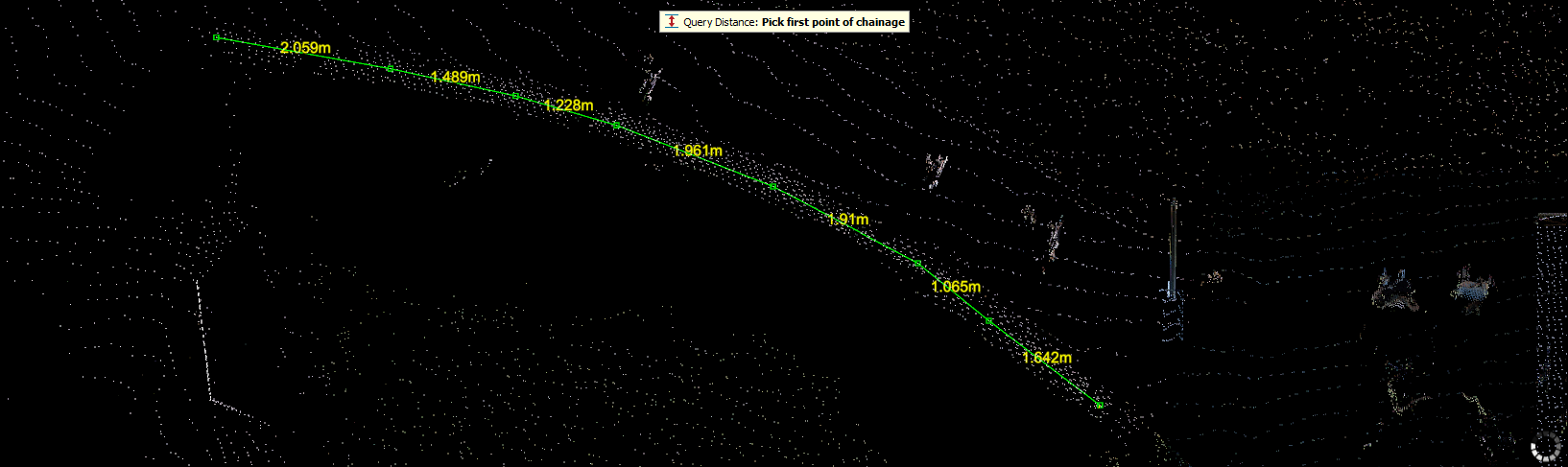
-
Press Enter or the space bar to complete the operation. The Query distance panel opens.
Note: Distance queries will now cease however you can continue by starting from step 1 again.
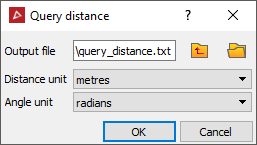
The Query distance dialog enables a .txt file containing all the point data summaries to be saved to the specified location (the project location is selected by default).
-
Press and hold the D key on your keyboard.
-
In the view window click on the first point to be measured from.
-
In the view window click on the next point to be measured to.
The queries will be displayed in the view window and in the report window.
-
Continue clicking points to be measured.
-
Release the keyboard D key.
The results displayed in the view window and the status bar will disappear however the results in the report window will remain.
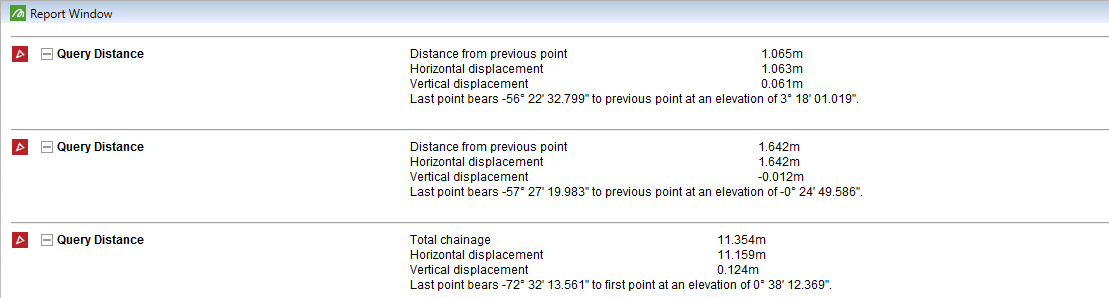
The results in the report window can be saved using the method described here.