Querying the Surface Validity
Query surface validity tool checks for any problems with the surface, such as
holes or self-intersecting triangles.
-
On the Query ribbon tab navigate to the Surface group and select
 Surface Validity.
 -
Select the surface(s) to be checked (multiple surfaces are allowable).
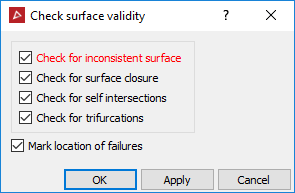
-
Selecting Check for inconsistent surface will check that all triangles are pointing in the same direction (if not, this can lead to problems with calculating volumes and creating fusions).
-
Selecting Check for surface closure will check the boundary edges. This is only applicable to closed solid surfaces. Clear this for all other surfaces.
-
Selecting Check for self-intersections will check for self intersecting triangles on the surface, as shown below.
-
Selecting Check for trifurcations will check for and find any edges with more than two facets sharing the same edge on a surface.
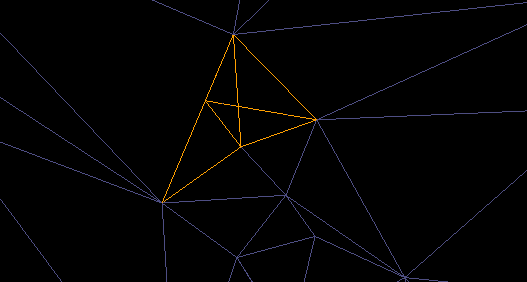
-
Select Mark location of failures to create objects in the cad container that highlight the locations of the errors.
-
Click OK or Apply. A written summary of the results is displayed in the Report Window.
-
Drag and drop any object(s) created in the cad container onto the surface view window to display any errors found.
To
repair any errors found, zoom into the error and display the surface
in wireframe  .
.
Using  Select points mode, select
a corner point on the triangle and press Delete.
Select points mode, select
a corner point on the triangle and press Delete.
To
fill the hole created, on the
Edit ribbon tab navigate to the Fix group and select  Fill
Holes.
Fill
Holes.
Repeat this procedure for all errors found.