Verifying the Registration of Scans
Raw scan data could possess positional errors relating to many factors, such as the scanner's precision and accuracy, environmental conditions and type of material being scanned. Registration involves matching up and overlapping individual scans of neighbouring areas to build up a model of an entire scene. Once the scan data has been suitably registered, the Registration verification tool can be used to check the resulting accuracy of these combined regions.
The Registration verification tool provides a summary of the registration (alignment) error between these common regions under investigation. The tool includes metrics and warning messages. The intent of this tool is to give an indication of how much variation or error exists at a given point in time. This tool is not intended to compare time lapse situations, such as the movement in a pit wall after a month, or the change in material excavated over a week.
RMS (Root Mean Square) refers to a method of determining an average, representative value for all the errors (separations) between points on scans or surfaces, at the various overlapping locations.
Main Procedure
-
Select at least two relevant objects (typically scans), which you want to verify registration between.
-
On the Position and Filter ribbon tab navigate to the Register group and select
 Verify Registration.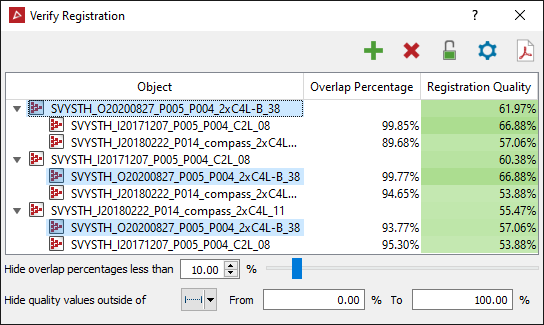
-
Highlight the scans to be verified (minimum 2 scans) in the project explorer.
-
Click the
 button to import.
 The verification process will begin immediately.
-
Click
 to clear the table.
 -
Click
 to disallow automatic updates of the registration table.
 -
Click
 to verify registration settings.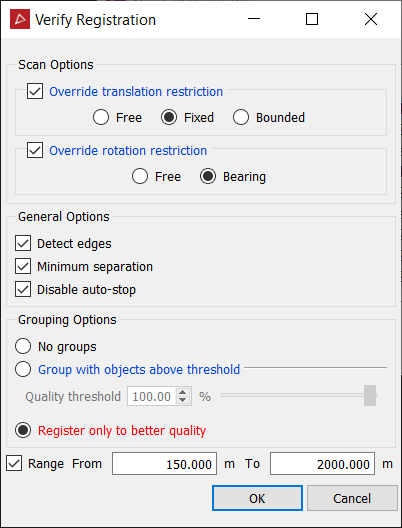
General options
- Detect edges:
- Turning this off will change sampling to be uniformly distributed across the data.
- Turning detect edges on will apply an edge detection filter to the data prior to selecting a uniform distribution of points. Use this option when dealing with data consisting mainly of large, relatively flat surfaces (e.g. buildings, low vegetation areas).
- Minimum separation: This applies a minimum separation filtering to scan data and gives a quicker registration, however using less data points at the cost of accuracy. Use this option when dealing with dense and varied data or as an initial pass for quick registration.
- Disable auto-stop: Decide when to stop the registration when the data reaches a visual convergence. If it’s cleared, convergence is checked and automatically stopped once convergence is reached.
Grouping options
- No groups: Object will register itself to nearby objects Group with objects above threshold:
- Group with objects above threshold: Objects will register itself to nearby objects with a registration quality below the threshold, adding objects above the threshold as associated data.
- Register only to better quality: Object will register itself to nearby objects which have a better registration quality (ie. are higher up on the table).
Range:
-
Select the range for these settings to take effect on.
-
Click OK.
-
Click
 to auto-fix all. It attempts to auto-register the scans starting from the current best registered to the worst. Currently available only from the Labs menu.
 -
Click
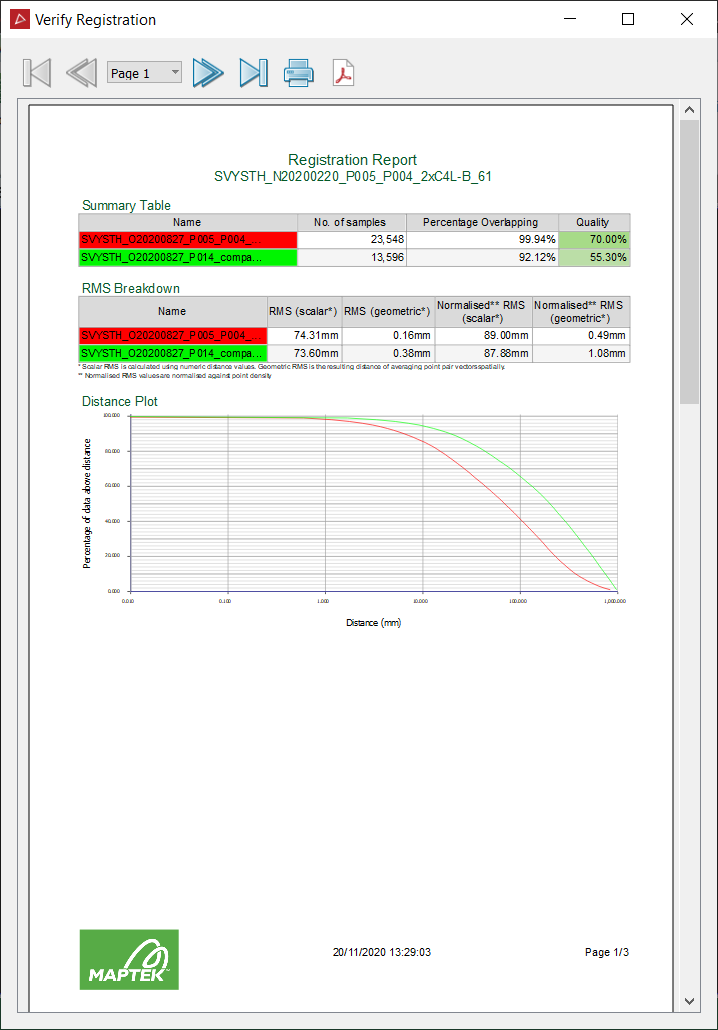
 to generate a PDF report.
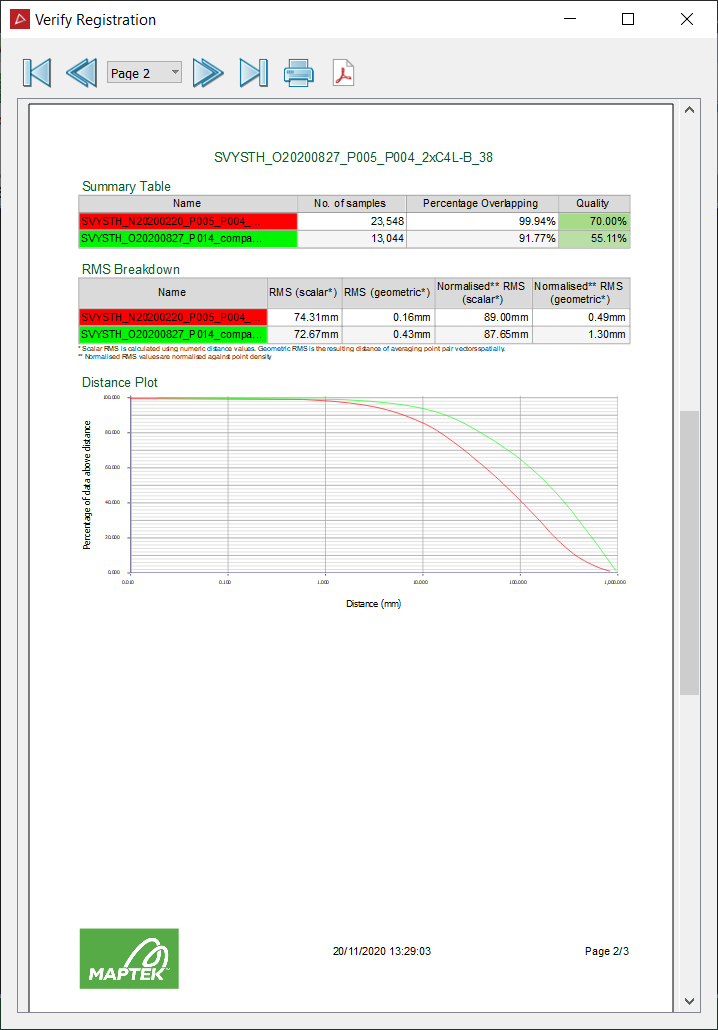
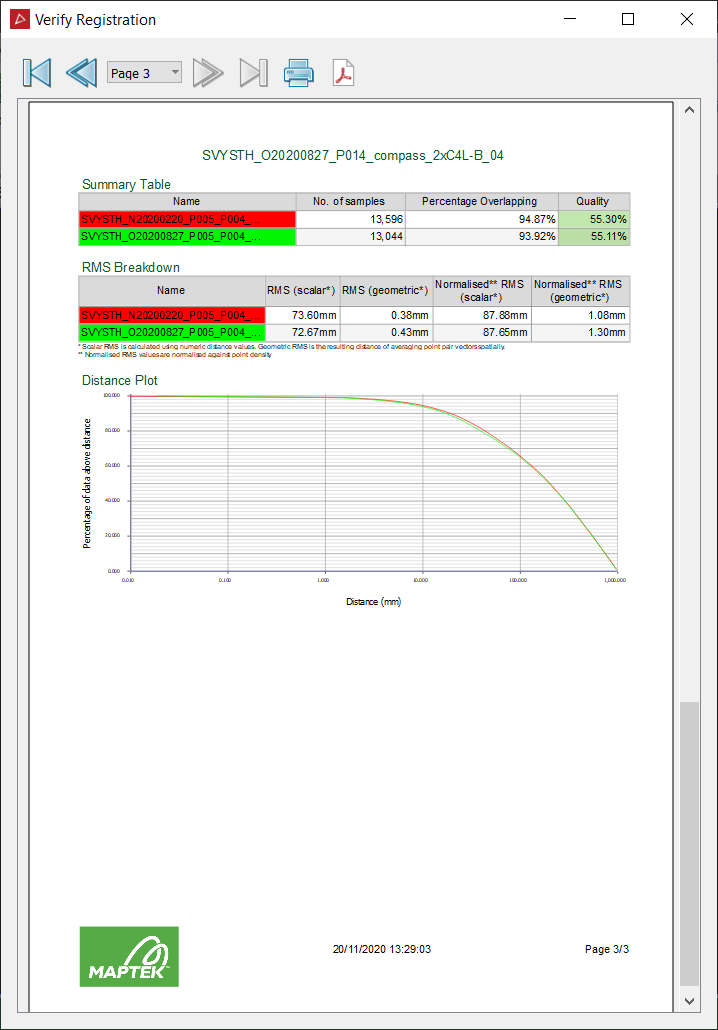
The verification will be calculated between every imported scan. The report size will vary depending on the number of scans selected for the verification process.
Example of a three page PDF of registration verification.