New View

The New View tool will create a blank view window ready for creating or dragging objects into.

To create a blank view window go to the Home ribbon tab, navigate to the View group and select New View.

A new view window will be created with the tab labelled <Empty>.

This window will have nothing in it.

There are a several ways of adding objects to this new blank window. These are:

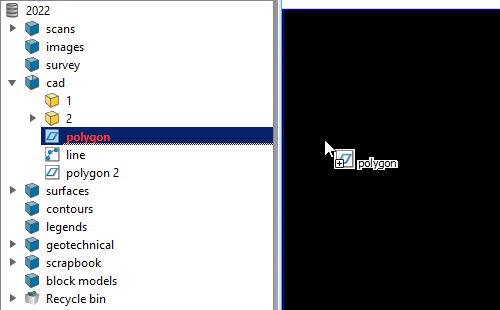
The drag and drop method

  1. Select the <Empty> window tab to bring it into view.

  2. Select the object(s) required for viewing in the project explorer and drag the objects into the blank work space. All supported objects not stored within PointModeller can be dragged straight in from the Windows Explorer into the blank work space.

  3. The object will be displayed in the new window and its tab will rename to the object in display. For example,

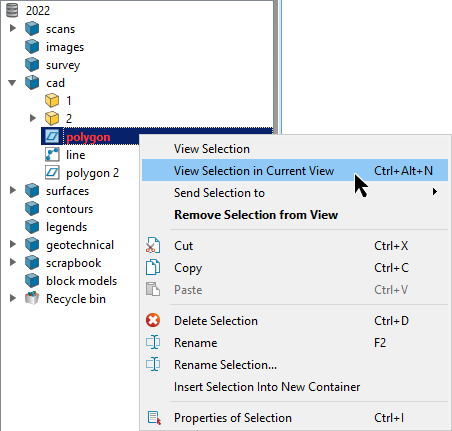
From the context menu method 1

  1. Select the object(s) required for viewing in the project explorer.

  2. Right-click the object for the context menu.

  3. Click View Selection in Current View.

    The object will be displayed in the new window and its tab will rename to the object in display. For example,

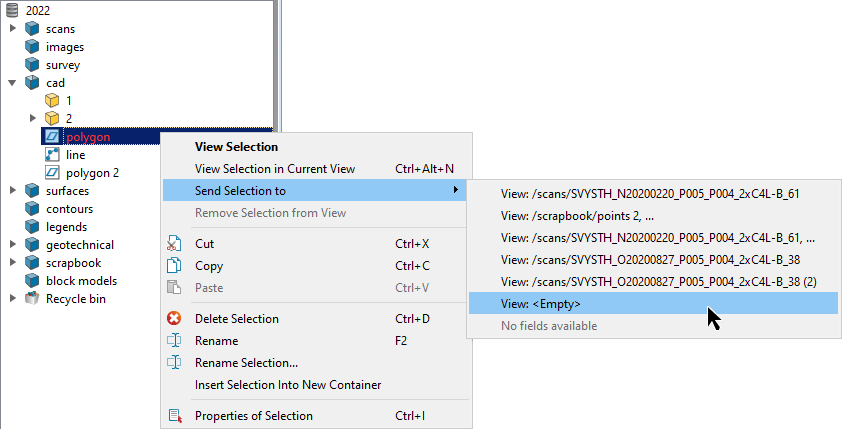
From the context menu method 2

  1. Select the object(s) required for viewing in the project explorer.

  2. Right-click for the context menu.

  3. Hover over Send Selection to option to display available windows to send to.

  4. Select View: <Empty>.

  5. The object will be displayed in the new window and its tab will rename to the object in display. For example,