Manipulation
Source file: manipulation-group.htm
The Manipulation group provides two commonly used tools for manipulating the active view, as described below.

|
|
Set Centre of Rotation (C) Change the centre of rotation |
|
|
Freehand Transform (Shift+T, Shift+R) Activate the freehand transform widgets. |
Set Centre of Rotation
When rotating a view, the centre of rotation is at the origin of the axes in the view window.
-
To change the centre of rotation, click
 Set Centre of Rotation or press C, then pick a point as the new centre of rotation.
For a more precise location for the centre of rotation, instead of picking a point, enter the coordinates into the status bar, then click  or press Enter.

Note: Set Centre of Rotation is only available in Z Up Mode and Screen Mode.
-
Set the centre of rotation near the area of interest in the data set. This will ensure that the data in the area of interest does not disappear when you rotate a view.
-
If the axes are blocking data from view, press A to hide them. Press A again to redisplay.
Freehand Transform
The Freehand Transform tools enable you to translate and rotate a selected object for macro adjustments.
The freehand transform tool resides in both the Manipulation group of the Home tab and the Transform group of the Position and Filter tab. You can select the integrated
translate and rotate widget, or either the translate (Shift+T) or rotate (Shift+R) widget individually from the drop-down list. You can also select the Freehand Rotate Scan Bearings tool from this list.
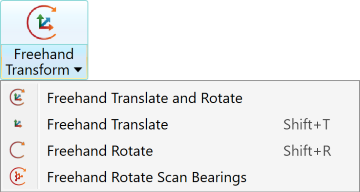
- To turn a freehand transform tool off, click the
 Freehand Transform button.
 Freehand Translate and Rotate
|
|
|
Freehand transform tools: Combined (left), Translate (middle). Rotate (right). |
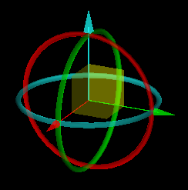
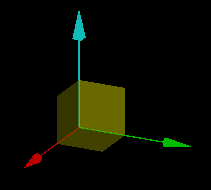
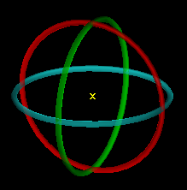
When launched, the transform tool appears at the centre of rotation with its axes, planes and rings aligned with the view window axes. To reposition it, set a new centre of rotation. See Set centre of rotation.
Operate the freehand transform tools, as follows:
-
Select the objects to be moved.
-
Hover the mouse over the control element of the tool for the required transformation:
-
To translate in along an axis (X, Y or Z), hover over that axis.
-
To translate across a plane (XY, XZ or YZ), hover over that plane.
-
To rotate, hover over a ring.
-
-
Drag the highlighted control with the middle mouse button.
While dragging, distances or angles are displayed.
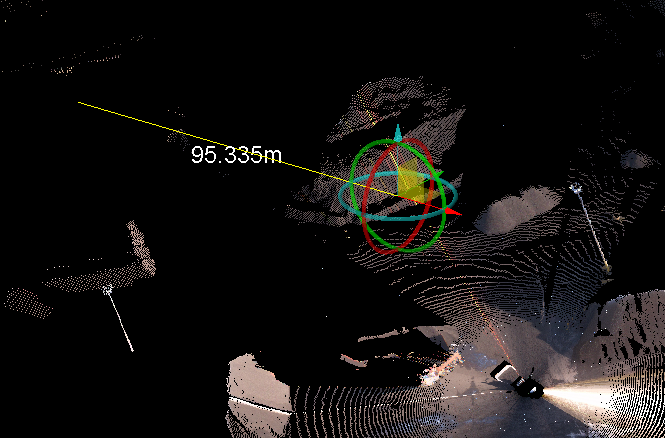
Translation along an axis.
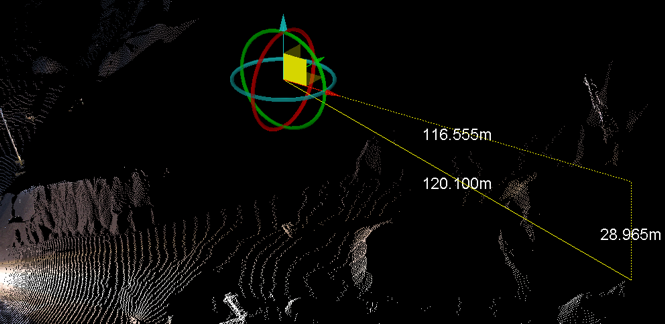
Translation along a plane.
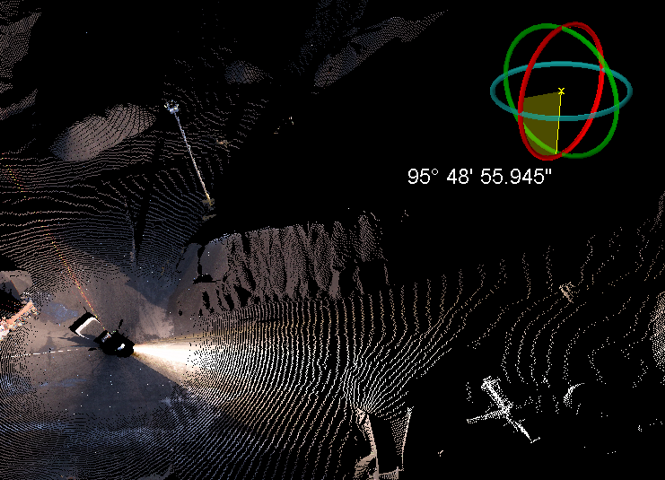
Rotation about an axis.
-
Release the mouse button when the objects are in position.
You can also set a precise one-dimension translation distance and rotation angle:
-
Middle click on a handle then enter a value.
-
For a two-dimension transformation, repeat with the next handle.
Freehand Rotate Scan Bearings
The  Freehand Rotate Scan Bearings tool enables you to rotate individual scans
 around their origins. When launched, the tool appears as a white sphere inside a cyan ring at the origin of each selected scan. That is, there will be as many instances of the tool as selected scans. Only one instance will be active at any moment. The active tool will also have a larger outer ring in the x-y plane of the corresponding scan. The outer ring is the rotation handle.
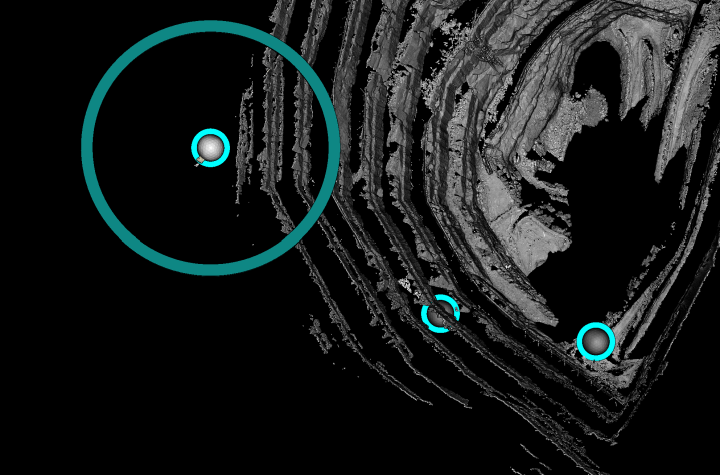
Note: The inner ring aids visibility as the tool may be obscured by, or blend in with, objects in view.
Tip: If the tool is concealed, zoom out to locate it. The tool remains the same size in view, regardless of the zoom level.
-
To rotate a scan, drag the outer ring of the tool with the middle mouse button.
-
To rotate another scan, select that scan and repeat.
