Export Orthophoto
Source file: export-orthophoto.htm
The Export Orthophoto tool enables you to generate and export an image of a photogrammetry project.
-
To create an orthographic image, click the
 Export Orthophoto button on the Photogrammetry tab, then follow the steps below.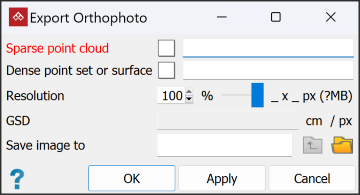
-
Select the required sparse point cloud
 and dense point cloud
  or textured surface
  in the project explorer. The corresponding fields will populate automatically.
Note: It is not necessary to create a textured surface to export an orthophoto. A dense point set created with the photogrammetry tools is sufficient. This will save processing time.
-
Set the required Resolution with the slider. The dimensions, file size and GSD will be calculated and auto-populate.
-
Choose the Save image to location. Click
 and navigate to the required location. Click
  to navigate up one folder level.
 -
Click OK or Apply.
-
The orthophoto will be created in the chosen location as a .tiff file along with a .tfw file containing coordinate data. The orthophoto will also be automatically imported into the current PointModeller project and displayed in the active view window at zero elevation .
