Scanner
Note: PointModeller Scanning Tools is an add-on that requires additional licensing, which may be obtained via your Maptek Account portal. Please see Licensing Applications for details. The Scanner ribbon tab is only visible with an active licence.
The Scanner tab hosts only the Acquire Scan tool, which enables you to control a scanner remotely, to take scans, save them to any local or network storage you choose, and import them into a PointModeller project.

Before taking a scan from PointModeller, ensure that the scanner is connected to your computer network and that you have its IP address.
Tip: Test connectivity by pinging the scanner IP address.
-
To take a scan, follow these steps:
-
On the Scanner tab, click
 Acquire Scan.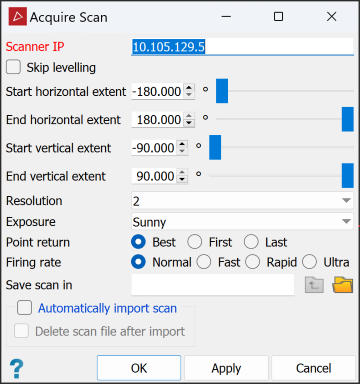
-
Enter the scanner IP address in the Scanner IP field.
-
Complete the scan parameters in the Acquire Scan tool panel.
-
In the Save scan in field, enter the required storage location for the scan.
Tip: Click the
 (Open a file browser) button and navigate to the required location.
 -
Select Automatically import scan to import the scan into the current PointModeller project immediately.
If automatically importing the scan, you may also select Delete scan file after import for optimal housekeeping.
Important: Only delete the file after import if you are sure that the scan file will not be needed again in the future.
-
Click OK or Apply.
The scanner will acquire a scan according to the parameters and save it to the specified location.
-
