Register
Source file: register-dropdown.htm
The Register drop-down hosts tools for
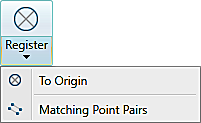
Expand below for details on each registration tool.
 To Origin
Run the To origin tool to undo any translation, rotation, or registering that has been performed on the selected scan or scans. This sets the scan origin to (0, 0, 0) and orients the scan to the Y axis.
-
To set scans back to their origins, select them then, on the Position and Filter tab, go to the Register group and select
 To Origin from the Register drop-down.
Matching Point Pairs
The Matching Point Pairs tool enables you to position data with reference to reflectors, targets,
or common features. Multiple fixed points are used to tie the data to
be registered to the reference data. You can use this tool in conjunction with the  Locate Reflectors tool. See Register > Locating Reflectors.
Register by matching point pairs as follows:
-
On the Position and Filter tab, go to the Register group and select
 Matching Point Pairs from the Register drop-down list.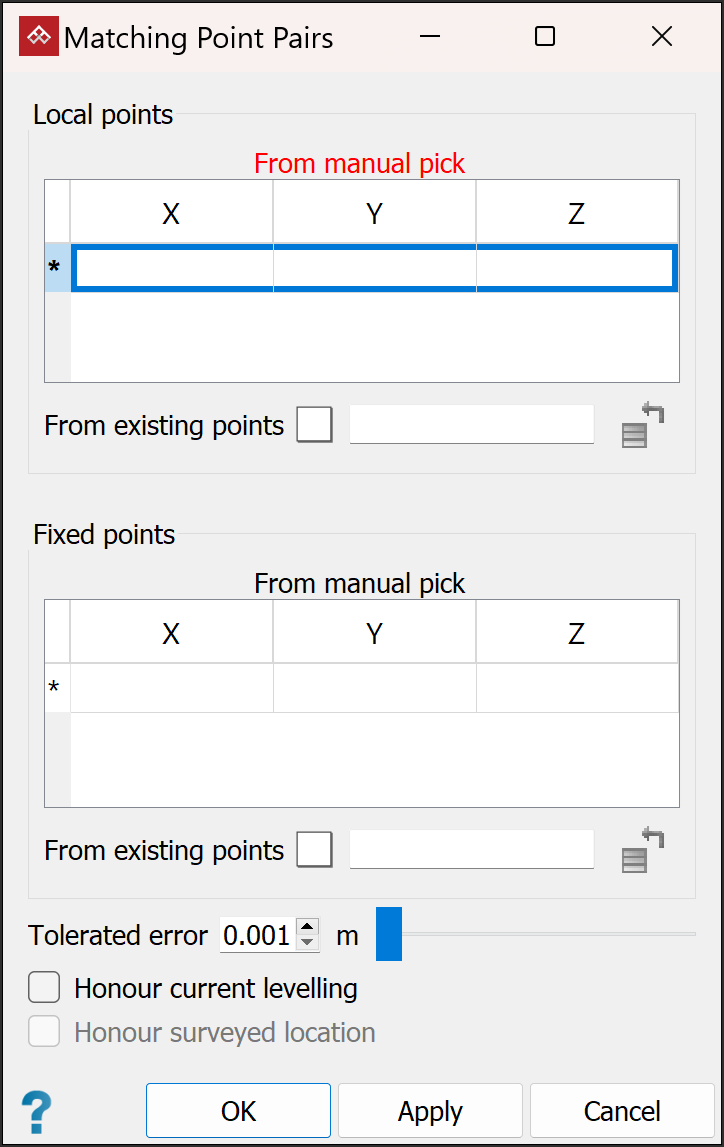
-
Specify the points to be matched in registering the scans. You can do this by manually picking points, from existing points, or both. Expand below for each method.
From manual pick
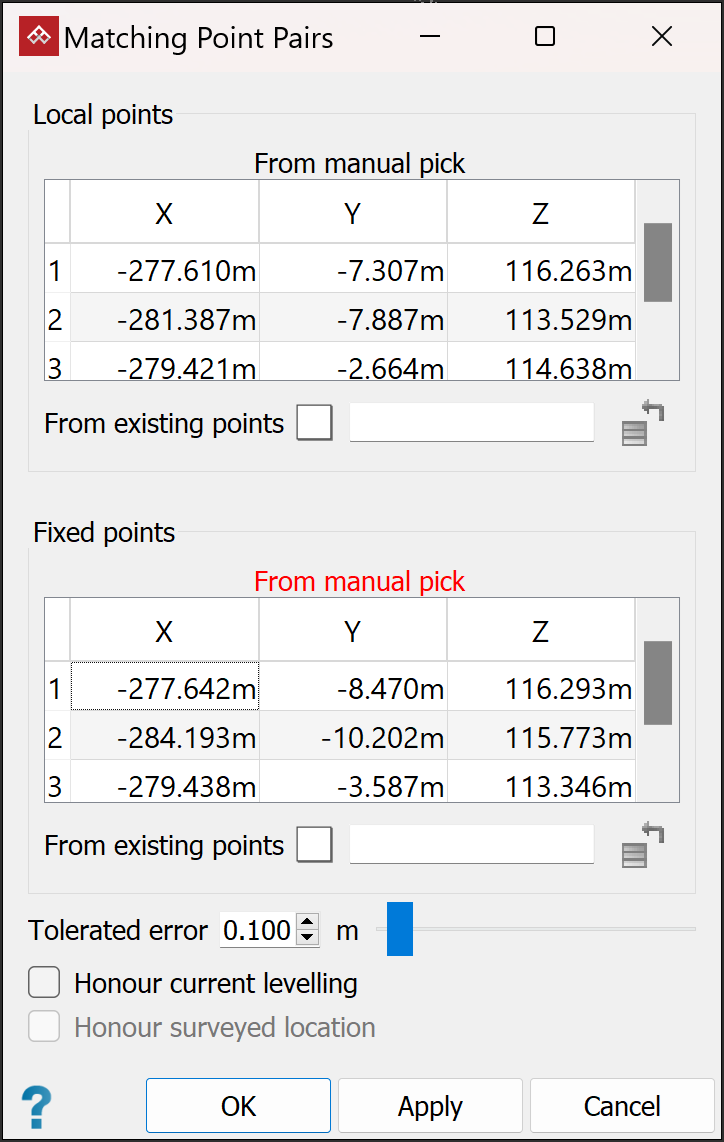
Either enter values into the cells for X, Y, and Z coordinates of local and fixed points, or select the first available row of the relevant field, then pick the point locations in the view window.
Note: From manual pick allows the local and fixed points to be loaded in separate views. However, all local points must be in one view, and all fixed points must also be in one view.
From existing points
-
Drag the point set
 or container with the survey points into the Local points > From existing
points field.
or container with the survey points into the Local points > From existing
points field. -
Drag the point set
or container with the reference points into the Fixed points > From existing points field.
Note-
Local points are points to be moved to align with the Fixed points. They can be defined using the
 Survey Points
or Locate Reflectors tool. See Points > Survey Points or Register > Locating Reflectors.
Survey Points
or Locate Reflectors tool. See Points > Survey Points or Register > Locating Reflectors.
-
Fixed points are the known reference points that have been created on the base data, which can also be a survey station database of reflectors.
-
You need at least three points in each of the local and fixed point sets.
-
At least 50% of local points must have corresponding points in the fixed set, though point sets do not require an identical number of points within them.
-
-
Set the remaining options, as follows:
-
Tolerated error value as the final tolerated distance error of acceptable pair matches.
-
If the data is level, select Honour current levelling to allow translation of the data in any direction, but to restrict rotation to about the Z-axis only.
-
If the data requires rotation, but not translation, select Honour surveyed location.
-
-
Highlight the scans to be registered in the project explorer.
-
Click OK or Apply.
The data will move to its correct location.
