To rotate data
Data can be rotated around the three axes (X, Y, Z) or around an arbitrary axis.
-
Select either from Position and Filter or Edit > Transform >
 Rotate.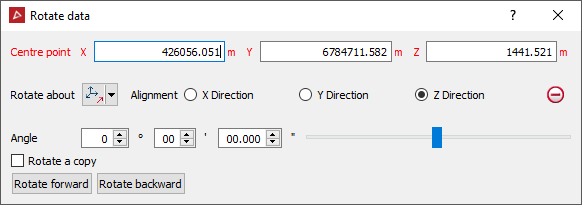
- Select a Centre point of rotation. The centre of rotation can be clicked on in the View window or entered.
Tip: Right-clicking on Centre point or Rotate about will display a context menu.
-
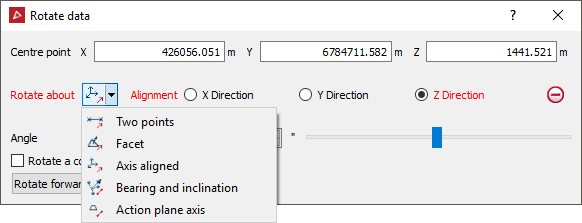
Select the method of defining the rotation axis from the Rotate about drop-down list.
-
Two points: Rotate around an axis defined by two points.
-
Facet: Rotate around an axis perpendicular to a facet.
-
Axis aligned: Rotate about X, Y or Z.
-
Bearing and inclination: Rotate about an axis defined by a bearing and inclination.
-
Select the scan to be rotated in the Explorer window and make sure that no other objects are highlighted in the Explorer window.
-
Enter an Angle to rotate and use the Rotate forward and Rotate backward buttons to rotate clockwise and anti-clockwise.
Select Rotate a copy to duplicate the original object and rotate the new copy each time Rotate forward or Rotatebackward is selected.