Setting preferences
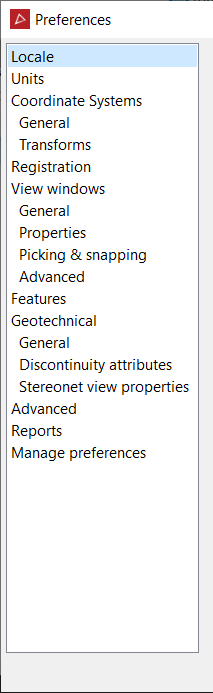
The Preferences panel is used to change language, date, units, registration tolerance, view window, toolbar and advanced system options.
-
Go to the
 preferences cog.
 -
Select
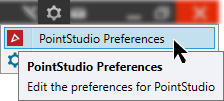 PointStudio Preferences.
To set up the primary language go to Toolbars > Workbench tools in this manual for more information.
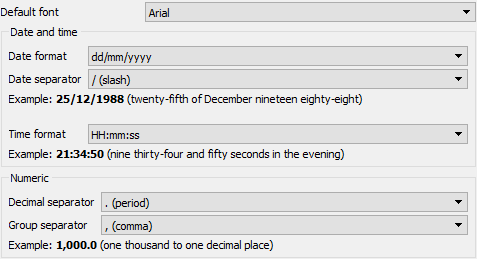
Locale
Units
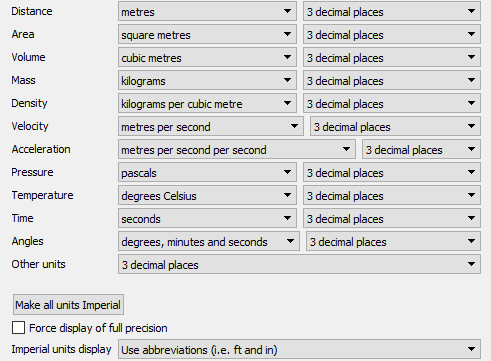
If no unit preferences have been set (for example, on first startup of the application), the software will use the computer location (Metric or Imperial unit systems) and the appropriate base unit to three decimal places. For example, if the language is set to English with a distance of 0.06m, it will display it as 0.060m. However, if the language is set to English (United States), then the same distance would display as 0.196ft.
Setting the Distance unit field to metres will display the distance as 0.060m regardless of the location.
Setting the Other units field will set the precision for all values that don't use one of the specified unit dimensions. For example, if the field is set to two decimal places, and a standard error value of 0.061234 is to be displayed, then the value will display as 0.06.
The Imperial units display drop-down is used to specify how feet and inches should be displayed, for example, 6ft 2in or 6' 2".
A value displayed at full precision is displayed using scientific notation at its full precision (64 bit floating point value precision is roughly 16 decimal places).
The Force display of full precision option will display all values (regardless of their unit or lack of one) at full precision.
Coordinate systems - General
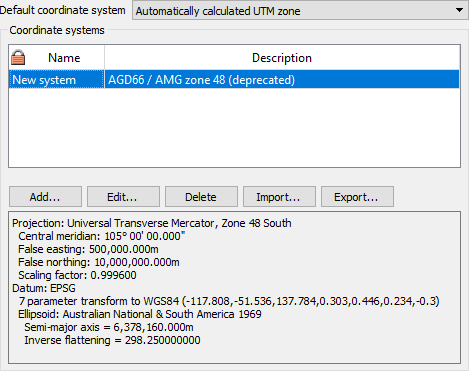
The coordinate system manager can be set up in these preferences. The manager can be populated with a list of coordinate systems for selection later using Define coordinate system and Convert coordinate system. A default coordinate system can be assigned for imported scans. Further buttons allow the user to add entries to the list, edit , delete, import and export coordinate systems.
Coordinate systems - Transform
Registration (Only available in PointStudio)
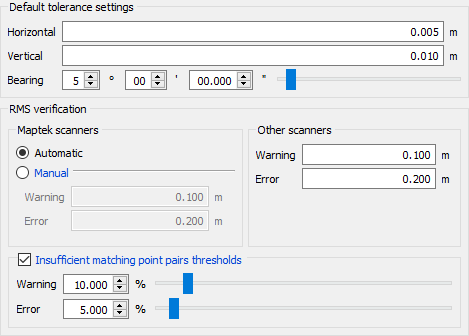
Default registration tolerances can be set with this option. The values required are for Horizontal and Vertical bounds.
View windows
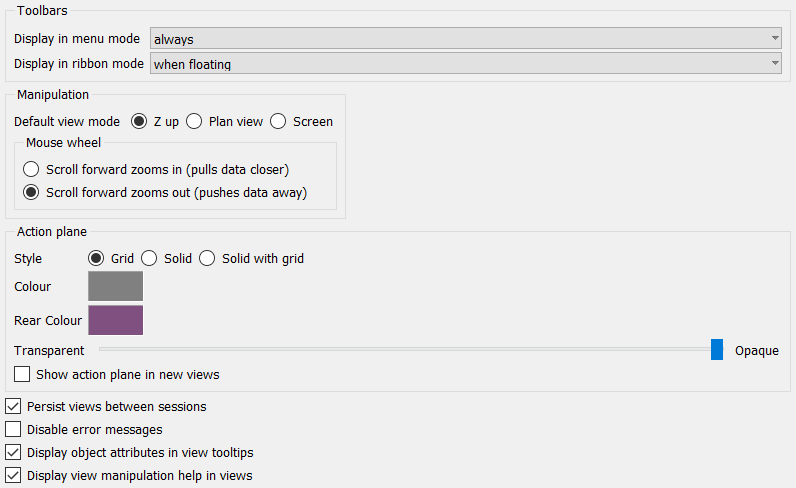
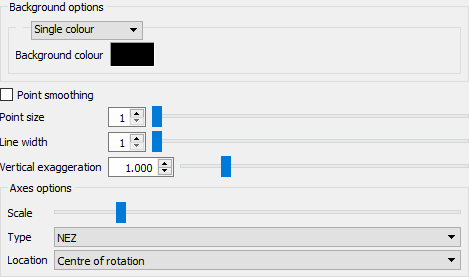
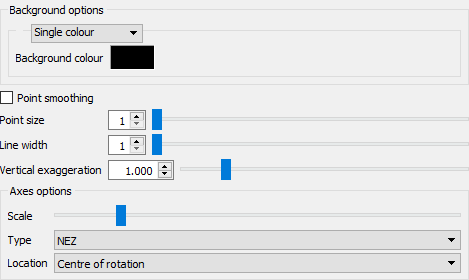
This option
sets the default window view and the behaviour of the mouse when zooming.
Zooms data has the effect of zooming
in with the mouse wheel rotating forwards. Zooms
camera sets the opposite behaviour, zooming out with the
mouse wheel rotating forwards. Other attributes can be set such as default
background colour, point size, line width and axes options, LOD and associated
frame rate.
View windows - General
View windows - Properties
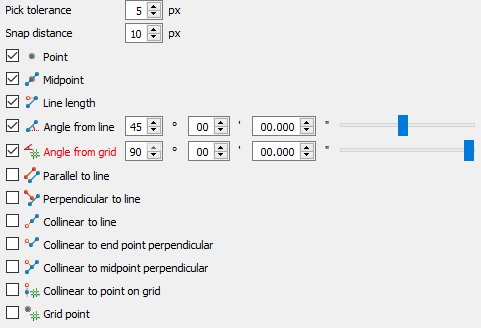
View windows - Picking and snapping
View windows - Advanced

Features
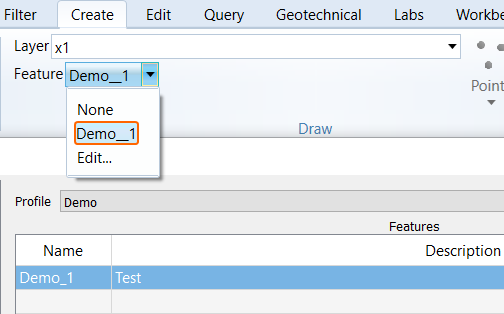
This option allows for creating custom attributes that can be applied to either point, lines or polygons. The Attribute created will appear in the Features drop down list of options in the
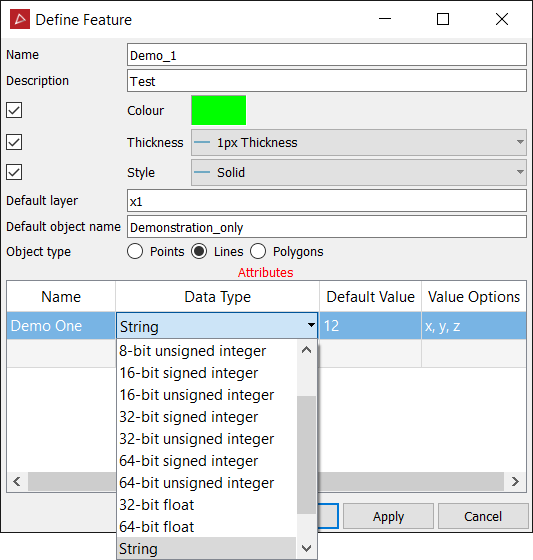
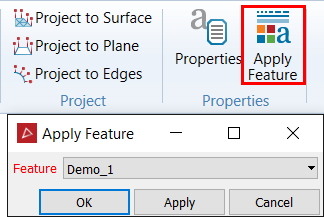
Default layer:
This is the default layer to use when creating objects with this feature.
The current layer will automatically be set to this value when this feature is selected
Default Object Name:
The default name to use when creating objects with this feature.
Unless otherwise specified by the tool being used objects created with this feature will give this value as a name.
Toolbars
Toolbars can be customised to include any arrangement desired. The user can set up a tailored toolbar for their most common sequence of operations. For example, if a stockpile registration and volume extraction is undertaken on a weekly basis, the sequence of menu items can be placed onto a customised toolbar so that the user can sequentially click through the routine operational tasks.
This not only
makes it easier to undertake routine tasks, it also facilitates easier
training for new operators, or ensures consistency between different operators.
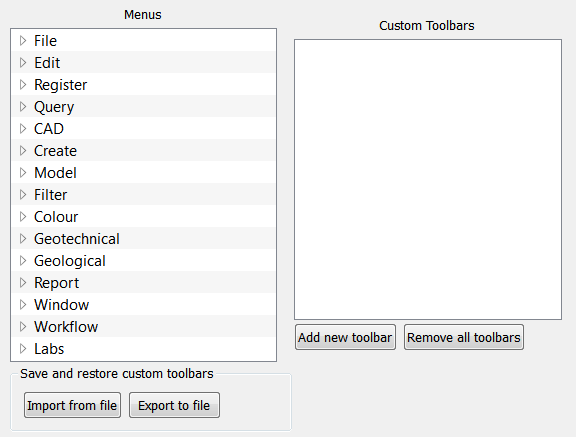
- To add a new toolbar arrangement, click Add new toolbar.
- Provide a name for the new toolbar and commence dragging menu options with the middle mouse button, from the Menus window onto your new toolbar.
- Right click the toolbar name to add a new toolbar, delete or rename toolbars.
Geotechnical - General
(only available in PointStudio)
Default characteristics associated with Geotechnical/Stereonet display of attributes.
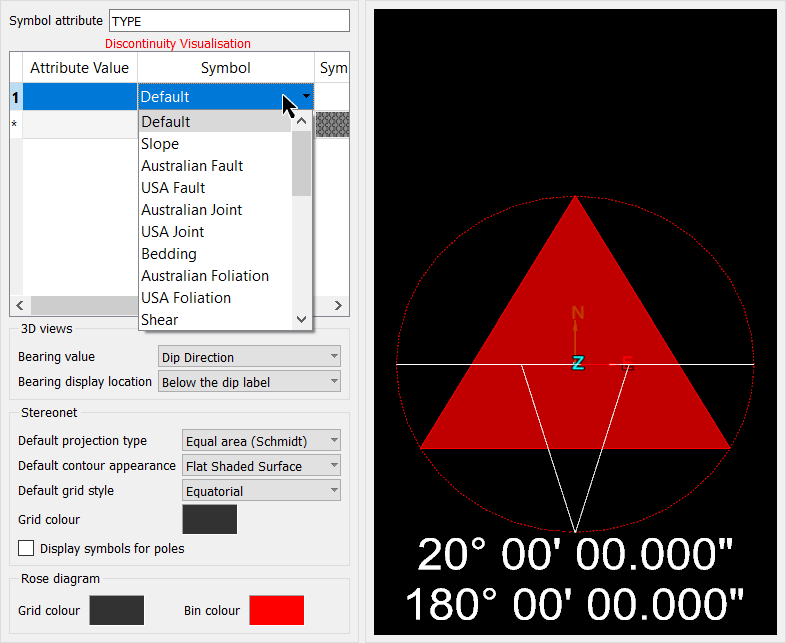
Option to display discontinuities by their dip direction and angle or strike direction and angle in 3D view.
Geotechnical - Discontinuity Attributes
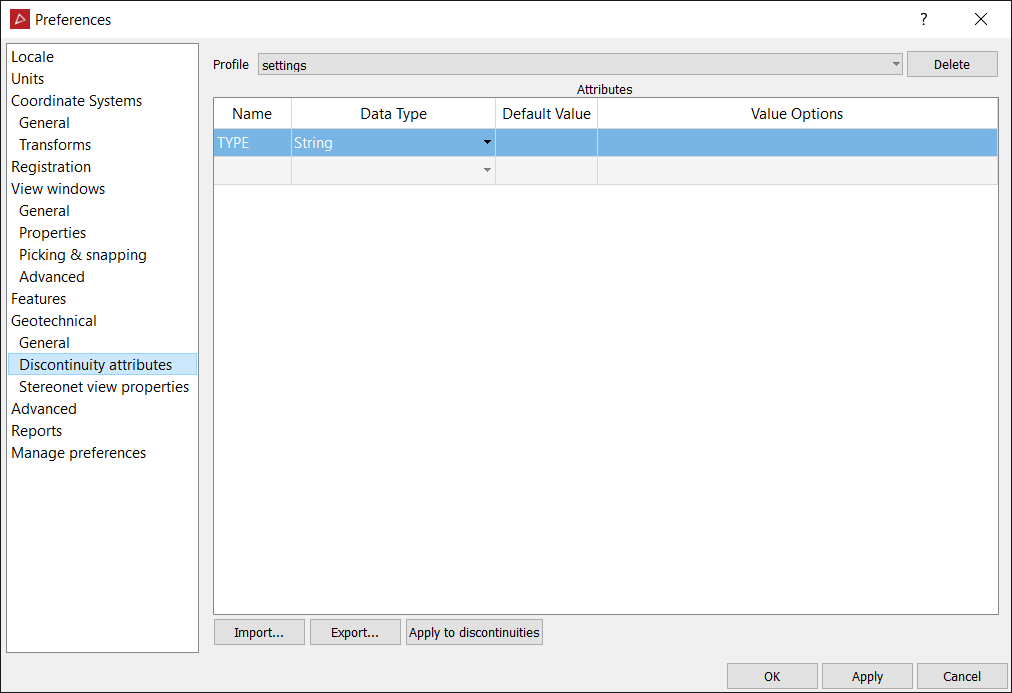
Stereonet View properties
Characteristics of window displaying Stereonets
(only available in PointStudio)
Advanced
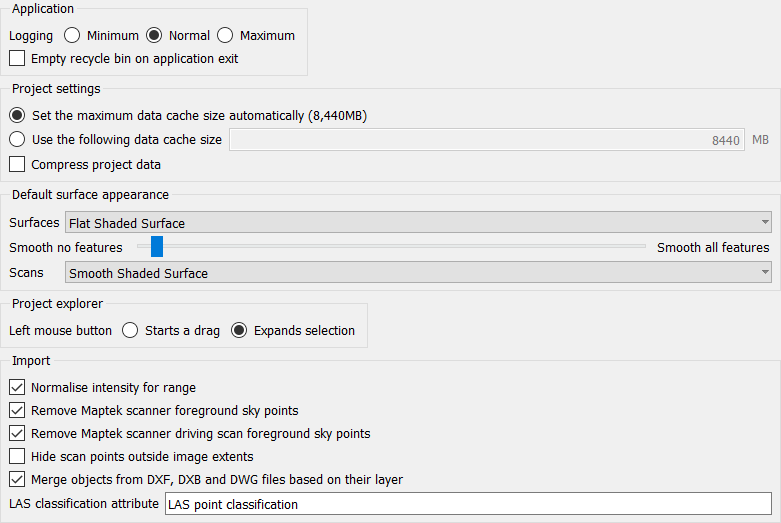
The Application logging options on the Advanced tab displays the logging setting. The logged data is used to assist with fault diagnosis when using the Contact Maptek tool. Contact Maptek
This tab also contains the option to empty the PointStudio recycle bin on application exit.
The Project settings options allow the data cache location and amount of memory allocated to be defined.
It may be beneficial to decrease the cache size when:
- Other applications are running and need more memory.
- Running multiple copies of the program concurrently.
- Your computer runs out of memory.
It may be beneficial to increase the cache size when:
- "Cache is full" error messages appear.
Note: Changing the cache size does not impact on how frequently objects are written to disk. This always occurs at 1 minute intervals.
Hide scan points outside image extents will only display points that are covered by a photographic image (generally the scan photograph).
Reports
Manage preferences
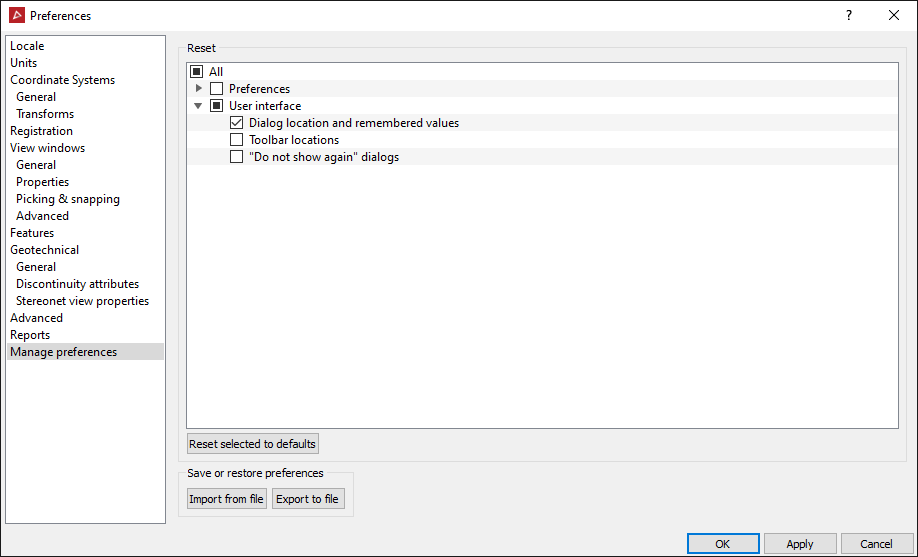
Manage preferences provides some basic housekeeping functionality such as saving, exporting and importing set-ups, as well as reset all options to default.
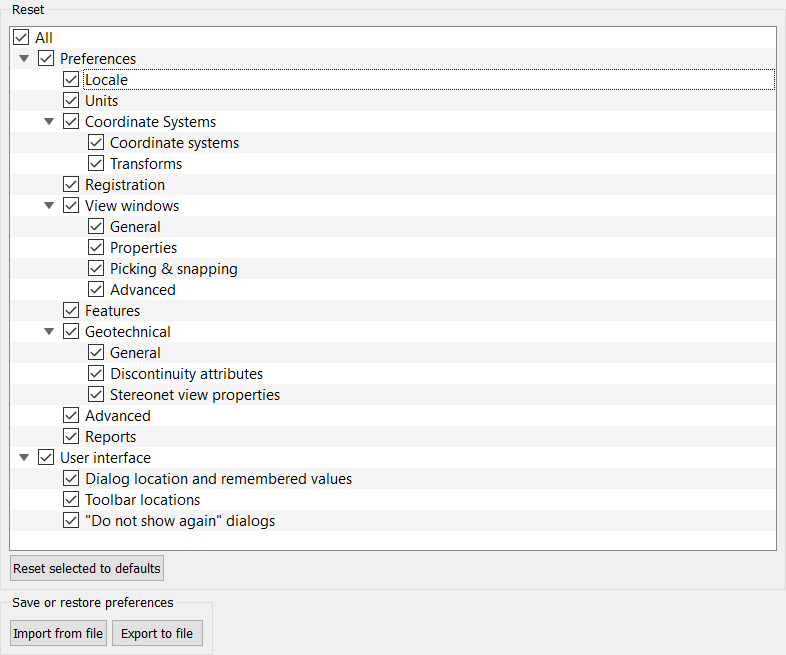
Note: Data persistence in software extends to placement of dialogs (windows) in the workspace. Once a session is complete, the next time the software is opened, panels will appear in the same position as the previous session. This may cause a problem if, for example, two monitors were used, and a panel was placed on the second monitor. Panel positions may be reset by:
-
From the Manage preferences expand User interface options by clicking the
 .
. -
Tick Dialog location and remembered values.
-
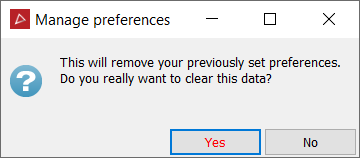
Click Reset selected to defaults button followed by Yes on the confirmation panel.
 .
.
-
Click OK to exit the preferences options.