To query the surface validity
Surface validity
query checks for any problems with the triangulation surface, such as
holes or self-intersecting triangles.
-
Select Query > Surface >
 Surface Validity
 -
Select the surface(s) to be checked (multiple surfaces are allowable).
-
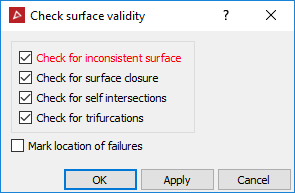
Check for inconsistent surface checks that all triangles are pointing in the same direction (if not, this can lead to problems with calculating volumes and creating fusions).
-
Check for surface closure checks for boundary edges. This is only applicable to closed solid triangulations. Untick this for all other surfaces.
-
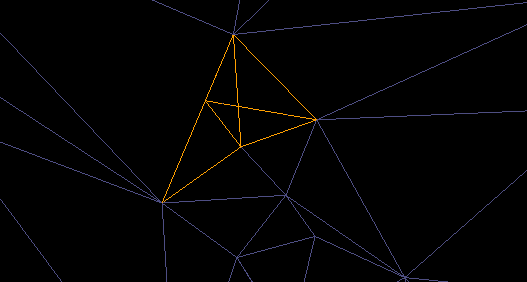
Check for self-intersections checks for self intersecting triangles on the surface, as shown below.
-
Check for trifurcations check for and finds any edges with more than two facets sharing the same edge on a surface.
-
Select Export test failures to create an object in the cad container for the selected checks, enabling identification of errors.
-
Select OK. A written summary of the results is displayed in the Report window.
-
Drag and drop any object/s created in the cad container onto the triangulation View window to display any errors found.
-
To repair any errors found, zoom into the error and display the triangulation in wireframe
 .
. -
Using point selection mode, select a corner point on the triangle and select DELETE.
-
To fill the hole created, select Edit > Fix > Fill Holes.
-
Repeat this procedure for all errors found.