Action plane toolbar

The action plane
The action plane provides a mechanism to help place points in 3D space as well as set up a convenient 2D plane to perform 2D functions on. The action plane can be widely manipulated and placed around a scene, floating in space at different angles or fixed to strategic reference points on a surface.
Action plane appearance can be adjusted in Preferences > View window > General.
Some of the functions that operate specifically on the action plane include:
- 2D line
- 2D polygon
- Circle
- Rectangle
- Offset line
Other functions benefit from the placement and adjustment of the action plane.
The action plane toolbar provides many settings and functions relevant to the action plane.
These include:
- Set action plane position - several options for defining the position of the action plane using points and planes.
- Move action plane - several options to translate and rotate the action plane.
- Save and restore action plane - save action plan locations for easily referencing later on.
- Toggle action plane visibility - hide or show the action plane.
- Toggle action plane manipulator - hide or show the action plane manipulator. A widget allowing the user to manually translate and rotate the action from any chosen point on the action plane.
- Choose predefined views - choose between standard orthogonal views around the action plane position.
- Section view mode (strip) - special mode that allows viewing strips to be defined parallel to the action plane.
| Icon | Description | Shortcut |
|---|---|---|
|
|
Set action plane position 2 point & 3 point |
|
|
|
Quick Section action plane |
|
|
|
XY Slice |
|
|
|
Save and restore action plane |
|
|
|
Toggle action plane visibility |
SHIFT+A |
|
|
Toggle hide/display action plane manipulator |
SHIFT+C |
|
|
Choose predefined views |
|
|
|
Section view mode (strip) |
TOGGLE / |


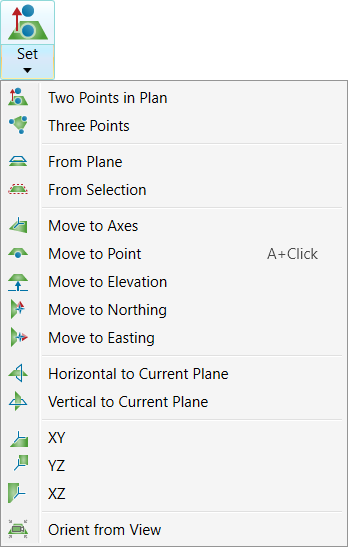
Set action plane
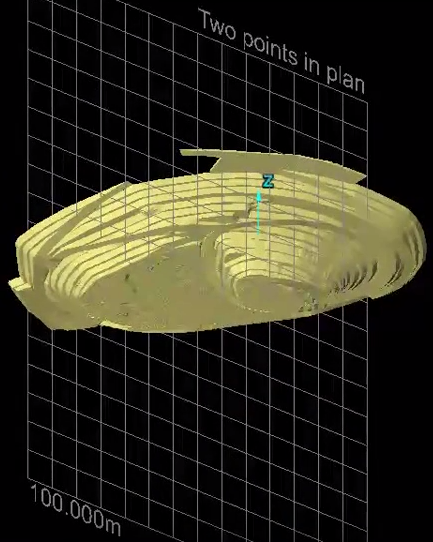
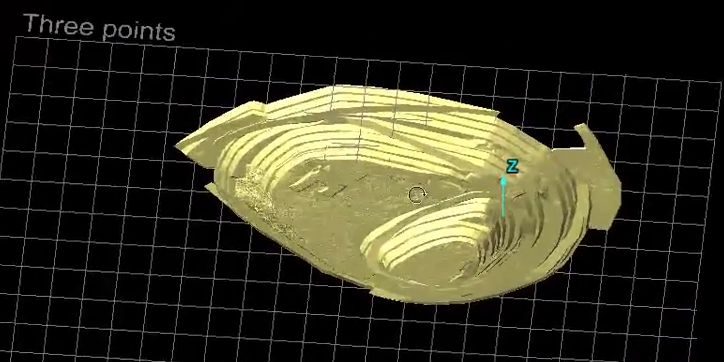
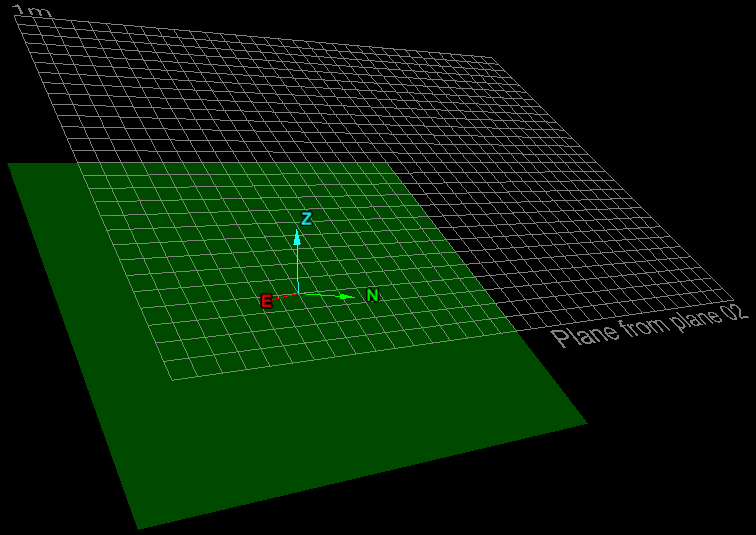
Use these commands to set the position of the action plane using various reference points or planes.
Access Action Plane options from View > Action Plane > Set.
Set.
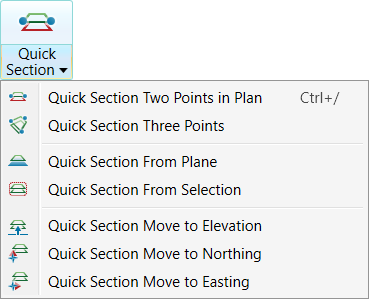
Quick Section
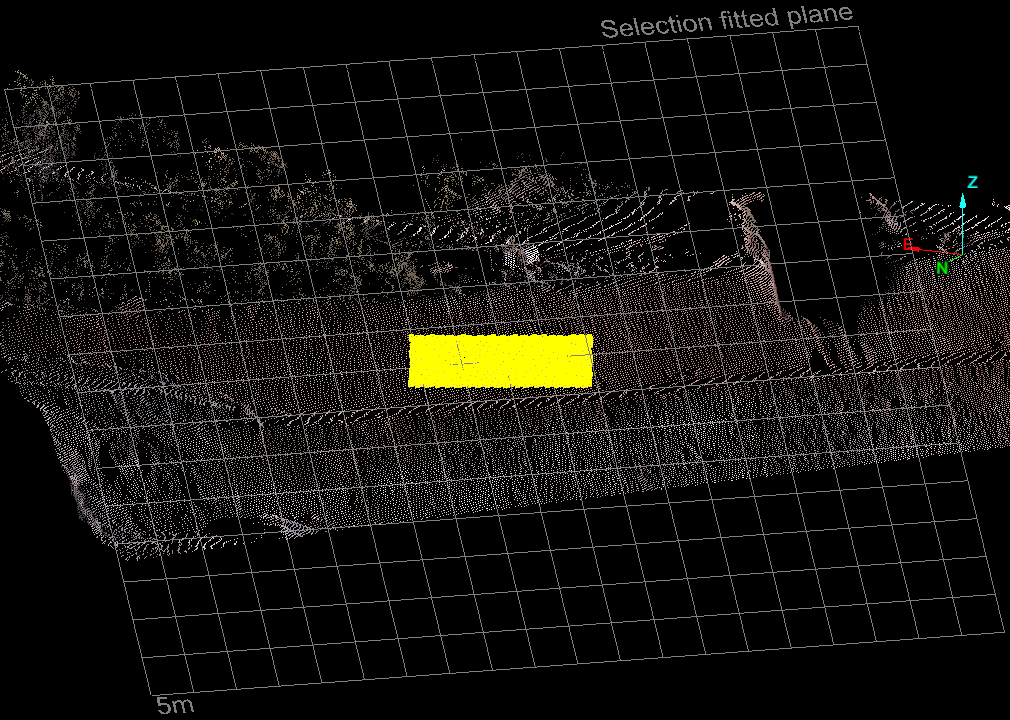
Use this tool to quickly create vertical action planes, create a quick section from a plane and move action plane sections.
Access section view mode is also available from Position and Filter > View >  Quick Section.
XY Slice
Use this tool to quickly slice objects in a horizontal plane. The elevation is from the middle of the views extent and the slice is always 10 cm or 0.25 ft thick.
Access section view mode is also available from Position and Filter > View >  XY Slice and from View > Action Plane > XY Slice
Move action plane
Use these commands to move the action plane to a new position.
XY, YZ, ZX refer to View window standard axes.
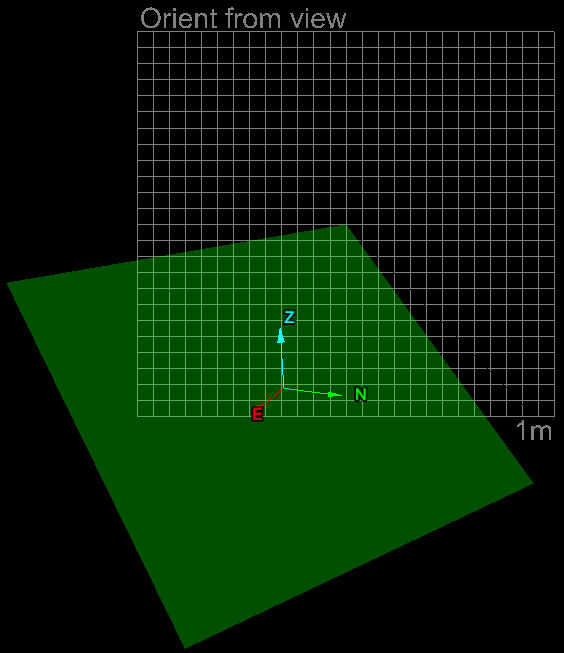
Orient from view places action plane perpendicular to camera view direction (user's viewpoint).
Save and restore action plane
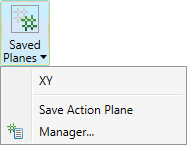
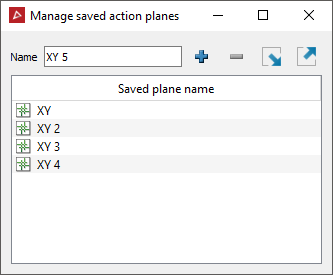
Save any action plane position with a reference name, then restore (recall) later as required.
Accessing saved planes is available from Position and Filter > View >  Saved Planes.
Toggle hide/display action plane 
Hide or display the action plane.
Toggle hide/display
action plane manipulator 
Hide
or display the action plane manipulator. The action plane manipulator
provides a widget that can be used to manually move and rotate the action
plane.
Initially a white ball appears, that can be dragged around on the action plane to the desired location. Click on the white ball to activate. The translate and rotate widget will appear and allow adjustments. Click on the white ball again to close, or click on the icon again.
Place manipulator on action plane using white ball.
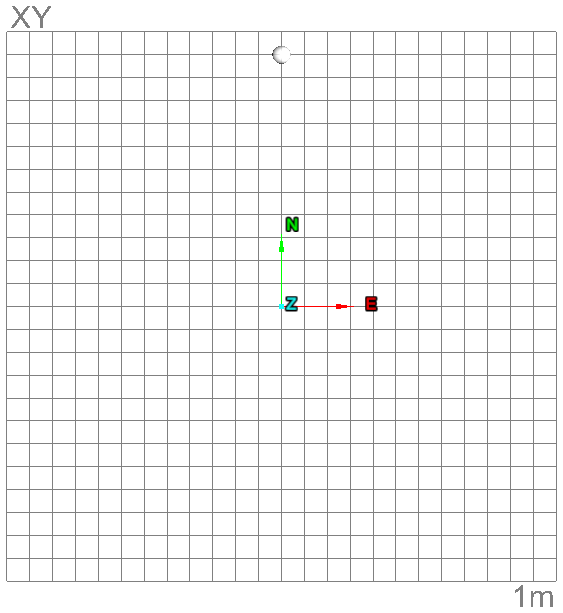
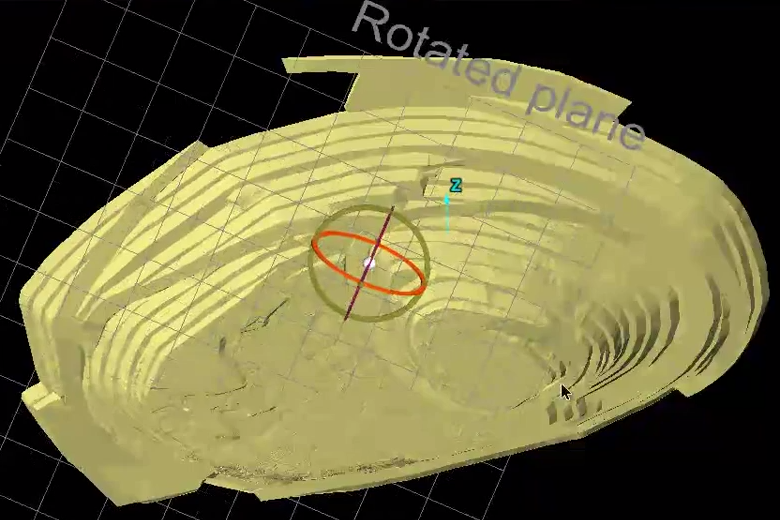
Use manipulator to manually move and rotate action plane.
Predefined views
Predefined views allow you to view standard orientations with respect to the current placement of the action plane.
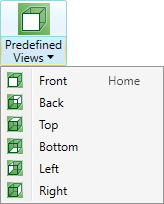
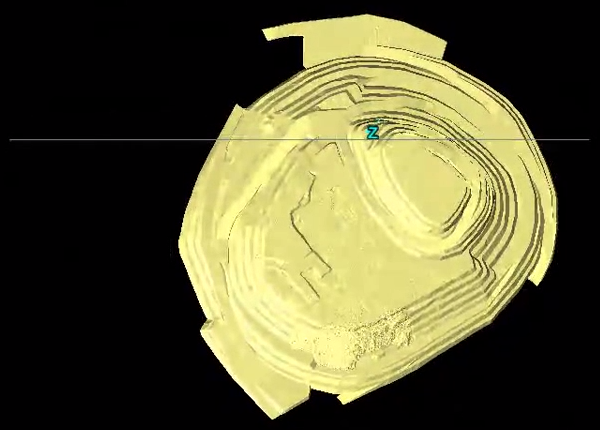
Top view
Section view mode (strip)
Section viewing mode may be used to check registration errors and to compare objects (for example, compare as-built surface against design).
Section view mode provides the ability to view only a section or strip within the View window with respect to the action plane. Options allow designating reference cuts based on the front, back and centre of the action plane. Advanced options provide more control on the strip sizing and increments.
Access section view mode is also available from Position and Filter > View >  Section Mode and from View > Action Plane > Section Mode.
.png)
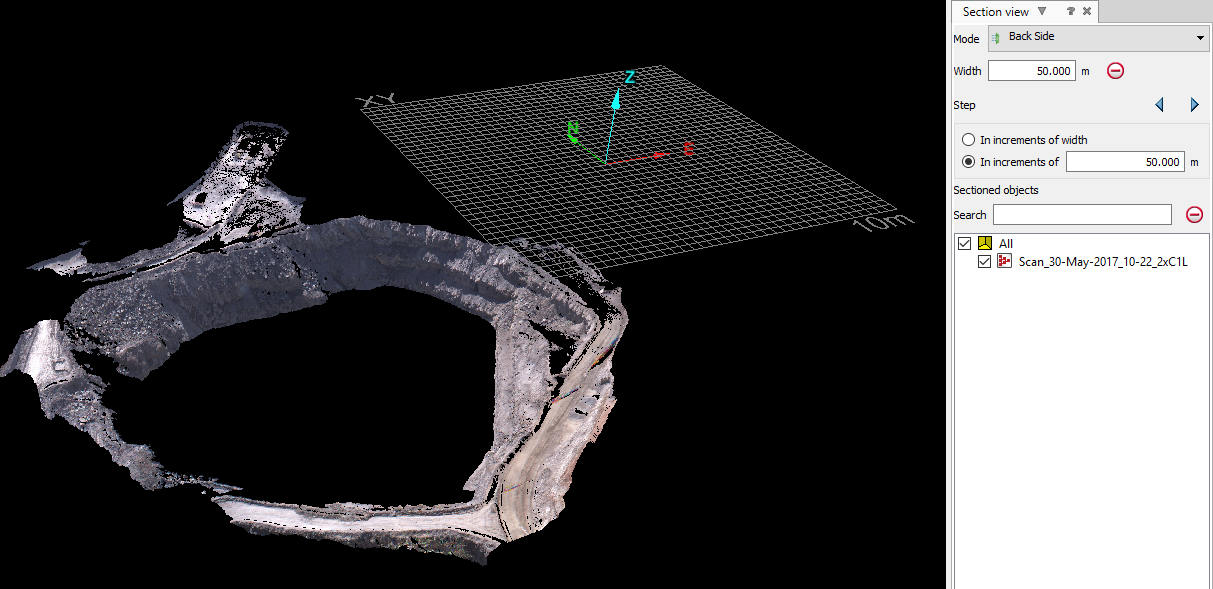
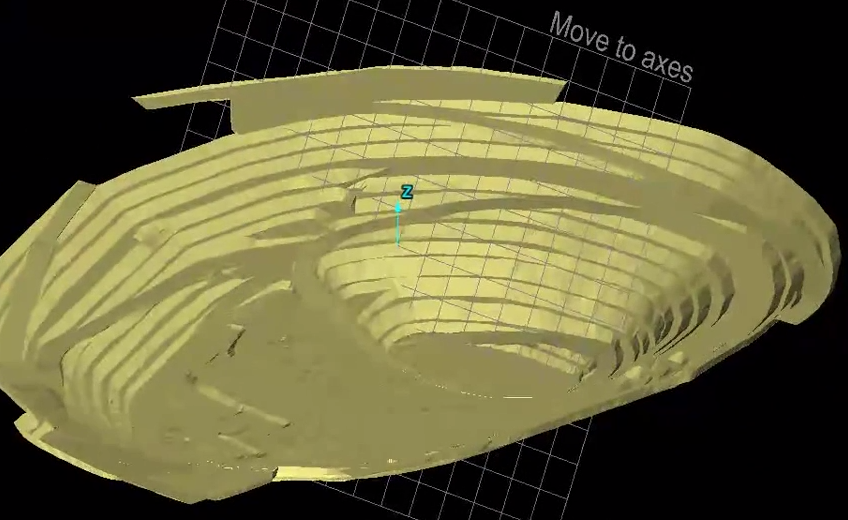
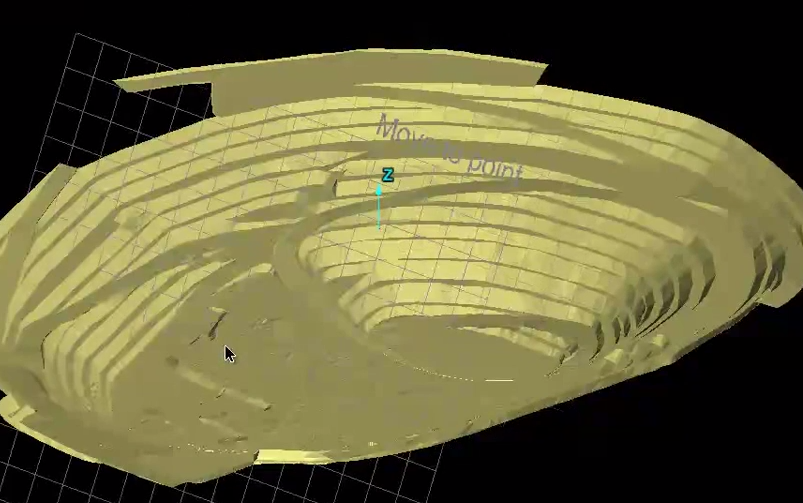
Viewing a horizontal section through a pit using the XY positioned action plane.