Display the animation editor and create animations
Animations are created by first defining a sequence of frames, which contain information regarding camera locations and timing.
Note: The key frames are not tied to the data displayed in the View window, but to the geographic location displayed when they are created. As a result, key frames may be used to animate more than one type of data, if it is in the same geographic location.
To display the Animation Editor go to View > Export >  Animation Editor, alternatively it can also be found in the View window toolbar.

- Position the data in the View window to a desired start position then click Create first keyframe in theAnimation editor window. The animation file is stored in a new container called Animations.
- Move the data in the View window to the next position then click Create key frame. Key frames are created at the current location of the play head and continue at 5 second intervals. The key frames are displayed as vertical red lines on the playbar. The time between key frames can be increased or decreased by clicking and dragging the key frame.
- Click Play to preview the animation in the View window. Loop playback runs the animation preview continually.
Click Publish to create the AVI file output. The Publish animation panel opens.
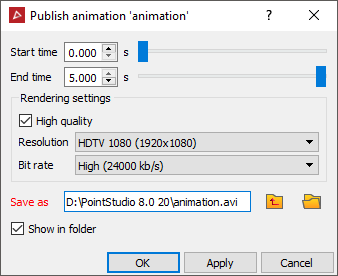
- Select a start and end time for the animation if applicable. If left unchanged, the full animation will be exported.
- The Rendering settings determine the quality and format of the output AVI file.
- Select a location to save the animation to.
Note: Do not select Raw (un-compressed) as the Video quality unless post-processing will be performed. Standard video players cannot play this type of file.