Containers and objects
Containers
A container acts in the same manner as a folder in Windows. It is a storage location for objects.
The program has a set of standard containers, which are displayed in blue.
Non-standard
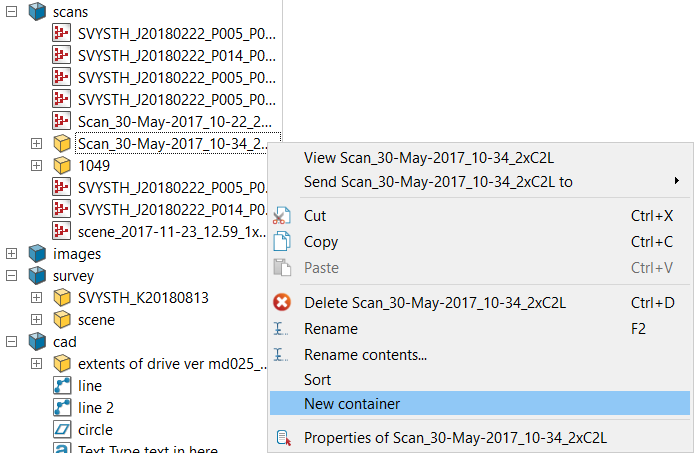
(secondary) containers may be created by right-clicking anywhere in the
Explorer window and choosing New container
(except on the Recycle bin). These will be displayed in yellow. The new
container will be allocated according to where you have clicked. Furthermore,
the new container can be dragged to a new location via the middle mouse
button.
Deleting a standard container will delete the contents, but not the container. Deleting a non-standard (secondary) container will delete the contents and the container.
Note: When you delete objects by emptying the Recycle bin (accessed by right clicking on the Recycle bin and selecting Empty Recycle bin), this is a permanent operation which can't be reversed using the Undo command.
Objects
All data is represented by objects. An object may be made up of points, lines, triangles or cells. Objects are stored in containers.
Each object
has an identifying icon displayed next to it.
| Object | Icon |
|---|---|
| Stationary scans with photographic images |

|
| Stationary scans without photographic images |

|
| Z&F scans with photographic images |

|
| Z&F scans without photographic images |

|
| Driving scans with photographic images |

|
| Driving scans without photographic images |

|
| Triangulations with photographic images |

|
| Triangulations without photographic images |

|
| Points |

|
| Lines |

|
| Polygons |

|
| Edge networks |

|
| 3D Text |

|
| 2D Text |

|
| Construction planes |

|
| Discontinuity set |

|
| Discontinuities |

|
| Stereonet grids |

|
| Kinematic analysis |

|
| Rose diagram grids |

|
| Set window |

|
| Contours |

|
| Legends |

|
| Animation |

|