Filter out Dust or Snow
Use Filter dust or snow to filter small unwanted points, usually of dust or snow particles, using an automated procedure which strategically combines range and intensity functions.
-
On the Position and Filter ribbon tab navigate to the Filter group. From the Filters drop-down list select
 Dust or Snow.
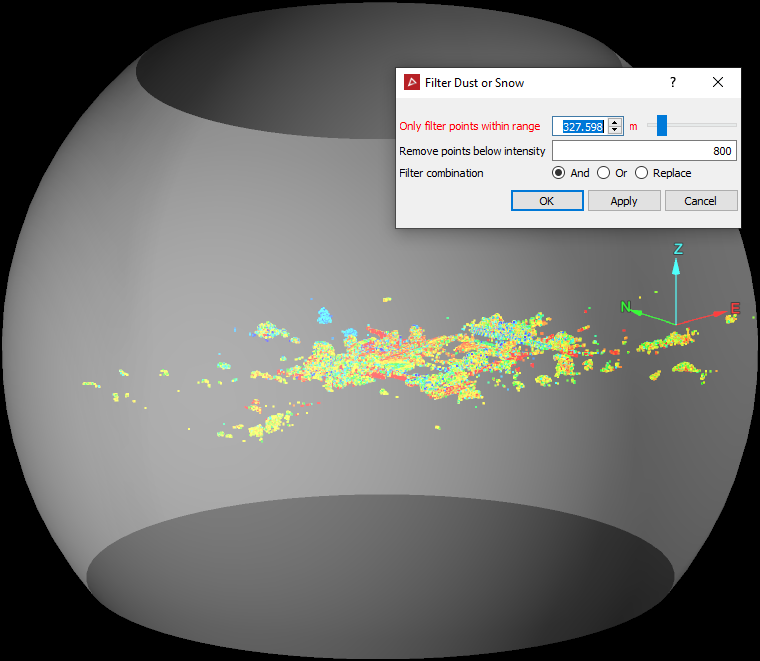
The panel will open and display the zone encompassed by the range represented by a translucent sphere shape around the scanners origin.
-
Select an appropriate value for the range setting by entering a value or using the slider. The range setting defines the distance from the location of the scanner origin.
-
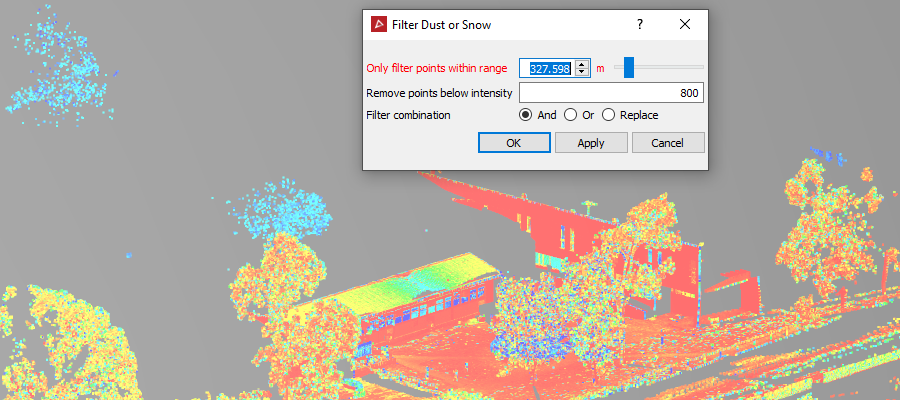
Enter the intensity value, below which you want to filter out points. Dust and snow particles are typically represented by low intensity scan points.
Tip: To get an idea of an intensity value, click on a low intensity scan point (blue to dark blue in colour) then press Ctrl + I + I to have the point statistics displayed in the report window.
-
Select the required Filter combination.
-
Select the scan data to be filtered.
-
Click OK or Apply.
Result of filtering out intensities below 800.
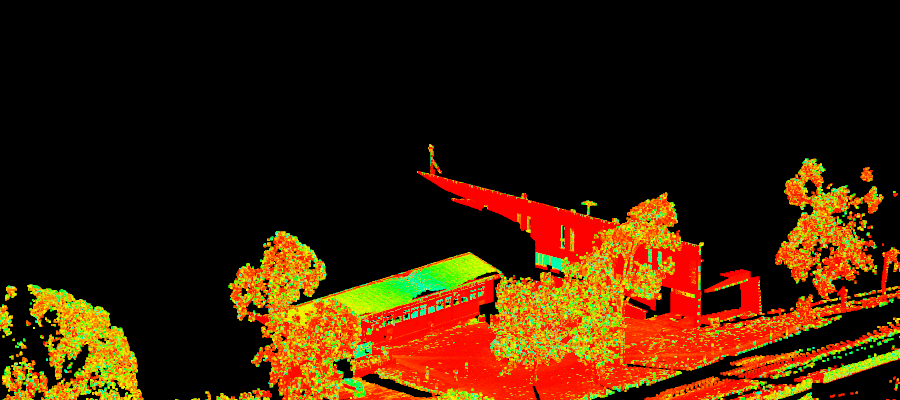
Note: The points can be recovered using the Show All option.