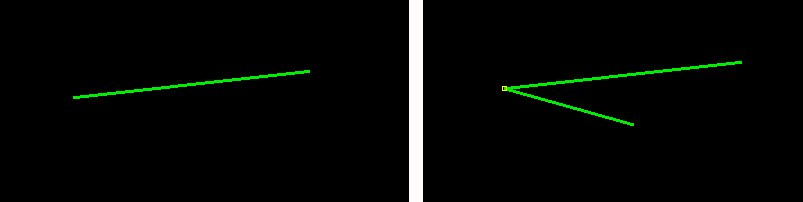
Edit a line or polygon (edge network)
To move a point
-
Select the object in the project explorer and using point selection mode
 , draw a box over a corner
of the object so that one point is selected.
-
Right-click on the object and select Edit >
 Move
point.
-
Click on the point to move.
-
Click in the new location for the point.
-
Click Complete
 or press ENTER or right mouse button click.
The point is moved to the new location.

To reshape an object
-
Select the object in the project explorer and using edge selection mode
 , select a single edge.
-
Right-click on the selected edge and select Edit >
 Insert
points.
-
Pick a line to replace.
-
Click in the location for the new point/s.
-
Click Complete
or press ENTER or right mouse button click.
The object is reshaped to encompass the new point/s.
To extend (add to) an object
-
Select the object in the project explorer and using point selection mode
, draw a box over a corner
of the object so that one point is selected. -
Right-click on the selected point and select Edit >
 Add
points.
-
Pick a point to add from.
-
Click in the location for the new point/s.
-
Click Complete
or press ENTER or right mouse button click.
The object has new edges added to encompass the new point/s. Add plane