Exporting data
To export standard text file formats
To export custom text file formats
To export Maptek object data
.maptekobj .maptek is the Maptek object file. The purpose of this generic file format is to allow the operator to transfer objects between other projects, or any arbitrary groups of objects excluding external referenced files. All data can be stored in one file, which makes it easier to email than Maptek projects. Otherwise, objects can be saved to individual files.
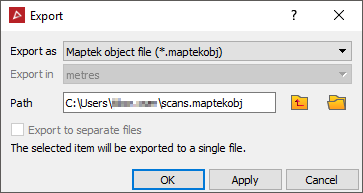
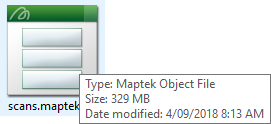
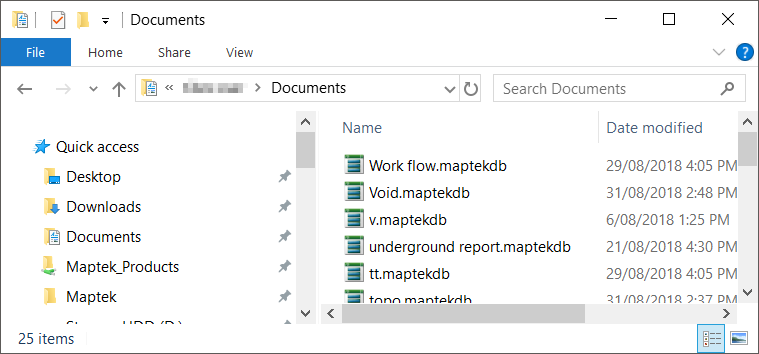
Output showing objects saved to individual files - with object names as filenames.
To export standard data
-
Highlight the data to be exported in the project explorer. More than one file may be exported at a time provided the target export format is the same.
-
On the Home ribbon tab navigate to the Data group and click
 Export.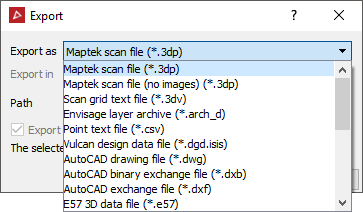
-
Select the Export as format. Some formats allow the unit of the exported data to be selected.
-
Select the Path (destination directory). The exported data is saved with the Database object name.
-
Select whether the files will be exported to separate files (if available).
-
Click OK or Apply.
Any data manipulation that has occurred, for example filtering or colouring, will be saved to the file.
Newly acquired scans will be exported in their entirety. Data reduction (to reduce file storage requirements) will be performed on scans whose visibility has been manipulated. This process will crop invisible or invalid points from the edges of the scan.
AutoCAD files are in the 2009 format specification.
| File type | Description |
|---|---|
|
.3dp |
PointStudio open standard three dimensional scan file |
|
.3dv |
Scan grid text file |
|
.arch_d |
Maptek Vulcan software archive format: points and edges |
|
.00t |
Maptek Vulcan software design data format: facet data only. Compatible with non-compressed format used before Vulcan version 8.0, and compressed format used in Vulcan version 8.0 and later. |
|
.dwg |
AutoCAD binary file format |
|
.dxb |
Binary of the .dxf format |
|
.dxf |
AutoCAD file format: point, edge and facet data |
|
.e57 |
The E57 file format is an extensible industry standard for '3D Imaging Data' developed by ASTM International and specified in the 'ASTM E2807 - 11 Standard Specification for 3D Imaging Data Exchange' standard. |
|
.las |
The LAS file format is a public file format for the interchange of LIDAR data between vendors and customers. |
|
.ireg |
Maptek Vulcan software image registration file |
|
.jpg .jpeg |
JPEG image file |
|
.ma |
Maya ASCII file |
|
.maptekobj |
Maptek object file |
|
.obj |
Wavefront object modelling format: point, edge and facet data |
|
.txt |
Comma or space delimited ASCII text files.
See Export custom text file formats to export text files that are not in the above formats. |
|
.wrl |
VRML 97 file. Point, edge, facet data can be viewed in web browsers, using plug-ins such as the Cortona VRML client. |
To export custom text file formats
Predefined PointStudio text file formats:
- Scan text file: Space delimited for scan files with the format (X Y Z Red Green Blue Intensity).
- Point text files: Comma delimited for all regular object types with the format (X, Y, Z, Red, Green, Blue). Not available for text or construction plane objects.
- Survey point text files: Comma delimited file with the format (X, Y, Z, label OR index, X, Y, Z, label).
- Scan Polar Coordinate text file: Comma delimited file with the format (............
- Discontinuities: Comma delimited file with the format (X/E,
Y/N, Z/RL, Dip direction, Strike, Length, Area).
To export a text file (ASCII file) that is not in one of the predefined PointStudio formats listed above, use the custom text file export method below:
-
Highlight a file to export.
-
On the Home ribbon tab navigate to the Data group and click
Export. -
From the Export as drop-down list select Custom text file (*.txt).
-
Select the Path (destination directory).
-
Click OK or Apply. The Export custom ASCII format window displays.
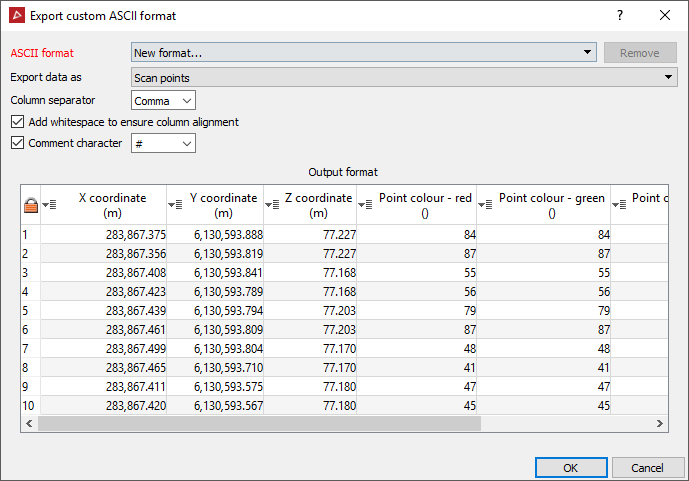
- Define the data type to be exported. Different data types can have different attributes:
- Point data: Must include X, Y coordinates. May include Z and colour RGB data.
- Scan data: Must include X, Y coordinates. May include Z, colour RGB and intensity data.
- Ensure the Column separator displays the correct option.
The Comment character defines the character used in the file to determine text that is a comment.
-
Ensure the preview columns displaying the output format are assigned to the correct value. If they are not correct, change the assigned columns by clicking on the column header and choosing the appropriate variable from the drop down list.
To export image files
Image files can be imported and exported in association with surfaces and scans. The images can be draped over the entire target object or placed on a specific patch. Appropriate options will be available dependent on the target object for the image.
Note:
This allows a panorama photograph from a scan to be exported, edited,
then imported to replace the original image.
-
Select the object with the image to be exported (surface or scan).
-
On the Home ribbon tab navigate to the Data group and click
Export.
You should be able to select the JPEG image file format for exporting the image. Specify path and/or separate file options if appropriate.
Click OK or Apply to continue.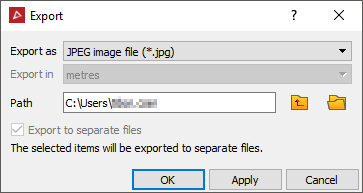
-
If the source image was originally distorted to fit the object, another panel will display providing the option to apply distortion correction.
Then click OK to continue.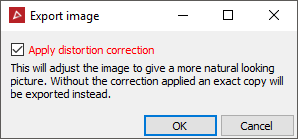
-
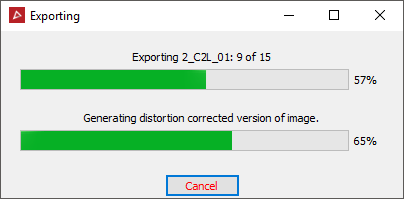
The program will display a progress bar of the image exporting process.