Split
Source file: split-a-line.htm
Use Split to split a line segment at the intersection with another line segment. The line segments can be parts of more complex
objects and can have multiple edges. The function will split the line at all intersections with the other line or object.
-
On the Edit ribbon tab, go to the Line group and select
 Split.
 -
Select the line or object to be split, or drag or enter details into the status bar field at the bottom of the screen.

-
Then click on an overlapping line or object, or drag or enter details into the status bar field at the bottom of the screen. The result is the line segment is split at the points of intersection.

-
Continue applying function or press
 in the status bar to exit the function.
Tip: Use the Action plane and Snap modes to simplify accurate point selection.
Example - splitting a straight line by a polygon
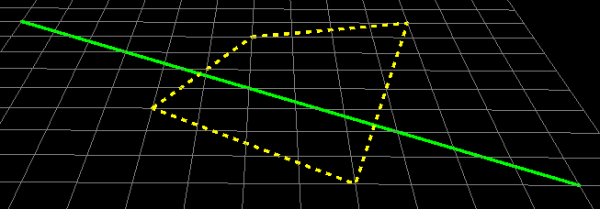
A line split into three sections by a polygon. The sections were later given different colours.
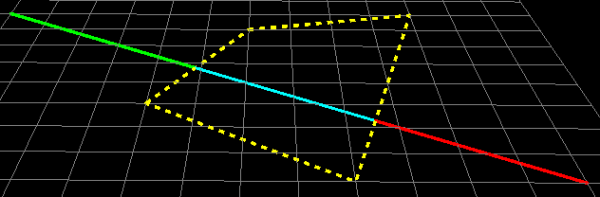
A line with a polygon positioned over it so that the line is split where it intersects the polygon.
Example - splitting complex objects
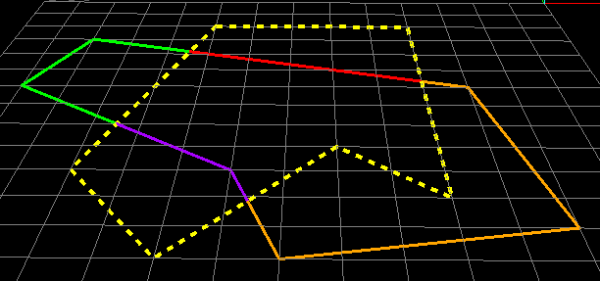
A polygon (multicoloured lines) split by a different polygon (yellow dotted lines).
