User interface customisation
Source file: user-interface-customisation.htm
PointStudio has the capability to customise the user interface to simplify it by arranging sets of tools that are frequently accessed.
To create a custom tab follow these steps:
-
On the Workbench ribbon tab, go to the Customisation group and select
 Customise.
 -
On the right-hand side of the panel select the Ribbon tab.
-
Double click the
 New Tab drag target.
 -
New Tab will be renamed to
 Untitled Tab and place a New Group drag target underneath it where you will drag tools onto to create a custom group of tools.
 -
Right-click the
Untitled Tab, select  Rename and then type in a new name for the Tab.
 -
Locate the first tool needed in the left-hand side of the panel and drag it onto
New Group on the right-hand side of the panel.Note: A rectangle around the drag target will be displayed to indicate where the tool will be placed.
-
The
New Group will now be renamed to Untitled Group. -
Right-click the
Untitled Group, select Rename and then type in a new name for the Group. -
Keep selecting tools and drag them into the
<group name> drag target until you are satisfied. -
Once the User Interface is complete, click Apply then Export to.
Tip: Clicking in the Export Path field you can change the file name to something more identifiable.
The custom interface can be re imported and edited again and again.
-
Click OK to accept the custom Ribbon menu and exit the panel.
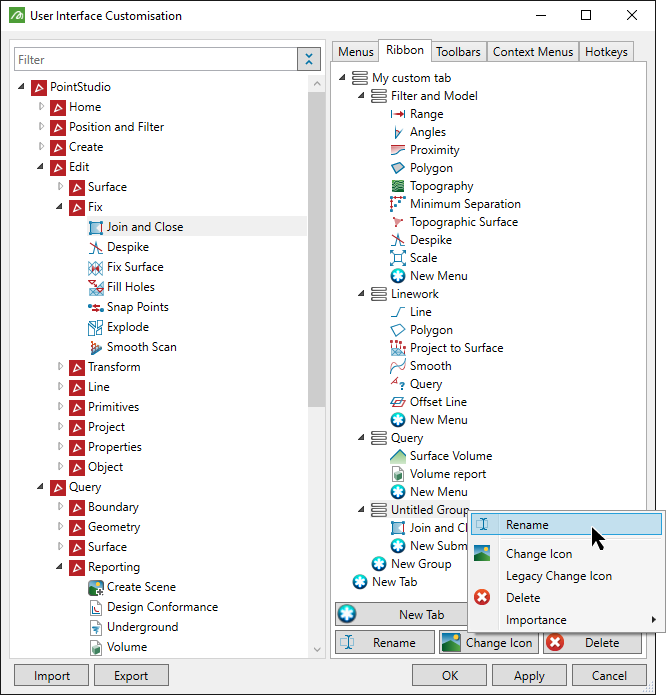
The User Interface Customisation panel will open displaying the available tools on the left and the custom combination of tools on the right.
Tip: You can check your progress of your custom ribbon tab by selecting the <custom tab name> on the PointStudio ribbon menu and every time you click Apply you will see it updating.
Things to note:
- You can create Submenus to groups by dragging the tools onto the New Submenu drag target.
- To create new menus, drag the tools onto the New Group drag target and repeat the process from step eight (8).
- To start creating a new tab drag the tools onto the New Tab drag target and repeat the process from step four (4).
- All the tools can be shifted around in between Groups, Tabs and Submenus by left mouse clicking and dragging them across.
- All drag targets can be renamed, assigned an icon and given an importance level (size of the icon), or deleted.

Above is an example of custom Ribbon menu.
