Fit Layer
Create a Window Around an Object
Use the Fit Layer option to :
- create a new window around selected objects in a specified layer. This helps you locate an object that is difficult to find in a large amount of displayed data. The layer must have been loaded into the current window.
- resize an existing window. This helps you resize an existing window without having to change the window's coordinates.
- display a window's coordinates.
Created or resized windows use the minimum/maximum coordinates of the selected objects. This can be changed through the Edit option.
Window extents, except for the Primary Window, are stored in the Windows Parameters file (<proj>.wnd).
Instructions
On the View menu, point to Windows, and then click Fit Layer to display the Layer/object detail panel.
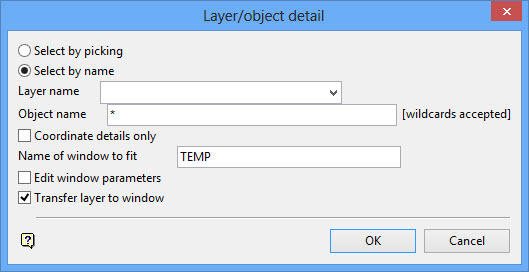
Select by Picking
Select this option to choose the layer by picking objects from the screen. All objects in the layer will be selected.
Select by Name
Select this option to select the layer by entering the layer name. It is possible to select only specific objects, by entering the object name, or all objects, by using the * multi-character wildcard.
Coordinate details only
Select this check box to display the coordinate details of the selected object(s). The details displays through the Report Window of Vulcan.
Name of window to fit
Enter the name of the window (a maximum of 20 alphanumeric characters). If you enter a name that does not exist, then Vulcan assumes that you want to create a new window. If you enter a name that does exist, then Vulcan assumes that you want to resize the window. Only empty windows, that is, no loaded layers, can be resized.
If you are trying to resize a window with loaded layers, then an error message displays when you have completed this panel. Use the Select option to select the window, then the File > Layers > Remove option to remove the layer. The size of new and resized windows depend on the minimum and maximum coordinates of the selected objects.
Edit window parameters
Select this check box to be placed into Edit mode when the window is created. The current window will still be open after the editing, unless you also check the Transfer layer to window check box. In which case the new window will automatically become the current one.
Transfer layer to window
Select this check box to clear the layer from the current window (a layer can only be loaded in one window at a time) and transfer the layer to the new window making that window the current one.
Click OK.
If you have resized an existing window, then you will be asked for confirmation. A new or resized window will not automatically become the current window unless, in the case of a new window, the Transfer layer to window option has been selected (see above). To make a window current, use the Select option.

