DGD Reading & Writing
Layers and objects in a DGD (design database) can be manipulated without Vulcan being opened. The following examples illustrate how to do this.
Topics:
Modules to import
Import the following libraries:
from maptek import vulcan
import numpy as np
import pandas as pd
Create a DGD
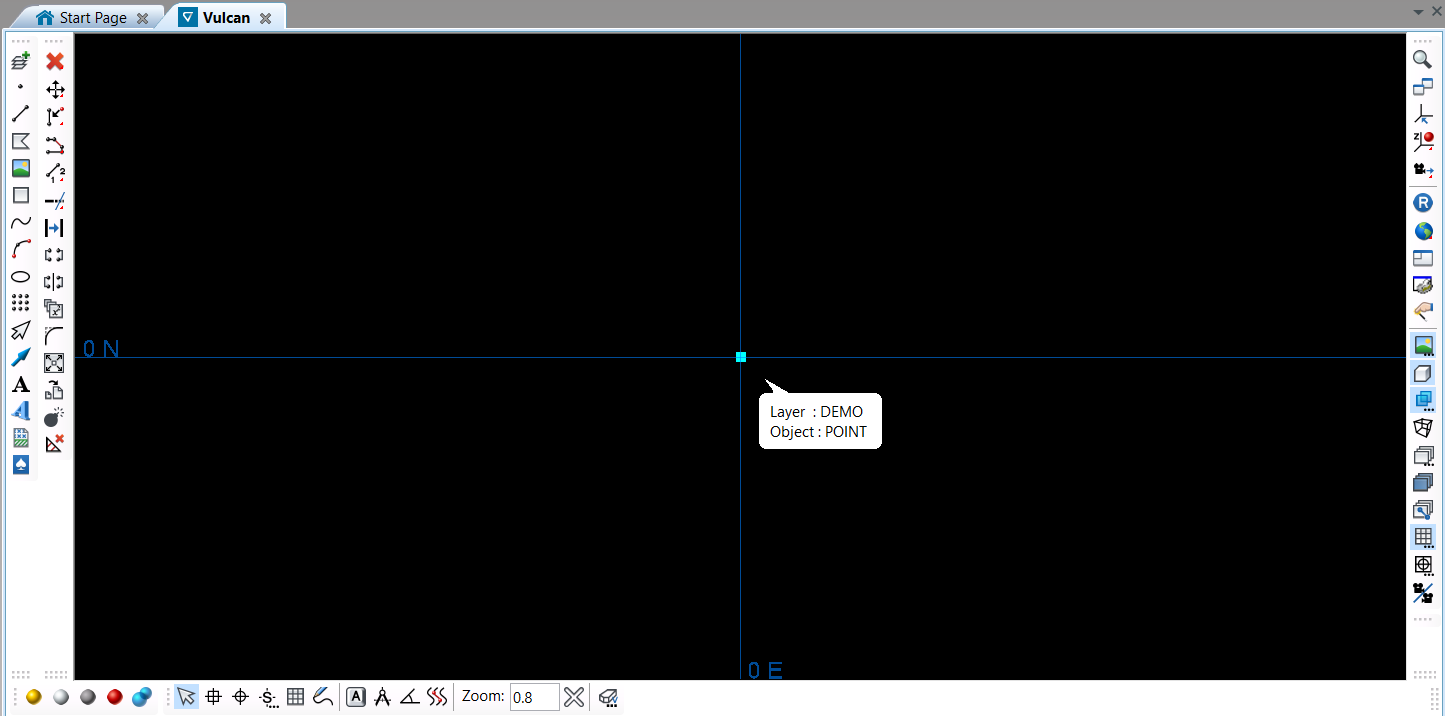
Creates a dgd, adds a layer called DEMO and then adds a single point at location 0,0,0. The colour of the object can be changed using the set_colour() method with an integer. The integer represents the colour number in the Vulcan scd colour palette.
from maptek import vulcan
with vulcan.dgd('pydemo.dgd.isis', 'create') as dgd:
	layer = vulcan.layer('DEMO') # create a new layer called DEMO
	obj = vulcan.polyline([0,0,0]) # add a single point
	obj.name = 'POINT' # change the name of the point to "POINT"
	obj.set_colour(1) # change the colour to colour 1
	layer.append(obj) # add to the layer
	dgd.append(layer) # add the layer to the dgd
Open existing DGD and add data
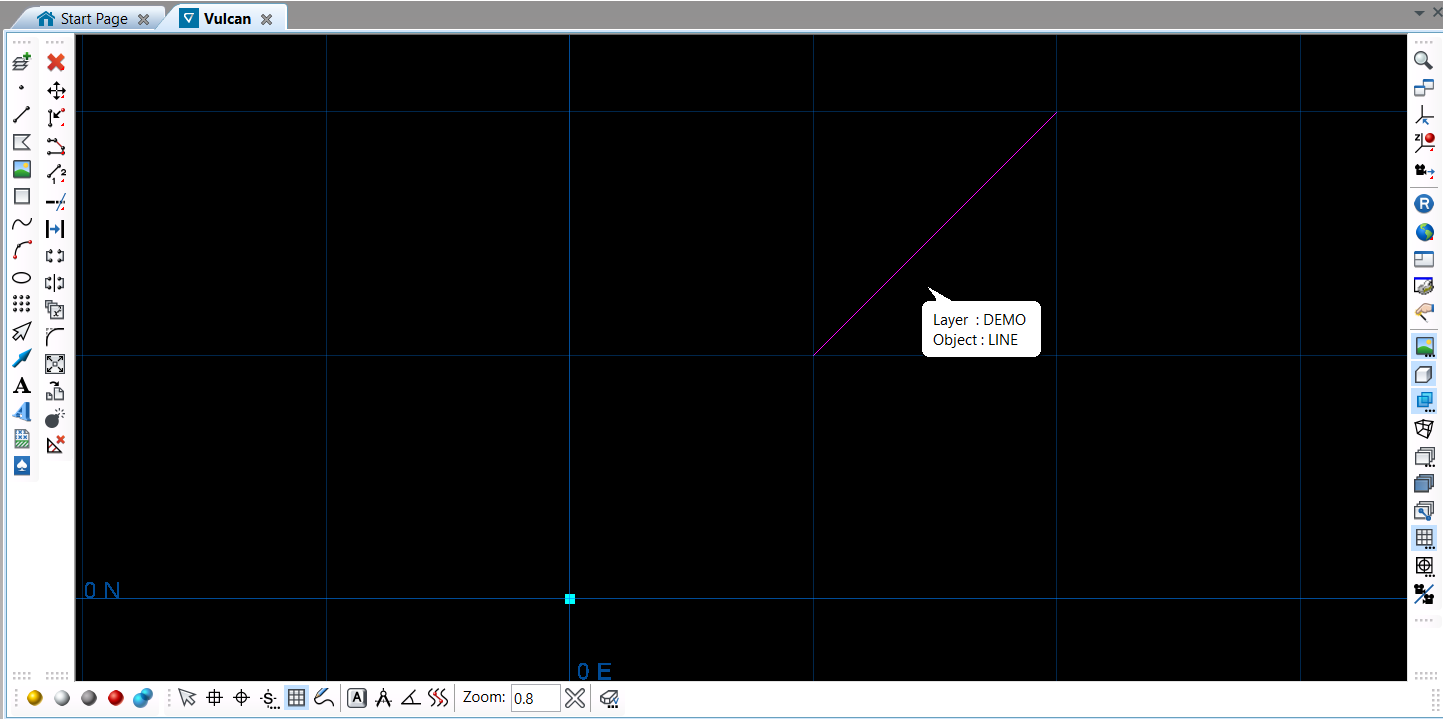
This example opens the dgd and layer created previously and adds a line. The line consists of two points with a line between them created using the set_connected() method.
from maptek import vulcan
# open dgd in write mode
with vulcan.dgd('pydemo.dgd.isis','w') as dgd:
	layer = dgd.get_layer('DEMO') # get the "DEMO" layer
	# create a diagonal line
	obj = vulcan.polyline([[5,5,5],[10,10,10]])
	obj.name = 'LINE'
	obj.set_colour(3)
	# set the line as connected so it appears as a line
	obj.set_connected()
	layer.append(obj)
	dgd.save_layer(layer) # save the modified layer
Create a closed polygon
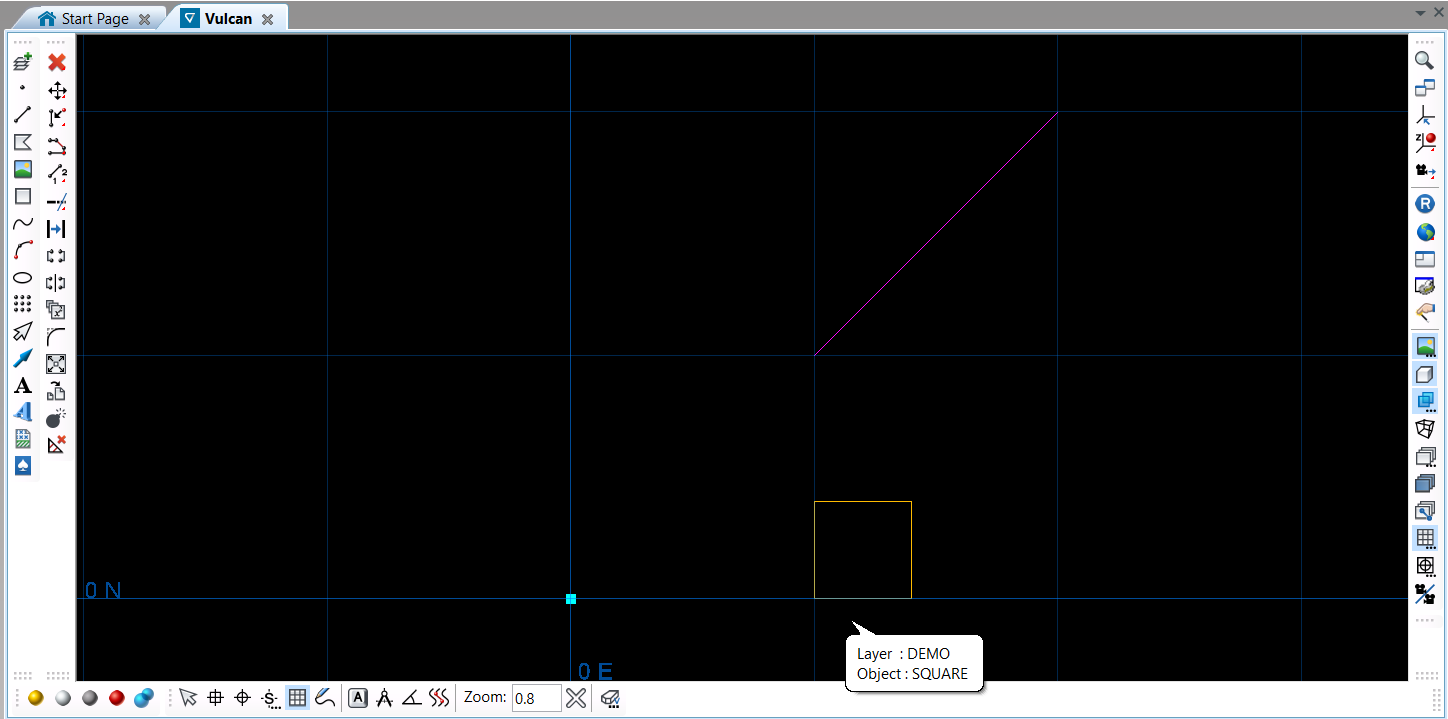
Open an existing dgd and layer and add a closed polygon in the shape of a square. This example illustrates the use of the set_closed() method to close a polygon.
from maptek import vulcan
with vulcan.dgd('pydemo.dgd.isis','w') as dgd:
    layer = dgd.get_layer('DEMO') # get the "DEMO" layer
    obj = vulcan.polyline([[5,0],[7,0],[7,2],[5,2]])
    obj.name = 'SQUARE'
    obj.set_colour(5)
    obj.set_connected()
    obj.set_closed()
    layer.append(obj)
    dgd.save_layer(layer)
Get object details
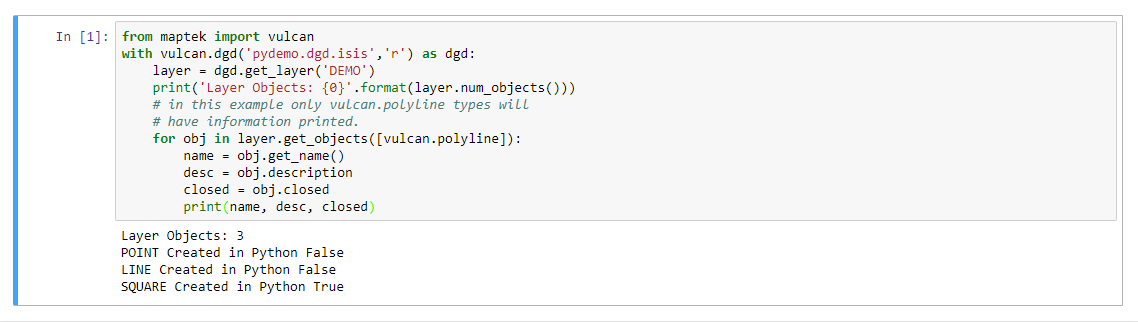
This example illustrates how to get details for each object in a layer.
from maptek import vulcan
with vulcan.dgd('pydemo.dgd.isis','r') as dgd:
    layer = dgd.get_layer('DEMO')
    print('Layer Objects: {0}'.format(layer.num_objects()))
    # in this example only vulcan.polyline types will
    # have information printed.
    for obj in layer.get_objects([vulcan.polyline]):
        name = obj.get_name()
        desc = obj.description
        closed = obj.closed
        print(name, desc, closed)
Reading from a DGD
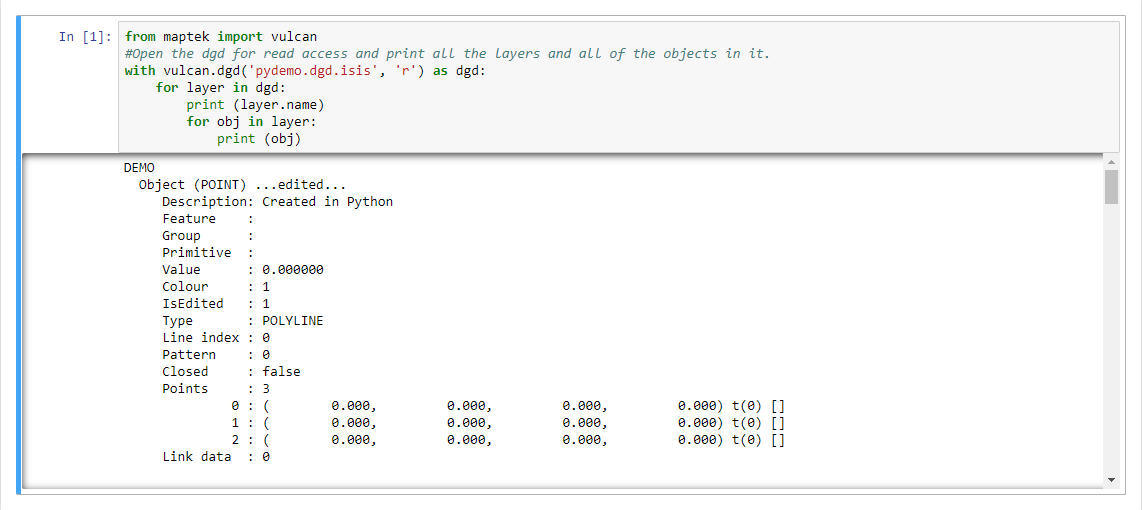
from maptek import vulcan
#Open the dgd for read access and print all the layers and all of the objects in it.
with vulcan.dgd('pydemo.dgd.isis', 'r') as dgd:
    for layer in dgd:
        print (layer.name)
        for obj in layer:
            print (obj)
Editing objects in a DGD
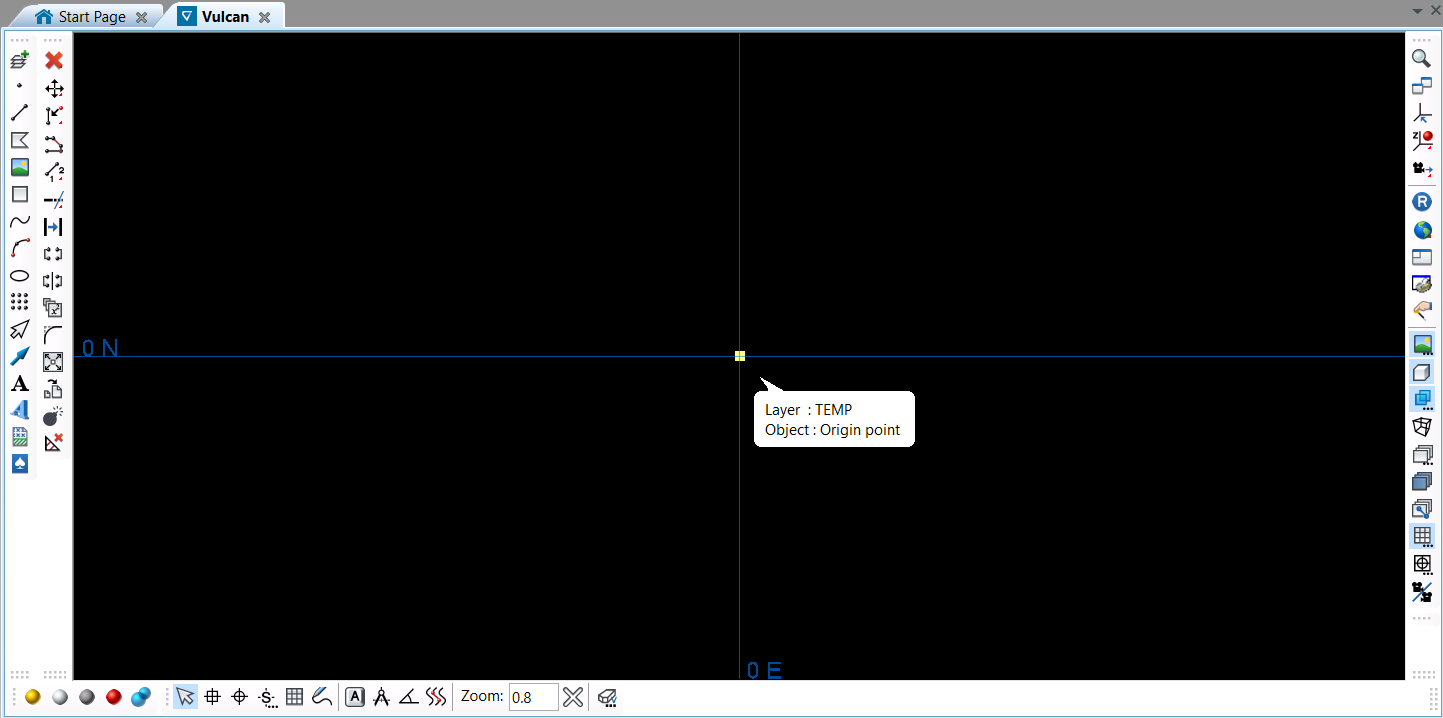
from maptek import vulcan
# Open the dgd for write access
with vulcan.dgd('pydemo.dgd.isis','w') as dgd:
    my_layer = None
    # Find the layer we want
    lyr_name = "TEMP"

    # If it exists, modify an object in it
    if dgd.is_layer(lyr_name):
        my_layer = dgd.get_layer(lyr_name)
        idx = len(my_layer)-1
        print(idx)
        if idx >= 0:
            obj = my_layer[idx]
            obj.name = "LastObject"
            my_layer[idx] = obj
            dgd.save_layer(my_layer)

    # If the layer doesn't exist, make one and add it.
    else:
        my_layer = vulcan.layer(lyr_name)
        obj = vulcan.polyline([0,0,0])
        obj.name = "Origin point"
        my_layer.append(obj)
        dgd.append(my_layer)
2D Text Manipulation
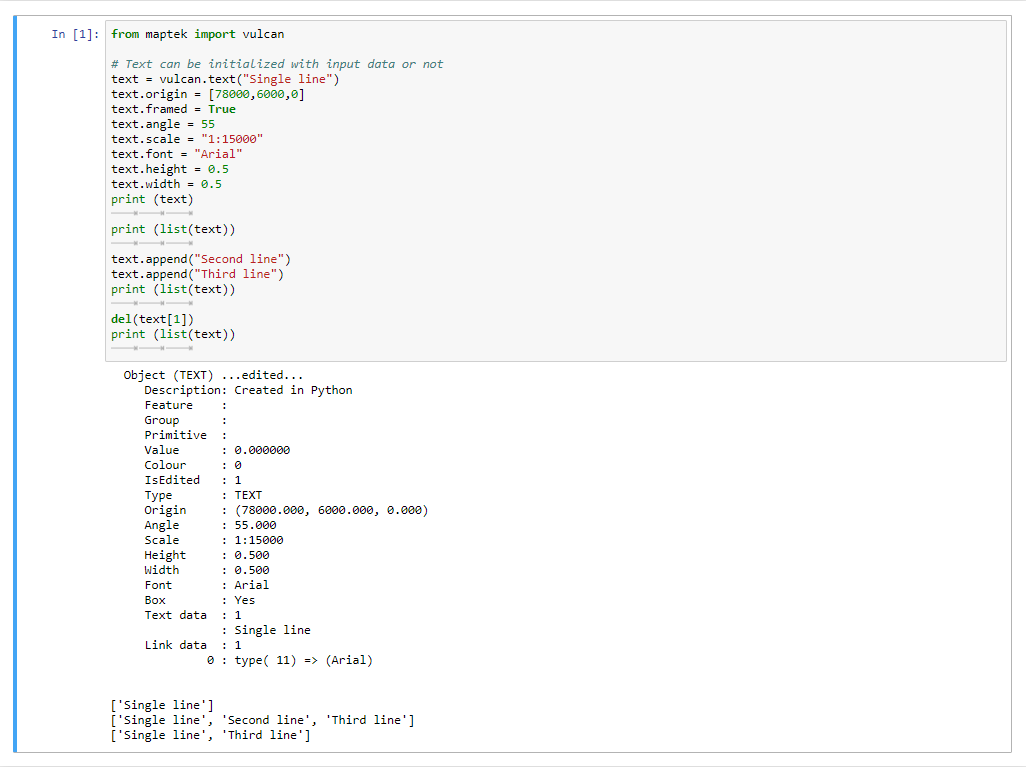
from maptek import vulcan

# Text can be initialized with input data or not
text = vulcan.text("Single line")
text.origin = [78000,6000,0]
text.framed = True
text.angle = 55
text.scale = "1:15000"
text.font = "Arial"
text.height = 0.5
text.width = 0.5
print (text)

print (list(text))

text.append("Second line")
text.append("Third line")
print (list(text))

del(text[1])
print (list(text))
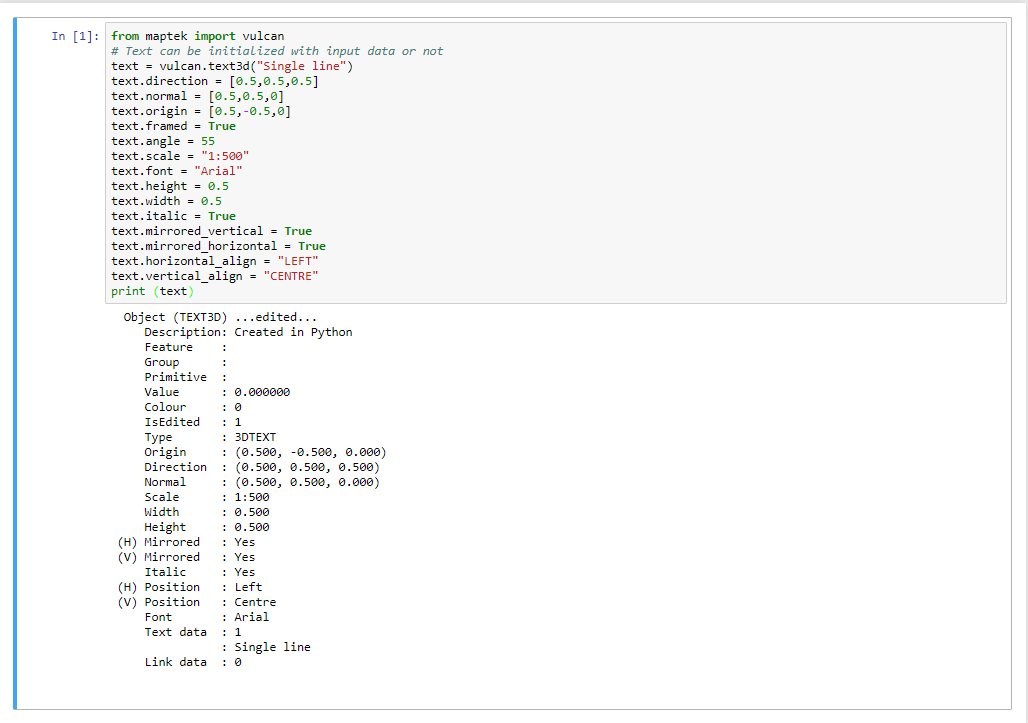
3D Text Manipulation
from maptek import vulcan
# Text can be initialized with input data or not
text = vulcan.text3d("Single line")
text.direction = [0.5,0.5,0.5]
text.normal = [0.5,0.5,0]
text.origin = [0.5,-0.5,0]
text.framed = True
text.angle = 55
text.scale = "1:500"
text.font = "Arial"
text.height = 0.5
text.width = 0.5
text.italic = True
text.mirrored_vertical = True
text.mirrored_horizontal = True
text.horizontal_align = "LEFT"
text.vertical_align = "CENTRE"
print (text)
Polyline Manipulation
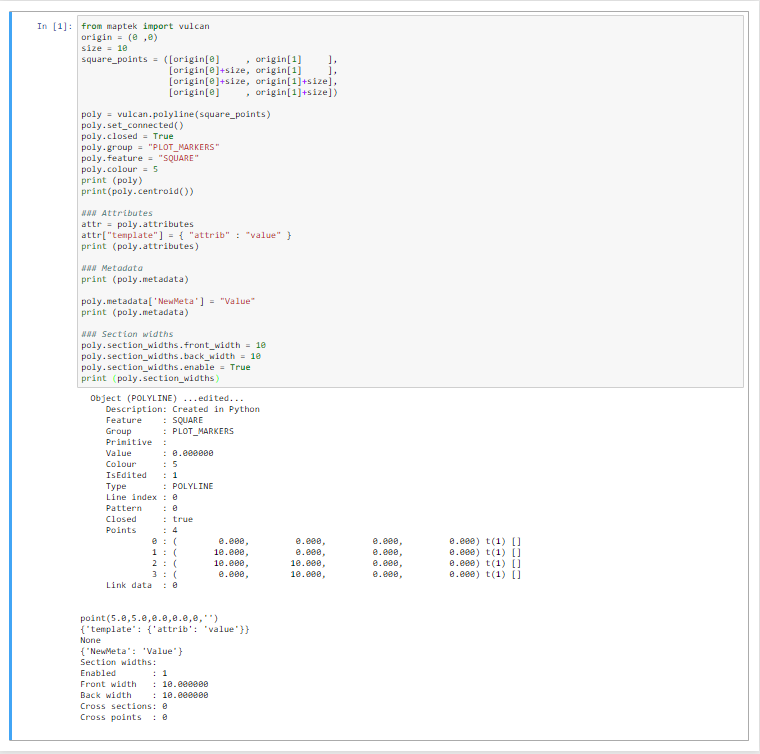
from maptek import vulcan
origin = (0 ,0)
size = 10
square_points = ([origin[0]     , origin[1]     ],
                 [origin[0]+size, origin[1]     ],
                 [origin[0]+size, origin[1]+size],
                 [origin[0]     , origin[1]+size])

poly = vulcan.polyline(square_points)
poly.set_connected()
poly.closed = True
poly.group = "PLOT_MARKERS"
poly.feature = "SQUARE"
poly.colour = 5
print (poly)

print(poly.centroid())

### Attributes

attr = poly.attributes
attr["template"] = { "attrib" : "value" }
print (poly.attributes)

### Metadata
print (poly.metadata)


poly.metadata['NewMeta'] = "Value"
print (poly.metadata)


### Section widths
poly.section_widths.front_width = 10
poly.section_widths.back_width = 10
poly.section_widths.enable = True
print (poly.section_widths)
Arrow manipulation
from maptek import vulcan
arrow = vulcan.arrow()

# Default type is 3D, Type can be changed by:
arrow.arrow_type = "2D"
arrow.start = [10,10,0]
arrow.end = [100,75,0]
arrow.filled = True
arrow.num_facets = 20

# Head length/width defaults to relative
# Override by doing the following:
# arrow.head_length = 1
# arrow.head width = 0.5
arrow.relative_head_length = 20 # Percent
arrow.relative_head_width = 10 # Percent

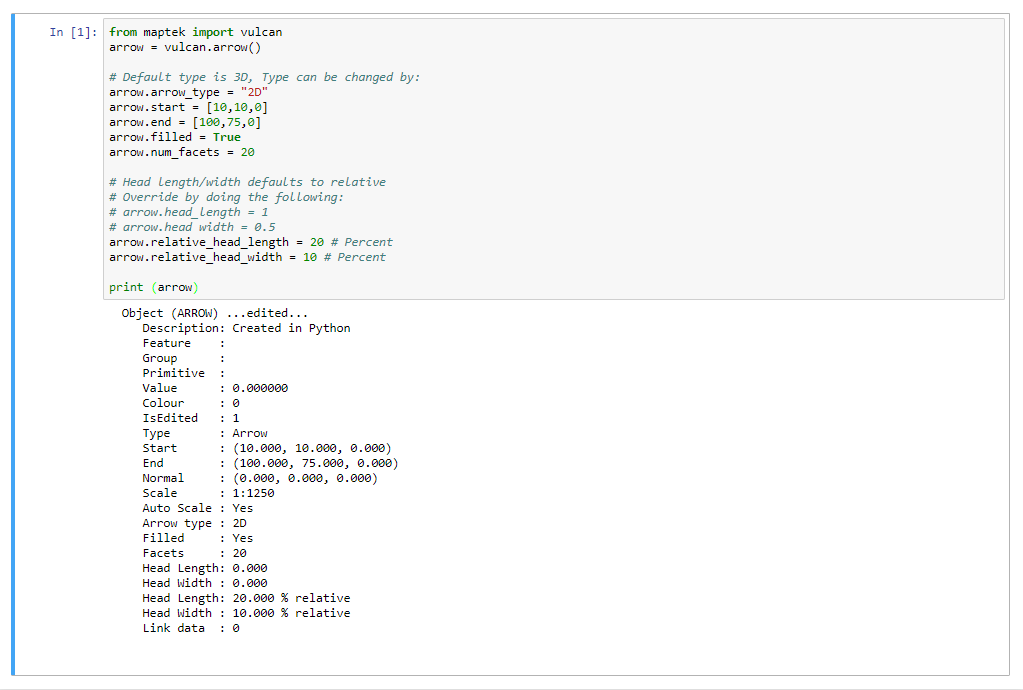
print (arrow)