Select by Attributes
Select by attribute allows you to select objects based on parameters available to that particular object.
To set up an attribute and attribute types:
-
On the Home ribbon tab navigate to the Selection group. From the Select By drop-down list select
 Attribute.
The Select by Attributes panel will appear.
-
Select the object from the project explorer.
-
Choose an Attribute type from:
- Primitive properties: different objects will have different properties that can be used as attributes. For example a scan will inherit the following attributes to select from:
- Intensity
- Range
- Z coordinate
- Primitive tags: objects can be given a tag that can then be used as an attribute.
Note: For assistance with creating attributes refer to the Edit Attributes topic.
- Primitive properties: different objects will have different properties that can be used as attributes. For example a scan will inherit the following attributes to select from:
-
Choose the range required from the drop-down list.
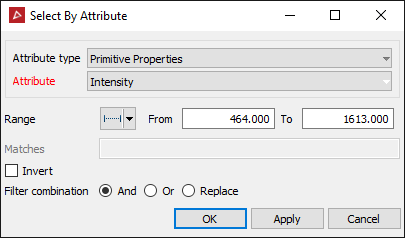
Range: enter from and to values. Less than or equal: enter the upper range limit required. Greater than or equal: enter the lower range limit required. All finite values: Filter out attributes that have a NaN or any other error values.
-
Select the Invert checkbox for the Filter Combination if the opposite to the settings is to be filtered.
-
Click OK or Apply.
The selection will be applied based on the parameter settings.