Filter by Proximity to an Object
Use Proximity filter to filter points by their distance to an object.
This option
is useful if scans have been filtered, a model has been created and all
the filtered points have been restored to verify the model. This filter can
be used to re-filter the data, only keeping points close to the modelled
object.
-
On the Position and Filter ribbon tab navigate to the Filter group. From the Filters drop-down list select
 Proximity.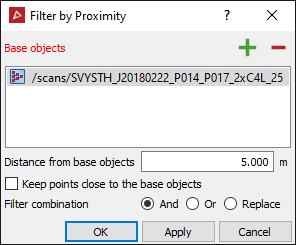
-
Drag and drop the object into the Base object field (or click on the required object in a view window).
-
Enter the Distance from base object for points to be kept or removed.
-
SelectKeep points close to the object to keep the points within the defined distance.
-
Select the required Filter combination.
-
Select the scan or points to be filtered.
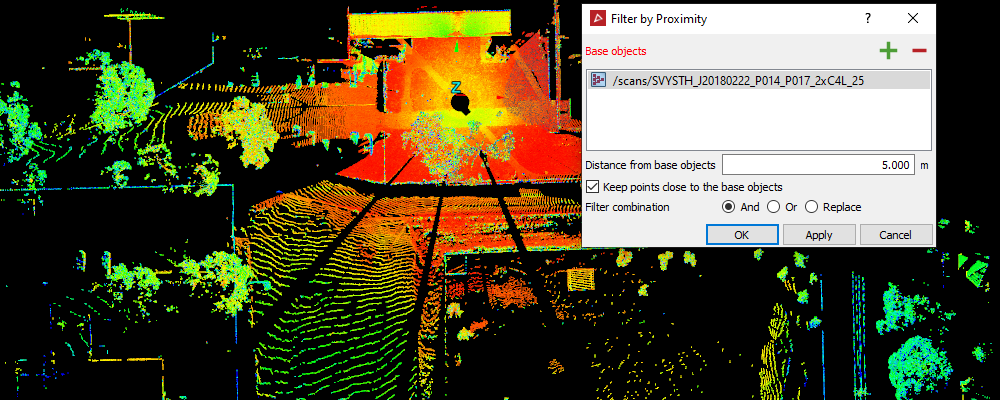
-
Click OK or Apply .
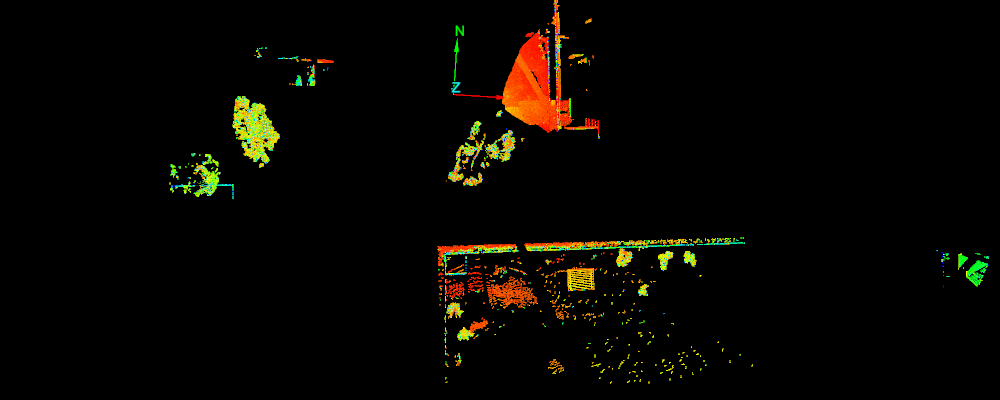
Note: The points can be recovered using the Show All option.