Filter by Surface
Use Filter by surface to define 3D surfaces and remove points on one side of the surface. This is useful for removing points above or below specific elevations, or for indoor scenes to remove ceiling points for better visualisation.
-
On the Position and Filter ribbon tab navigate to the Filter group. From the Filters drop-down list select
 Surface.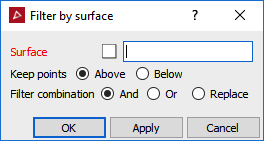
-
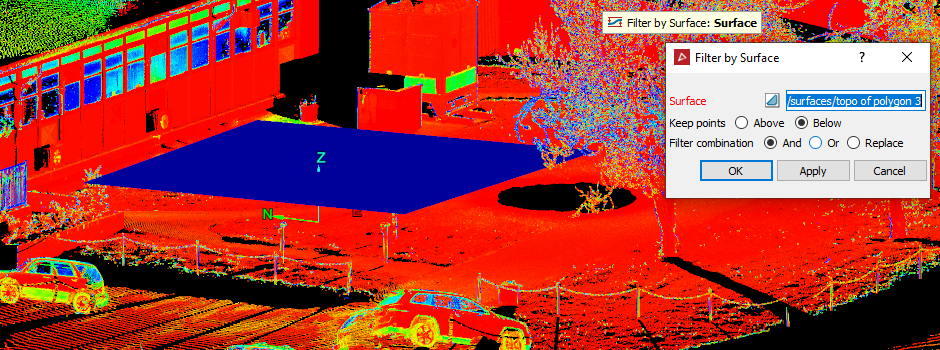
Select surface(s) to use in the filter.
-
Select Keep points Above plane to keep the points above the surface. Select Keep points Below plane to keep the points below the surface.
-
Select the required Filter combination.
-
Click OK or Apply.
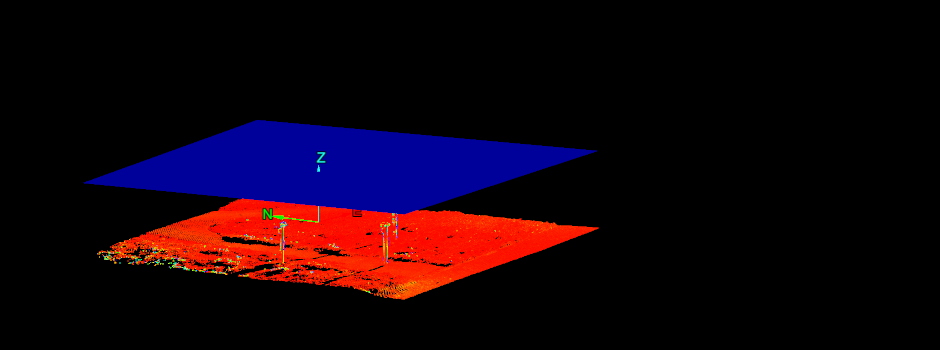
Result of keeping the points Below the surface.
Note: The points can be recovered using the Show All option.