Define coordinate system
Objects, scans etc. may not have a coordinate system associated with them. When working with various objects, or according to overall requirements of a project, it may be necessary to ensure all objects are oriented and positioned correctly. This function is used to define an initial coordinate system to the selected object. This sets a reference system for coordinate conversions, and is required before a coordinate conversion can be performed. Objects with a coordinate system assigned can be used to flag other objects with the same system.
REFER TO How Do I? > Understanding Coordinate Systems for a background discussion of relevant components and derivations of coordinate systems. This discussion may help in understanding the significance and use of options in the function presented here.
Related commands:
- Manage coordinates in Preferences.
- Convert coordinates.
Define coordinate system
-
Select the required object.
-
Select Position and Filter > Coordinates >
 Define
Coordinate System
Define
Coordinate System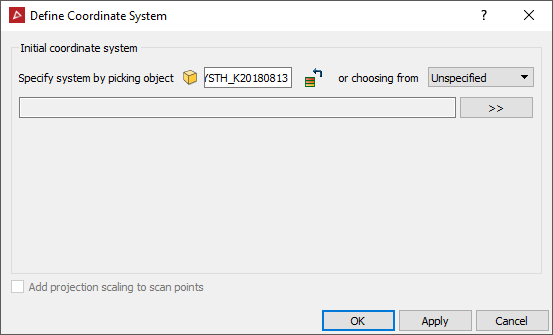
- Specify a coordinate system either by automatically transferring the coordinate system applied to another object, or specifying manually by clicking the specify system button.
To transfer a coordinate system automatically from another object, give focus to the Specify system by picking object field, then either:
- middle-click and drag the reference object into the field.
- left-click the reference object in the View window.
Alternatively:
- if you choose to specify a system manually, the Coordinate system panel will open, ready for selecting appropriate attributes.
Add projection scaling to scan points - This checkbox toggles the option to apply projection scaling and distortion as if transforming from a geocentric coordinate system. This should only be used for raw laser scan data.
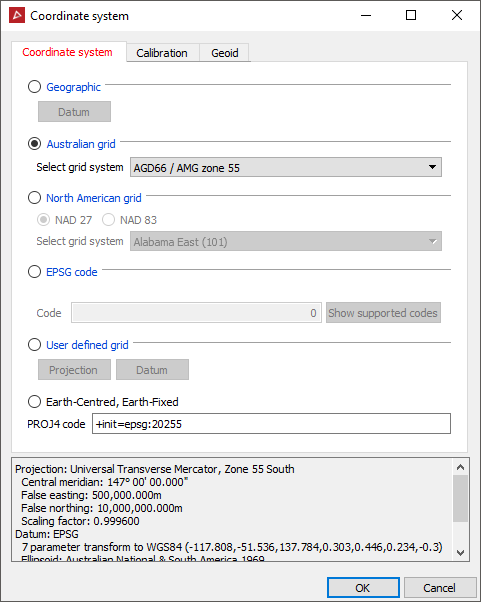
Coordinate system options include:
- several options based on industry standard setups
- user defined grid option allowing full flexibility in defining projection, plus datum including full transformation capability (linear, rotational and scale settings)
- select the Calibration tab to apply custom offset measurements to horizontal and vertical references
- select the Geoid tab to nominate Geoid setting or import a geoid file (*.asc, *.byn, *.ggf, *.gtx)
-
When a system has been initialised, press OK or Apply.