Create a 3D Line
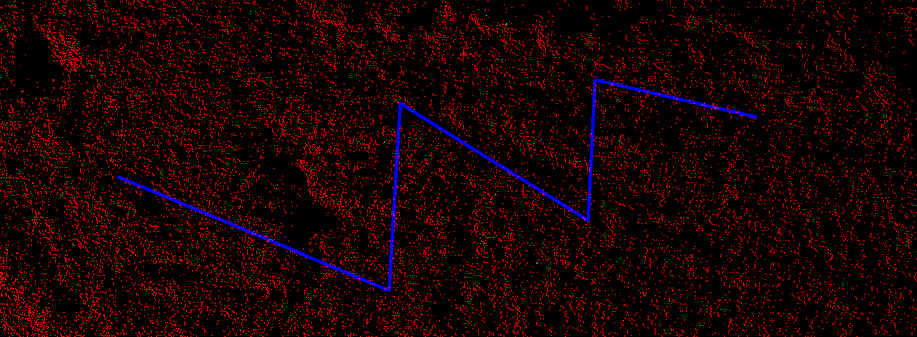
Lines can be created to manipulate or add to existing data. The resulting line will consist of one or more straight line segments between points that is specified in 3D space. To create 2D lines, use the command 2D line.
-
On the Create ribbon tab navigate to the Draw group. From the Line drop-down list select
 Line.
Line.
A panel will open displaying the input fields for the First point. -
Click in the view window to select a the First point or enter values manually in the X,Y and Z input fields. Click the minus symbol to delete the entries in the input fields.

-
Thereafter, the panel will accept inputs for each Next point.
-
Right-click to complete the line.
-
Click in the view window, or select the mode for manual input from the following options:
- Point
- Length, bearing and inclination
- Relative offset

-
Press Esc or click
 to exit the function,
otherwise continue creating new lines.
to exit the function,
otherwise continue creating new lines.
The line is saved in the cad container.
Tip: Create lines while in top view  or use snap modes
to ensure the lines are created in the intended location.
or use snap modes
to ensure the lines are created in the intended location.
Helpful shortcuts:
|
D switch to point entry mode |
||
|
|
L switch to length, bearing and inclination mode, then
|
|
|
R switch to relative offset mode (standard 3D axes), then
|
||