Edit a line or polygon (edge network)
Source file: edit-a-line-or-polygon.htm
To move a point
-
Select the object in the project explorer and using the
 Select points mode, draw a box over a corner
of the object so that one point is selected.
Select points mode, draw a box over a corner
of the object so that one point is selected. -
Right-click on the object and select Edit then
 Move
point.
Move
point. -
Click on the point to move.
-
Click in the new location for the point.
-
To complete click
 or press Enter or right-click.
The point is moved to the new location.

To reshape an object
-
Select the object in the project explorer and using the
 Select edges mode, select a single edge.
 -
Right-click on the selected edge and select Edit then
 Insert
points.
Insert
points. -
Pick a line to replace.
-
Click in the location for the new points.
-
To complete click
or press Enter or right-click.The object is reshaped to encompass the new points.
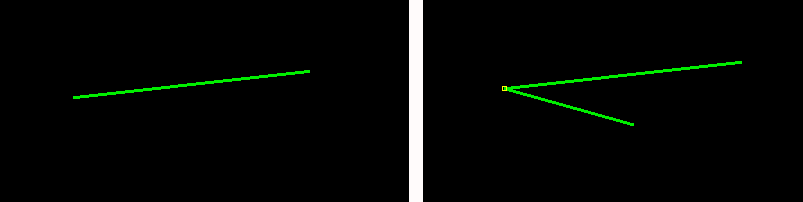
To extend (add to) an object
-
Select the object in the project explorer and using the
Select points mode , draw a box over a corner
of the object so that one point is selected. -
Right-click on the selected point and select Edit then
 Add
points.
Add
points. -
Pick a point to add from.
-
Click in the location for the new points.
-
To complete click
or press Enter or right-click.The object has new edges added to encompass the new points. Add plane