Setup Export
Use this option to setup shortcuts to run one or more commandline functions from a right-click menu. This can be used with points, objects, triangulations, and grids.
Instructions
On the Analyse menu, point to External Data, and then click Setup Export to display the External Export Command Setup panel.
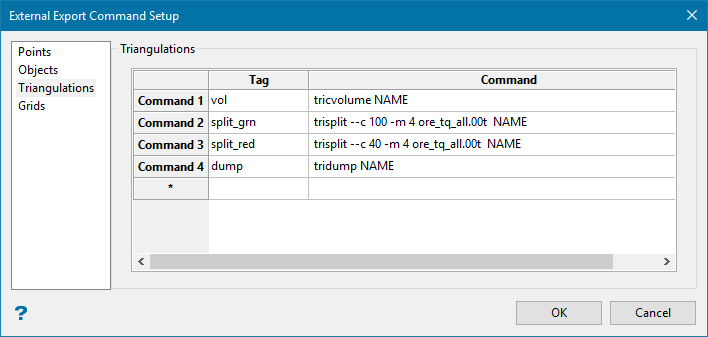
Figure 1 : An example setup for triangulations.
Begin by selecting the type of object on the left side of the panel that you want to associate a command with.
Note: The menu tree options for points, objects, triangulations, and grids all show the same input table.
Tag
Enter a name for the tag. The tag is like a label or title for a command. These will appear in the context menu that lists all available commands when executing the option. It will also appear as the tab label in the Report Window that shows the results of the operation.
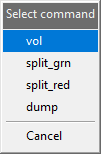
Figure 2 : The tags listed above in Figure 1 would appear in the submenu.
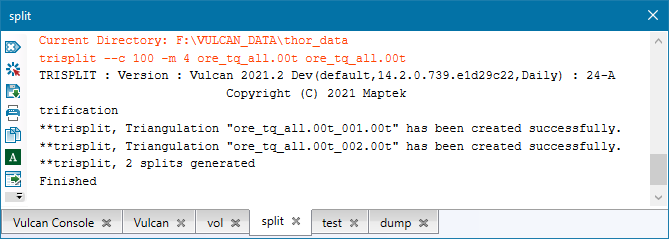
Figure 3 : They would also appear as tab labels in the Report Window showing the results of the completed command.
The split report tab shows the results of the command TRISPLIT with NAME selected as the parameter.
Next, either double-click in the Command column, or click  to access the Setup command panel.

Command
Enter the name of the external program you want to run, followed by any arguments that you want to pass to that function.
Note: See External Programs for information about the available commandline programs and their options.
You can also use Lava scripts as commands by using lavarunner.exe.
See Lava menu contents for more information on Lava scripts.
Example: lavarunner.exe lavaScript.lava
Parameters
Select the parameters you want to be reflected in the name of the output object.
Note: Each type of object will have a unique list of choices.
Execution options
These options control how the program will be run.
Run process with feedback
Select this option to see the process details as the program is running.
Direct output to
Select where you want the results to be displayed.
Run in shell
Select this option to open a shell window showing the run process and results.
Wait for completion
Select this option to delay displaying the results until after the entire process has completed.
Automatically close window
Select this option to allow the shell window to close automatically when the process has completed.
Run detached process
Select this option if you do not want to see any output results.
Running the program
After you have setup the parameters, right-click on the object and select Export To Command.
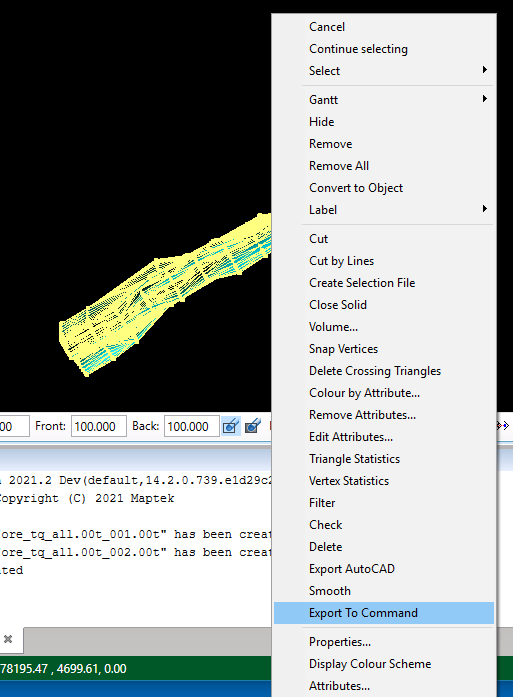
A submenu showing any commands that you have already setup will be displayed. Click on the command that you want to run to start the process.
The results will be shown based on the options you selected in the Execution Options section of the setup panel.

